





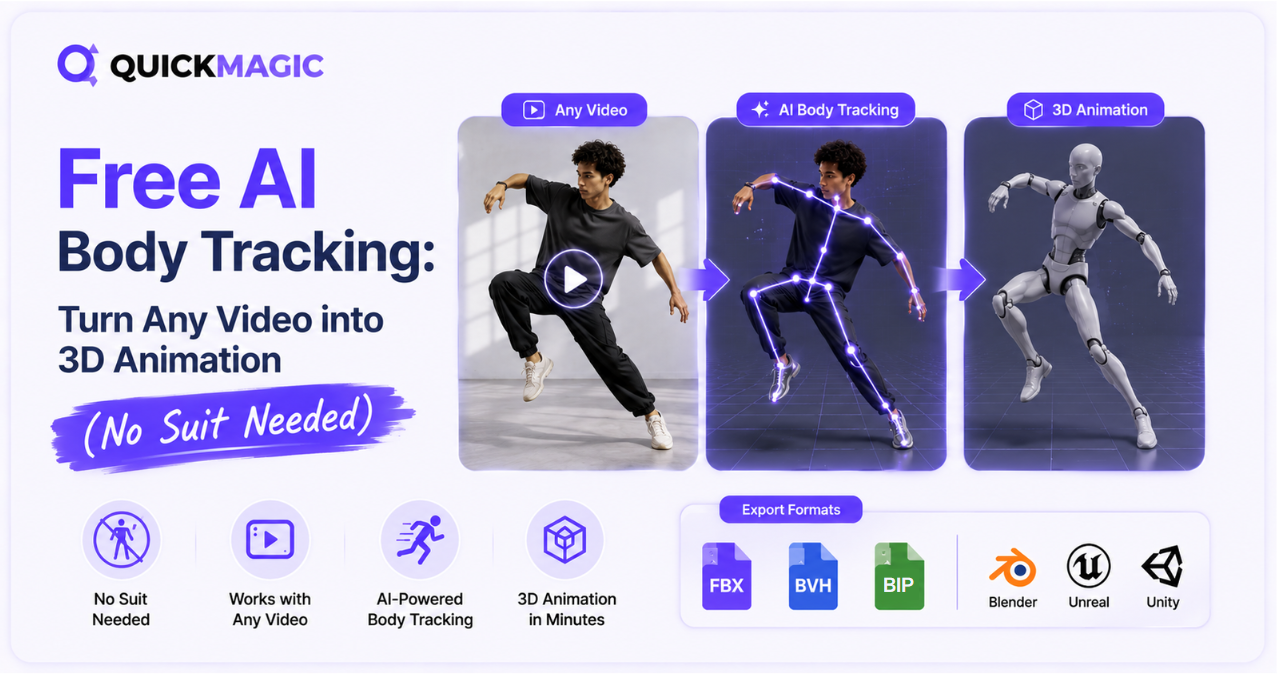
What Is AI Body Tracking?
AI body tracking is the process of using artificial intelligence — specifically computer vision and deep learning models — to detect and reconstruct human body movement from 2D video, then convert that movement into 3D skeletal animation data. Unlike traditional motion capture, which requires wearable sensors, reflective markers, or optical camera arrays, AI body tracking analyzes pixels in a standard video to estimate joint positions, limb angles, and body trajectories frame by frame.
The technology relies on pose estimation models trained on millions of human movement samples. These models identify key body landmarks — shoulders, elbows, wrists, hips, knees, ankles, and spine — and track their 3D positions across each frame. The result is a rigged skeletal animation that can be retargeted onto any 3D character.
Key distinction: body tracking AI focuses on torso and limb movement. Many modern tools, including QuickMagic, extend this to hand and finger tracking and facial expression capture, creating a complete performance capture pipeline from a single camera.
How Free AI Body Tracking Works
The process from video to 3D animation follows a predictable pipeline. Here's what happens under the hood:
Video Input
You upload a video recorded with any camera — a smartphone, webcam, or professional camera. The video can feature a single person or multiple subjects. Both static (tripod-mounted) and moving camera footage are supported by modern AI body tracking tools.
AI Pose Estimation
The AI model analyzes each frame to detect body landmarks. It maps 2D pixel positions to 3D joint coordinates, estimating depth and rotation even from a single-camera perspective. This is where deep learning does the heavy lifting — the model has been trained to recognize human poses across countless body types, clothing styles, and lighting conditions.
3D Skeleton Reconstruction
The detected landmarks are assembled into a 3D skeleton with proper joint hierarchy. The system calculates bone lengths, rotation angles, and global body position in 3D space. Advanced tools apply anti-penetration correction to prevent limbs from passing through each other unnaturally.
Motion Data Export
The reconstructed animation is converted into standard 3D animation file formats — FBX, BVH, BIP, VMD, and others — that can be imported into virtually any 3D software for retargeting, editing, and rendering.
Why Choose AI Body Tracking Over Traditional Mocap?
Traditional motion capture has been the industry standard for decades, but AI body tracking has fundamentally changed the economics and accessibility of animation. Here's how they compare:
| Feature | Traditional Mocap | AI Body Tracking |
|---|---|---|
| Hardware Required | Mocap suit, sensors, optical cameras, calibration tools | Any camera (phone, webcam, DSLR) |
| Setup Time | 30–60 minutes (suit fitting, calibration, camera positioning) | Under 1 minute (upload a video) |
| Cost | $10,000–$150,000+ for professional systems | Free to start (freemium models) |
| Studio Space | Dedicated capture volume with controlled lighting | Any location — living room, office, outdoors |
| Multi-Person Capture | Requires additional suits and sensors | Supported from a single video (tool-dependent) |
| Post-Processing | Real-time but requires cleanup in specialized software | AI-processed, then cleaned in standard 3D tools |
| Accessibility | Studios and well-funded teams | Anyone with a phone and internet connection |
The core advantage of body mocap without suit technology isn't just cost — it's accessibility. A solo indie developer, a VTuber, or a student with a laptop and a phone can now produce animation quality that previously required a dedicated mocap stage.
Full Body Motion Capture AI: What Can You Capture?
Modern full body motion capture AI systems can extract a surprising range of motion data from a single video. Here's what's possible:
Body Motion
Complete skeletal chain from head to toe — spine rotation, shoulder movement, arm swings, hip rotation, knee bends, and ankle articulation. Covers walking, running, dancing, fighting, sports, and more.
Hand & Finger Tracking
Wrist rotation, finger curl, individual finger joints, and hand poses. Critical for gestures, sign language, instrument playing, and detailed performance capture.
Facial Expression Capture
Brow movement, eye blinks, mouth shapes, jaw rotation, and cheek movement. Enables lip-sync animation, emotional expressions, and detailed facial performances.
Multi-Subject Tracking
Detect and track multiple people in the same video simultaneously, generating separate skeletal animations for each subject. Ideal for fight choreography and dance duets.
QuickMagic supports all four capture types — full-body, upper-body, hand, and facial — from a single video upload, with both single- and multi-subject tracking modes.
Body Mocap Without Suit: The QuickMagic Approach
QuickMagic is a free AI motion capture platform that converts video and text prompts into production-ready 3D animation data. It requires no sensors, suits, markers, or optical camera setup — you upload a video, and the AI extracts motion data you can export to your 3D pipeline.
What Makes QuickMagic Different
Several features distinguish QuickMagic in the free AI body tracking landscape:
- Single-camera, any camera. Works with footage from phones, webcams, or professional cameras. No multi-camera requirement, no green screen, no controlled lighting setup.
- 13+ export formats. Export to FBX, BVH, BIP, C4D, VMD, Mixamo, UE4, UE5.5, UE5.6, Character Creator & iClone, Roblox, OnlyFace, and UniRobot. Covers virtually every major 3D animation tool.
- Anti-penetration correction. Built-in intelligent correction prevents limbs from passing through each other — a common artifact in single-camera motion capture.
- Custom first-frame pose. Set a specific starting pose for the animation, useful for matching existing clips or establishing a character stance.
- Multi-frame-rate output. Support for 24, 30, 60, and 120 FPS output means your animation matches your project's frame rate without manual conversion.
- Text to Motion. Generate 3D animation from text prompts. Describe an action, pose, or performance, and the AI creates a motion draft — no video input required.
- Robotics and Embodied AI support. Export motion data in formats compatible with Unitree G1, H1, and H1_2 humanoid robots for robotics simulation and imitation learning.
Step-by-Step: How to Turn Video into 3D Animation
Here's a practical walkthrough of the AI body motion capture workflow using QuickMagic:
Record Your Video
Record a video of the performance you want to capture. For best results:
- Camera position: Place the camera at chest height, 2–3 meters away, capturing your full body with some margin around the edges.
- Lighting: Use even, diffused lighting from the front. Avoid harsh side lighting that creates deep shadows.
- Clothing: Wear fitted clothing that contrasts with your background. Avoid loose, flowing garments that obscure joint positions.
- Background: A clean, solid-color background works best. Avoid busy patterns.
- Frame rate: Shoot at 60 FPS or higher to minimize motion blur during fast movements.
- Start pose: Include 2–3 seconds of a T-pose or neutral standing position at the beginning to help the AI calibrate body proportions.
Upload to QuickMagic
Go to quickmagic.ai and upload your video. The platform accepts regular video footage from any camera source.
Configure Capture Settings
Select your capture mode:
- Full-body or upper-body tracking
- Single or multi-subject detection
- Static or moving camera mode
- Hand and facial tracking options (where applicable)
- Frame rate for output (24/30/60/120 FPS)
- Tracking mode: Static (fixed position) or global (full-body movement through space)
AI Processing
QuickMagic's AI analyzes your video, detects body landmarks frame by frame, and reconstructs a 3D skeletal animation with anti-penetration correction. Processing time depends on video length and complexity.
Preview and Export
Preview the generated animation. Once satisfied, export in your preferred format:
- FBX — Universal format for Blender, Maya, 3ds Max, Unity, Unreal Engine
- BVH — Motion capture standard for MotionBuilder and rigging tools
- VMD — MikuMikuDance format for MMD projects
- BIP — 3ds Max Biped format
- Mixamo — Adobe Mixamo-compatible output
- UE4 / UE5.5 / UE5.6 — Unreal Engine MetaHuman presets
- Roblox — Roblox-compatible animation
- UniRobot — Unitree robot motion format
Import and Retarget
Import the exported file into your 3D software of choice. Retarget the animation onto your character rig, clean up any jitter using smoothing filters, and render your final animation.
AI Body Motion Capture: Best Practices for Clean Results
The quality of your AI body tracking output depends heavily on the quality of your input video. Follow these practices to get the cleanest possible motion data:
1. Maximize Subject Visibility
Ensure the performer's full body is visible throughout. If a limb leaves the frame, the AI cannot track it, creating gaps. Frame your shot with margin.
2. Control Motion Blur
Shoot at 60 FPS+ with a fast shutter speed (1/120 or faster). Motion blur confuses AI trackers — the model can't see a joint that's a blur.
3. Minimize Occlusion
Occlusion happens when one body part hides another. Single-camera setups struggle with this. Choreograph movements to keep limbs visible when possible.
4. Use Proper Contrast
Wear fitted clothing that contrasts sharply with your background. Baggy clothing matching the background is the most common cause of tracking errors.
5. Keep the Camera Steady
Use a tripod for static camera mode. Camera shake introduces noise that appears as jitter. For moving shots, use QuickMagic's global tracking mode.
6. Clean Up in Post
Apply Gaussian smoothing or Butterworth filters, foot locking for planted frames, and manual keyframe adjustments. Cascadeur offers AI physics correction.
Comparing Free AI Body Tracking Tools
Several tools offer free AI body tracking capabilities. Here's how the major options compare:
| Tool | Free Tier | Capture Types | Export Formats | Best For |
|---|---|---|---|---|
| QuickMagic | Yes — core features | Full-body, upper-body, hand, facial | FBX, BVH, BIP, VMD, Mixamo, UE, Roblox, UniRobot (13+) | Best overall balance of cost, quality, and format support |
| DeepMotion | Yes — limited credits | Full-body, hand, facial | FBX, GLB, BVH, MP4 | Physics-based motion correction, API integration |
| Rokoko Vision | Yes — 15-sec clips | Full-body | FBX, BVH | Quick prototyping, Rokoko Studio ecosystem |
| Plask Motion | Yes — limited usage | Full-body | FBX, GLB | Browser-based workflow, rendering tools |
| RADiCAL | Yes — limited tier | Full-body, upper-body | FBX, BVH | Real-time capture, multi-person scenes |
| Move AI | No — paid only | Full-body, multi-camera | FBX, BVH, USD | Highest quality, professional production |
For budget-conscious creators: QuickMagic offers the best balance of cost and quality with 13+ export formats, multi-subject tracking, and anti-penetration correction. DeepMotion and Rokoko Vision are solid alternatives with different strengths.
For professional production: Move AI delivers the highest accuracy but requires a paid plan and multi-camera setup. Meshcapade offers top-tier quality with Unreal Engine plugins.
For real-time workflows: RADiCAL provides real-time browser-based capture, while QuickMagic and DeepMotion focus on post-processed video-to-animation.
Who Uses AI Body Tracking?
AI body tracking has applications across multiple industries and creative workflows:


