





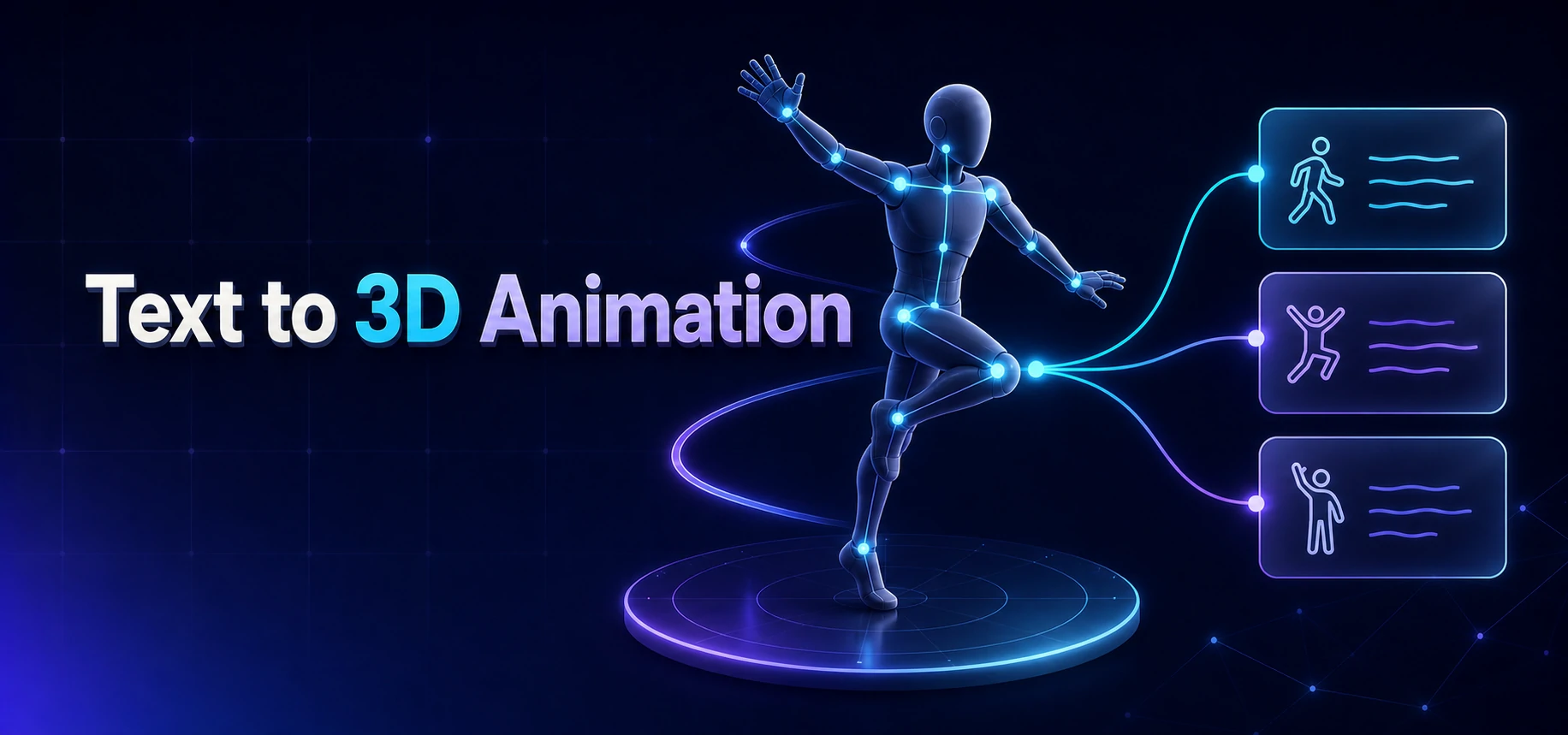
To make 3D animation from text, describe an action in an AI text-to-motion tool, generate and review the motion, export a compatible animation file, and retarget it onto a rigged character. QuickMagic provides a browser-based starting point. The result is a motion draft—not an automatically finished character, scene, or movie.
Product reference: QuickMagic Text to 3D Animation.
If you can imagine a character hesitating, greeting someone, or shifting its weight, you have enough to begin a motion brief. The challenge is turning that idea into a performance you can evaluate. This guide focuses on that full path, including the work that happens after generation.
What is text to 3D animation?
Text to 3D animation, also called AI text-to-motion, uses an action description to generate movement for a 3D skeleton. Think of the skeleton as a hierarchy of animated joints. A skinned character can follow those joints once the motion has been transferred to its rig.
This distinction matters when searching for a “text to animation AI” tool. Some tools produce video frames. Others create static 3D objects. In the workflow described here, the useful asset is motion that can be edited, reused on compatible characters, and viewed through different cameras.
A motion file does not automatically supply clothing, a detailed face, a room, lighting, or sound. It also does not guarantee prop contact or a seamless game-ready loop. Treat generation as a first animation pass, then make deliberate choices about performance and presentation.
Where this workflow is useful
- Game prototyping: test the feel of an idle, walk, turn, or reaction before investing in a final animation set.
- Character acting: explore variations in posture, effort, and gesture on a humanoid rig.
- Previsualization: block a short performance to check staging and shot length.
- Avatar content: develop a reusable gesture library, then adapt it to the proportions of the actual avatar.
Humanoid motion can also be a reference for simulation research. Animation plausibility, however, is not proof of physical feasibility or a safe robot control policy; simulation and application-specific validation remain separate tasks.
Text-to-motion or video-to-animation?
Start with text when you need to explore an action. Start with video when a particular performance is your reference. Neither route removes the need to inspect the result on your character.
| Decision | Text to 3D animation | Video to 3D animation |
|---|---|---|
| Input | A written movement brief | A recorded performance |
| Useful when | You are exploring an imagined action or alternate performance | You want a specific performance to guide the motion |
| Main uncertainty | How the model interprets your description | What movement can be inferred from the footage |
| Refinement | Clarify the brief, regenerate, then edit | Improve the take or solve, then edit |
| Shared finishing work | Rig mapping, timing, contact cleanup, transitions, and delivery checks | |
A practical hybrid is to generate a placeholder gesture from text, test it in a scene, and later replace a key performance with a recorded take. Keep both on the same target rig and timing convention so they can be compared and blended.
Have footage already? Read the companion guide: How to Make 3D Animation from Video: The Complete Guide.
Before you start: prepare the destination
You need an account with access to QuickMagic's text tool, an action to describe, and a receiving application if you plan to use the motion beyond its preview. A rigged character is the important additional asset: an unrigged mesh cannot perform an imported skeleton animation by itself.
Choose your first delivery target early. A looping game idle, a cinematic shot, and a motion-reference experiment have different acceptance tests. For a game idle, you might need a stable root and a clean loop boundary. For a shot, a convincing silhouette from the final camera may matter more.
- Decide whether the character should travel through space or animate in place.
- Pick the character and confirm that you have permission to use it.
- Check which file types your import and retargeting setup accepts.
- Keep a folder for prompts, original exports, retargeted clips, and finished versions.
Check the live Text to Motion plan comparison before committing. It currently lists FBX on Free and additional exports on paid tiers; commercial-use permission is not included on Free. Video upload limits are not text-generation limits.
How to write prompts for usable 3D motion
Write like a director explaining an action to a performer. “Be heroic” is a mood, but it leaves the movement undefined. “Stand upright, lift the chest, plant both feet, and raise the right fist” gives you visible decisions to judge.
You do not need every element in every prompt. Add a detail when it changes what the body should do. A short, coherent brief is easier to revise than a list of competing instructions.
| Broad idea | More useful movement brief | What to inspect |
|---|---|---|
| Walk confidently | A person walks forward with an upright torso and steady strides, then stops with both feet planted. | Posture, travel direction, and the stop |
| Look tired | A person stands with lowered shoulders, slowly shifts weight onto the left leg, and lets both arms hang. | Weight shift and relaxed arm position |
| Dance | A dancer steps to the right, brings the left foot alongside, and pauses with both hands on the hips. | Step order and the final pose |
| Celebrate | A person makes a small upward jump, lands on both feet, and raises both arms overhead. | Landing, balance, and the arm transition |
Keep one clip focused on one idea
A long paragraph about running through a doorway, dodging an obstacle, retrieving a prop, and waving asks the draft to solve several transitions at once. Start with a single action. Build the larger sequence from shorter clips and control their transitions in your editor.
Translate emotion into body mechanics
Pair a feeling with something observable: cautious can mean small steps and a lowered center of mass; confident can mean an open chest and a deliberate pace. Avoid contradictory directions such as “relaxed and completely rigid” unless the contrast is tied to different body parts.
Specify intent without assuming exact control
Counts, left/right labels, and ending poses are useful instructions, not guarantees of frame-accurate execution. If the character must touch a handle on a specific frame, plan to solve the precise hand placement after retargeting. A prompt cannot replace scene-aware contact work.
Change one variable per revision
Keep the baseline prompt and alter just the missing quality: slower travel, a smaller gesture, or a different ending. Compare candidates with the same preview settings. Record what improved so the next revision is based on a visible difference rather than guesswork.
Six text-to-animation prompts to try
These are starting briefs, not verified QuickMagic output samples. Simplify them if the generated draft merges actions or loses the intended sequence.
1. A restrained idle
A person stands with feet shoulder-width apart, makes a gentle weight shift from one leg to the other, and settles into a relaxed upright stance with arms at the sides.
Use for: a prototype idle. Check the loop seam separately.2. A readable greeting
A person stays in place, lifts the right forearm, waves the right hand twice at shoulder height, then lowers the arm and returns to a relaxed stance.
Use for: a greeting gesture. Inspect hand detail on the destination rig.3. A cautious walk
A person walks forward slowly with short steps, slightly bent knees, and a lowered torso, then stops and holds still.
Use for: a cautious approach. Check that the torso does not collapse.4. A quick reaction
A person takes one quick step backward, raises both forearms in front of the chest, then regains balance with both feet planted.
Use for: a startled reaction. Check balance during the recovery.5. A controlled kick
A person shifts weight onto the left leg, lifts the right knee, extends the right leg into a forward kick, then places the right foot down and returns to an upright stance.
Use for: an action draft. Check the support foot and leg extension.6. A small bow
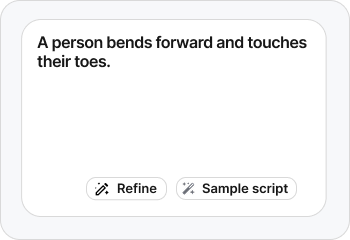
A person stands upright with both feet planted, bends the upper body forward into a small respectful bow, pauses briefly, and returns to the starting stance.
Use for: a short character performance. Check the return pose.For complex stunts, begin with the simplest meaningful phase, such as takeoff or recovery. A convincing-looking generated jump still needs close inspection of balance, joint limits, and contact; do not assume physical accuracy from the preview.
Watch: QuickMagic text-to-motion demonstration
This official product clip illustrates the text-to-motion workflow. Use it as an overview of the feature, not as a guarantee that every prompt produces the same quality or exposes identical controls.
This browser could not play the included video. Watch the demonstration on QuickMagic.
What to take from the demo: the written action is an input to motion generation. Your production test is whether the resulting performance can be imported, transferred to your character, and refined to meet the scene's needs.
Step by step: make 3D animation from text
- 01 · BRIEFWrite one clear action
- 02 · SET UPCheck settings and exports
- 03 · GENERATEInspect the motion draft
- 04 · SELECTRevise or keep a candidate
- 05 · TRANSFERExport and retarget
- 06 · FINISHPolish and deliver
1. Write one clear action prompt
Open QuickMagic Text to 3D Animation and enter a focused movement description. Start with a short greeting, bow, or weight shift. A simple test reveals how the generated skeleton and your target rig work together before you spend time on a larger sequence.
Save the exact prompt alongside the result. A filename such as greeting_right_v01 is more useful than “final2” when you are comparing direction, timing, and expression across several candidates.
2. Set up a small test
Inspect the options available in your current workspace. If it offers character, starting-pose, timing, or correction controls, select them for the intended result and keep them consistent across prompt tests. Do not assume that a control shown in a video-mocap tutorial also applies to text generation.
Set a project frame-rate convention in your receiving software. Preserve the animation's duration when importing or resampling: changing playback FPS without adjusting the timing can make the performance appear faster or slower. More samples alone do not fix weak poses or contact.
3. Generate and inspect the draft
Review the whole clip at normal speed first. Ask whether the action reads clearly before judging fine detail. Then scrub the frames around turns, landings, and changes of direction. Those transitions often reveal problems that a quick playback hides.
- Intent: is this the requested action, limb, and direction?
- Continuity: do the torso and limbs move without abrupt jumps?
- Weight: does the body shift over the supporting foot?
- Contact: do planted feet remain convincing?
- Ending: can the last pose connect to the next action?
4. Revise the prompt—or keep the best candidate
Regenerate when the central action is missing. Narrow the prompt if it produces unrelated gestures, or describe the support leg if a balance change is ambiguous. Do not add environmental adjectives when the missing information concerns how the body moves.
Once a candidate has the right intent and useful timing, export it for a character test. A small wrist adjustment or a short foot slide may be easier to fix with keyframes than with repeated generation. Keep the unedited export so you can return to it later.
5. Export and retarget the motion
Choose an available format that your destination tool handles well. Import into a clean test scene and play the source motion before retargeting. If it is already wrong on the source skeleton, changing the target mapping will not repair the underlying action.
Next, align the source and target reference poses, map the major limbs and spine, and check scale and facing direction. Retargeting transfers the performance between rigs; it is not simply renaming bones. Bake the transferred result when your toolchain needs independent animation keys.
6. Polish and deliver the animation
Fix major problems before small ones: overall root travel, pelvis height, support contacts, limb arcs, then fingers and secondary motion. Review the silhouette from your final camera as well as an orthographic side view. A correction that looks good from one angle may hide a collision from another.
For a game clip, test loops, transitions, and root-motion behavior in the actual runtime. For a rendered shot, add your scene, materials, camera, lighting, and sound. Render a lightweight preview before the full-quality output, and reopen the exported deliverable to confirm it plays correctly.
Which export format should you choose?
Choose for the receiving pipeline, not the filename alone. Export presets, skeleton definitions, and importer behavior matter alongside format compatibility. Test one short clip all the way through before processing a large set.
| Format | Practical use | Check before relying on it |
|---|---|---|
| FBX | A common starting point for Blender, Maya, Unity, and Unreal character pipelines | Animation import, source skeleton, axes, scale, and rig mapping |
| BVH | Skeleton-and-motion workflows, including compatible Blender and research tools | Importer availability, hierarchy, rotation conventions, and retargeting |
| BIP | 3ds Max Character Studio Biped workflows | A suitable Biped setup; it is not a generic replacement for FBX |
| VMD | MikuMikuDance motion workflows | Current text-export availability and model-specific bone compatibility |
Text-export availability: the current pricing table lists FBX on Free; paid Text to Motion rows add BIP, C4D, BVH, Unreal, Mixamo, Unity Anim, and CC&iClone. The text product page mentions VMD, but that pricing row does not. Confirm VMD in your export dialog rather than assuming it is included.
References: QuickMagic plan comparison and text-to-animation product page. Availability checked October 10, 2026.
Import the animation into your 3D software
The generated clip and the final character are separate assets. First verify that the clip plays on its own skeleton; then solve the transfer. Exact menus and retargeting tools vary by application version and rig.
Blender
Import the FBX with animation enabled and inspect the armature and its animation data. Select the imported action if necessary, and confirm the scene range includes it. Use your chosen retargeting setup to transfer the movement to the destination rig, then bake and inspect the result. For BVH, first confirm the relevant importer is available in your Blender installation.
Reference: Blender FBX documentation.
Unreal Engine
Bring in the source animation with a compatible skeleton. When transferring to a different character, use source and target IK Rigs, map their retarget chains in an IK Retargeter, and align the retarget poses. Preview the feet, hips, and arms before exporting the retargeted Animation Sequence. Test movement on the target rather than assuming that every humanoid shares one skeleton.
Reference: Epic Games: IK Rig animation retargeting.
Unity
For a suitable human skeleton, choose the Humanoid rig type and verify the Avatar's bone mapping. Enable animation import, set the clip range, and check root-transform and loop settings before using the clip through an Animator. Use a Generic setup when the skeleton does not fit the Humanoid system; the same automatic humanoid transfer assumptions will not apply.
Reference:


