





LEARNING / VIDEO MOCAP / TUTORIAL
How to Capture Multiple People in Video Mocap
Upload a video with multiple people — QuickMagic automatically detects and boxes each person, so you can assign an output format to each of them and capture everyone in one go.
Overview
QuickMagic's video mocap now supports multi-person capture. When your uploaded video contains multiple people, the system automatically detects each person and outlines them with selection boxes. Simply drag an output format onto a person's box to bind them — capture a single person or multiple people at once.
- Automatic detection: every person in the video is detected and boxed individually
- Format per person: drag a format card from the right panel onto a person's box to bind that skeleton format to them
- Single or multi capture: assign a format to one person for single capture, or to several people for multi capture
- Formation preservation: multi-person capture preserves roughly 70%–85% of the formation/positioning from the reference video — great for group dances, fight scenes, and more
Steps
Step 1: Upload Your Video
Open Video to Mocap and upload a video containing multiple people.
Step 2: Confirm the Detection
The system automatically detects every person in the video and outlines each with a selection box in the preview. Verify the count is correct before continuing.
Step 3: Assign an Output Format to the People
In the right panel, pick a format (e.g. Mixamo, Unreal 5.6-5.8, Girl FBX, SMPL) and drag the format card onto the corresponding person's box. Note: only one format can be specified per task — when the card is dragged onto multiple people, they all share the same format. For other formats, submit a new generation task, or convert the result after the current task completes.
- Assign a format to one person → single-person capture
- Assign the format to multiple people → multi-person capture (all share this format)
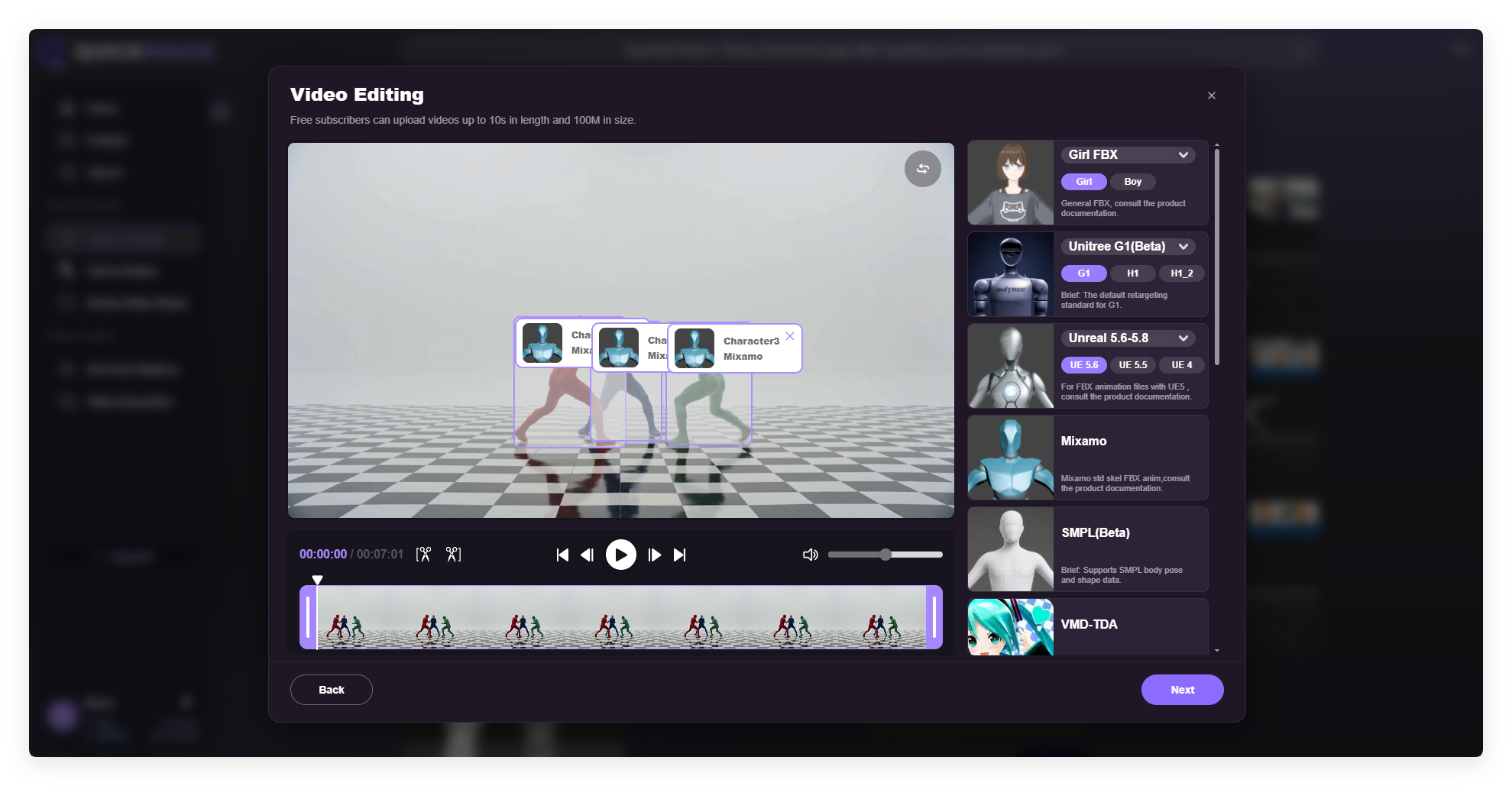
Each person in the video is auto-boxed — drag a format card from the right panel onto the corresponding box
Step 4: Start Capture and Wait
Click Next to start processing. Multi-person capture requires more computation, so it takes a bit longer than single-person capture — please be patient.
Step 5: Preview and Export
Once processing is complete, preview each person's motion and export the corresponding animation files.
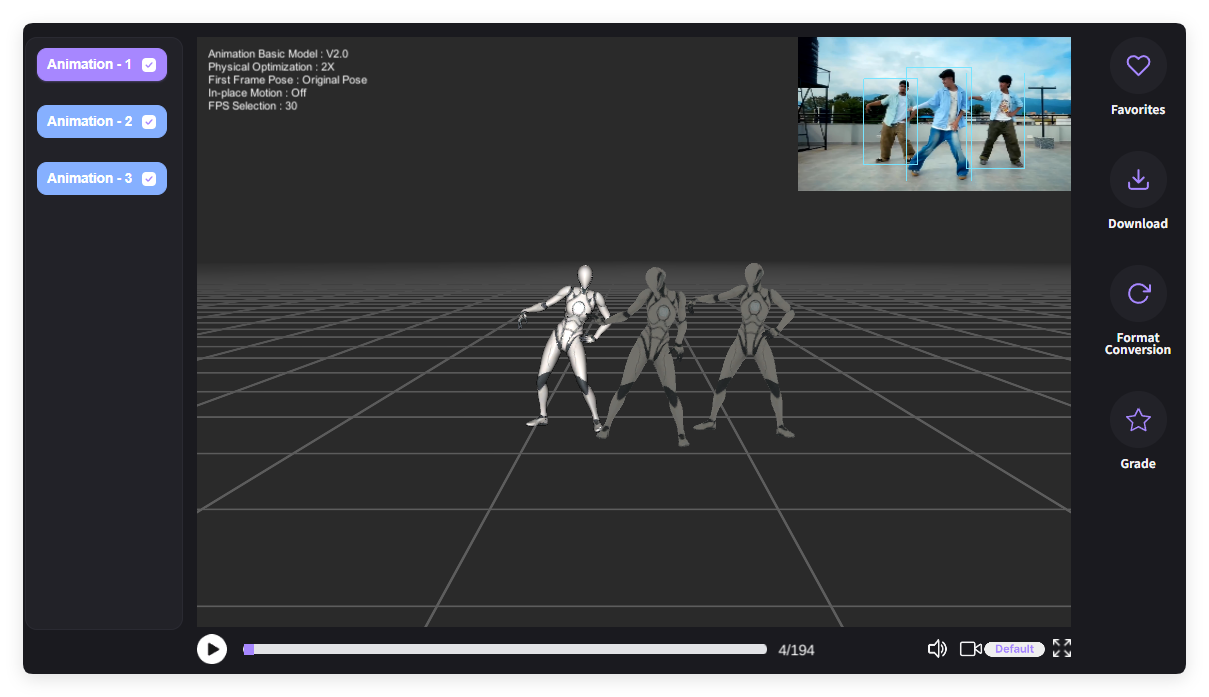
Result preview: each person gets an independent animation (Animation-1 / 2 / 3), with the original video in the top-right corner
Capture Capacity by Plan
Multi-person capture is a membership feature — the maximum number of people depends on your plan. All video mocap formats support multi-person capture.
Shooting & Upload Tips
- Avoid heavy occlusion: try not to let people block each other for long periods — it affects detection and capture accuracy
- Keep full bodies in frame: make sure each person's whole body stays visible and doesn't walk off the edge
- Even lighting: well-lit footage with clear contrast between people and background detects better
- Longer processing is normal: the more people, the longer the processing time
Notes
- All people in one task share a single format; for other formats, submit a new task or convert the result after completion
- Formation accuracy is roughly 70%–85% of the reference video — for scenes requiring precise positioning, fine-tune in your DCC after export
- The capture capacity is capped by your plan; people beyond the limit cannot be assigned a format
- Captured results can be imported into Motion Editor for further refinement (insert/delete frames, replace actions, smooth transitions, and more)
QuickMagic Learning · Video Mocap Tutorial


