





How to Fix Limb Intersections in AI Mocap with Mesh Penetration Prevention
This guide explains QuickMagic's Mesh Penetration Prevention feature — what it does, where to enable it, and its current limitations.
Overview: Penetration in First-Pass AI Mocap
When QuickMagic solves motion from video, factors such as camera angle, body occlusion, and overlapping poses can leave visible artifacts in the raw animation — most commonly arm crossing and limbs passing through each other or through the body, a problem animators call penetration, clipping, or intersection.
Fixing these frames manually is time-consuming: animators scrub through the timeline, locate every intersecting frame, and adjust poses one by one, which can take hours on a single shot.
To solve this, we developed Mesh Penetration Prevention — an optional, opt-in feature, off by default. When you enable it, the system automatically detects the penetration segments in the first-pass motion and corrects them for you.
What Is Mesh Penetration Prevention?
Mesh Penetration Prevention is our post-processing step that runs after the first-pass motion solve. When enabled, the system performs a full-range scan of the generated motion, automatically identifies segments where bones intersect or limbs penetrate, and adjusts the pose to eliminate the penetration — without any manual marking.
| Item | Details |
|---|---|
| Default state | Off. Opt-in — enable it when you need it. |
| Switch | OFF / ON toggle for Mesh Penetration Prevention in the Advanced Features section of the Motion Generation page. The ON state currently carries a Beta label. |
| Detection | Fully automatic, full-range scan of the entire motion. No manual marking needed. |
| Correction | Targeted pose adjustment on the affected segments only. |
| Output | Exports to Girl & Boy, Mixamo, UE5.5, UE5.6–UE5.8, UE4, Character Creator & iClone, C4D, Unity Anim, and Warudo Anim (availability varies by plan and workflow). |
Feature Location & Notice
Find the Mesh Penetration Prevention switch in the Advanced Features section of the Motion Generation page. It is OFF by default.
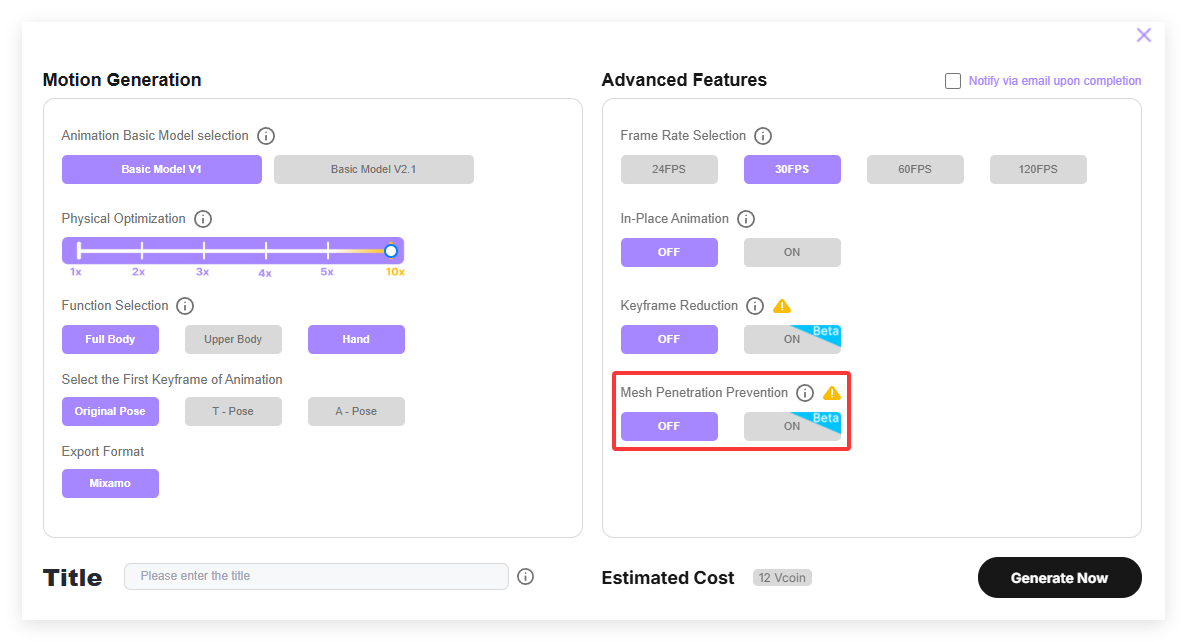
Click the ⓘ icon next to Mesh Penetration Prevention to open the feature notice:
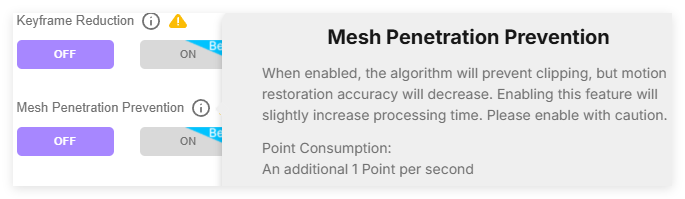
When enabled, the algorithm will prevent clipping, but motion restoration accuracy will decrease. Enabling this feature will slightly increase processing time. Please enable with caution.
Point Consumption: An additional 1 Point per second
How It Works
- First-pass motion solve. QuickMagic estimates body, hand, and facial motion from your video and generates the raw animation.
- Enable Mesh Penetration Prevention. Find the feature switch on the feature page and toggle it from OFF to ON. Once enabled, the system enters an automatic anti-penetration workflow — nothing changes in your normal pipeline until you turn the switch on.
- Full-range auto detection. The system scans the first-pass motion and automatically identifies segments with skeleton intersections or limb penetration regions.
- Targeted pose correction. Only the affected segments are adjusted. The algorithm repositions bones to resolve each penetration as much as possible, so penetrated parts no longer penetrate, while keeping the rest of the motion intact.
- Preview and download. Review the corrected result, then download the file to your local machine.
What You Get
- Fully automatic once enabled. No need to mark penetration areas, define regions, or tune parameters — the system detects and fixes intersections on its own.
- Automatic detection and correction of limb intersections. Identifies skeleton intersections and limb penetration across the full motion, then corrects the affected poses.
- Better visual quality. Cleaner, more natural-looking motion that reads correctly on screen — useful for previews, pitches, and asset libraries.
- Less manual cleanup work. Reduces the repetitive, frame-by-frame intersection repair that animators previously had to do by hand.
Current Limitations
Mesh Penetration Prevention works by algorithmically adjusting bone poses — it is not a perfect re-performance of the motion. Please read the current limitations carefully before relying on it for a shot.
- Possible slight deformation, pose offset, or motion distortion. Because correction actively adjusts bone positions, some repaired motions may show minor pose offset or motion distortion. Most fixes are subtle, but the effect varies from shot to shot.
- High-difficulty close-range interactions are more affected. Motions with tight, close-contact limb interaction — such as hugging, hand-clasping, or limbs pressed against the body — are more likely to show distortion after correction, because the original poses are inherently ambiguous in the source video.
How to Use
- Upload your video and select a supported format. Upload the video and choose a format that supports Mesh Penetration Prevention.
- Find and enable Mesh Penetration Prevention. On the feature page, locate the OFF/ON toggle and switch it to ON.
- Submit the task and wait for processing. Once submitted, the system automatically scans the first-pass result and repairs any penetration it detects.
- Preview the motion. Check the corrected motion in the viewer to verify the repair.
- Download to your local machine. If the result meets your expectations, download the file to your local machine.
FAQ
Is Mesh Penetration Prevention enabled by default?
No. It is off by default. You enable it on the feature page when you need it.
Do I need to mark the penetration areas manually?
No. Once enabled, detection is fully automatic and runs across the entire motion. There is no manual marking, region selection, or parameter tuning required.
Will the feature change my original motion?
Only on segments where penetration is detected. The algorithm adjusts bone poses to resolve intersections, so corrected segments may differ slightly from the raw solve. In most cases the change is subtle; in high-difficulty close-range interactions, you may notice slight pose offset or motion distortion — preview and compare before delivery.
Which motions are most likely to show pose distortion?
High-difficulty close-range interactions — hugging, hand-clasping, limbs pressed against the body, or poses where limbs overlap heavily in the source video. These are inherently ambiguous in the footage, so the corrected pose is more likely to deviate from the original performance.
Does the feature affect export formats?
No. The corrected motion exports exactly like any other QuickMagic motion — Girl & Boy, Mixamo, UE5.5, UE5.6–UE5.8, UE4, Character Creator & iClone, C4D, Unity Anim, and Warudo Anim. Export availability varies by plan and workflow.
Will pose distortion keep improving?
Yes. We continuously iterate on the algorithm.


