





How to Use SMPL Format Motion Capture in QuickMagic
QuickMagic now supports SMPL as an output format for AI motion capture. Upload your video, select the SMPL format, and get production-ready human pose data as an npz file. This guide walks you through capture and usage, step by step.
Overview: SMPL Output Now Available
We are excited to announce that SMPL format motion capture is now live on QuickMagic. When you capture motion from a video, you can now select SMPL as your output format, alongside our existing export options.
SMPL (Skinned Multi-Person Linear Model) is the most widely used parametric 3D human body model in research and industry. Choosing SMPL output means your captured motion is delivered as standard SMPL parameters — ready for computer vision research, 3D reconstruction pipelines, game development, and any workflow built on the SMPL ecosystem.
Your captured result is delivered as a single .npz file containing per-frame SMPL pose and shape parameters.
How to Capture: Get Your SMPL File
- Upload your video. On the Motion Generation page, upload the video you want to capture motion from.
- Select the SMPL format. In the output format options, choose SMPL.
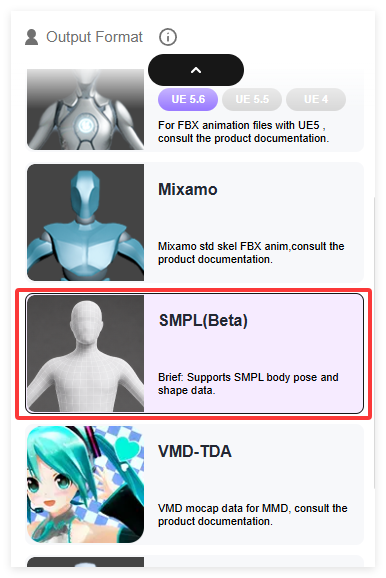
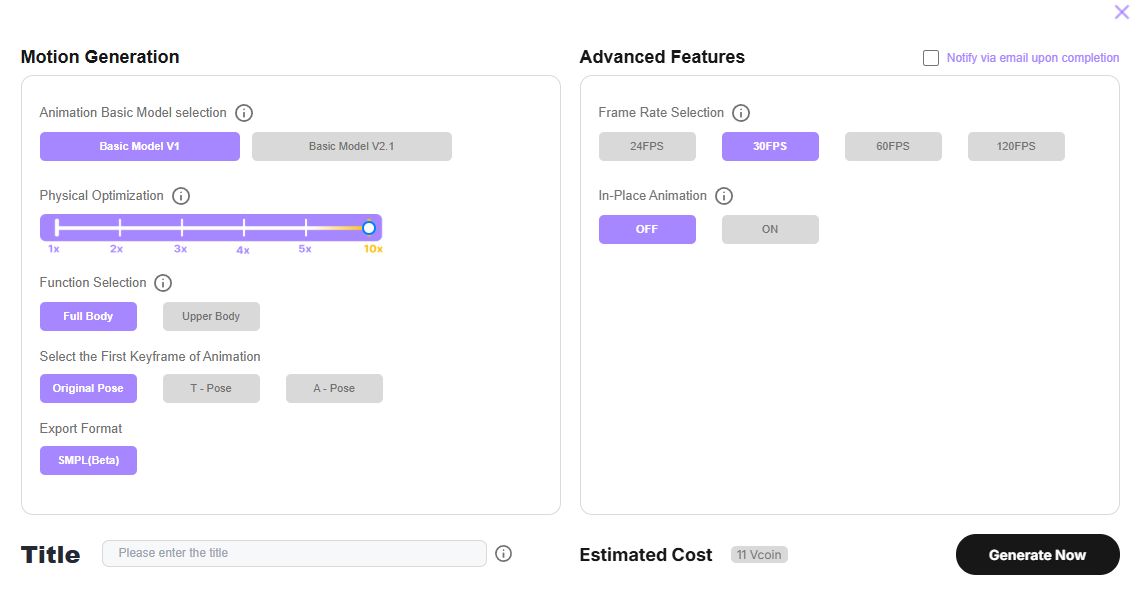
- Submit the task and wait for processing. Our AI solves body motion from your video and converts it into standard SMPL parameters.
- Preview the motion. Check the captured result in the viewer.
- Download the npz file. If the result meets your expectations, download the .npz file to your local machine.
What Is Inside the npz File
The npz file you download contains four NumPy arrays — the standard SMPL parameter set:
| Key | Description | Shape |
|---|---|---|
global_orient | Global body orientation (axis-angle) | (frames, 3) |
body_pose | Body joint rotations — 23 joints in axis-angle form | (frames, 69) |
transl | Root translation in world space (meters) | (frames, 3) |
betas | Body shape parameters | (frames, 10) |
numpy.load() — no file conversion is required. How to Use Your SMPL npz File
Step 1: Download the SMPL Model
- Register at https://smpl.is.tue.mpg.de/register.php and agree to the license agreement (free for academic research).
- Log in with your account. Access may require email confirmation and is not activated instantly.
- Go to the download page: https://smpl.is.tue.mpg.de/download.php (or click "Downloads" in the top menu).
- Download SMPL for Python and unzip it. You will find:
SMPL_NEUTRAL.pkl(gender neutral — this one is enough)SMPL_MALE.pkl/SMPL_FEMALE.pkl(optional)
Step 2: Set Up the Python Environment
After installing Anaconda, open a terminal and run:
conda create -n smpl_env python=3.9 -y
conda activate smpl_env
pip install torch
pip install smplx
pip install trimesh chumpyModuleNotFoundError: No module named 'chumpy'. If chumpy conflicts with a newer NumPy version, run pip install "numpy<1.24" first, then install chumpy. Step 3: Organize Your Folder
your_work_folder/
├── your_mocap.npz           <- the npz file downloaded from QuickMagic
├── smpl_models/
│   └── smpl/
│       └── SMPL_NEUTRAL.pkl <- the model from Step 1
└── run_smpl.py              <- the script from Step 4
Step 4: Run the Script and Generate the 3D Body
Create a file named run_smpl.py with the following content:
import numpy as np
import torch
import smplx
import trimesh
import os

# 1. Load your npz data
data = np.load("your_mocap.npz")
num_frames = len(data["transl"])
print(f"Total frames: {num_frames}")

# 2. Load the SMPL model
model = smplx.create(
    model_path="smpl_models/",
    model_type="smpl",
    gender="neutral",
    batch_size=num_frames
)

# 3. Feed in the pose parameters to compute the body mesh
output = model(
    global_orient=torch.tensor(data["global_orient"], dtype=torch.float32),
    body_pose=torch.tensor(data["body_pose"], dtype=torch.float32),
    transl=torch.tensor(data["transl"], dtype=torch.float32),
    betas=torch.tensor(data["betas"], dtype=torch.float32),
)

vertices = output.vertices.detach().numpy()  # (frames, 6890, 3)
faces = model.faces

# 4. Export each frame as an obj file
os.makedirs("output_meshes", exist_ok=True)
for i in range(num_frames):
    mesh = trimesh.Trimesh(vertices=vertices[i], faces=faces)
    mesh.export(f"output_meshes/frame_{i:04d}.obj")

print("Done! All frames exported to the output_meshes/ folder.")
Then run:
python run_smpl.pyOnce finished, the output_meshes/ folder will contain one obj file per frame.
Step 5: View the 3D Results
- MeshLab (free): double-click any obj file to view a single frame.
- Blender (free): File → Import → Wavefront (.obj); enable sequence import to load all frames and play the animation.
- Windows 3D Viewer: double-click an obj file directly.
FAQ
Do I need to convert the npz file to another format (e.g., pkl) first?
No. The npz file is read directly with numpy.load(). No conversion is needed.
Do I need to train SMPL myself?
No. SMPL is a pre-trained parametric body model. You simply load the official model file and feed in the parameters from your npz file to generate the 3D body mesh.
Why do I get "ModuleNotFoundError: No module named 'chumpy'"?
The official SMPL .pkl model files depend on the chumpy library. Run pip install chumpy. If it conflicts with your NumPy version, run pip install "numpy<1.24" first, then install chumpy.
Why do I get "ModuleNotFoundError: No module named 'smplx'"?
You forgot to activate the environment. Run conda activate smpl_env first.
The body position or orientation looks strange. Is something wrong?
Usually not. The position and orientation are fully determined by the transl and global_orient parameters, and the unit is meters. This is expected behavior.


