





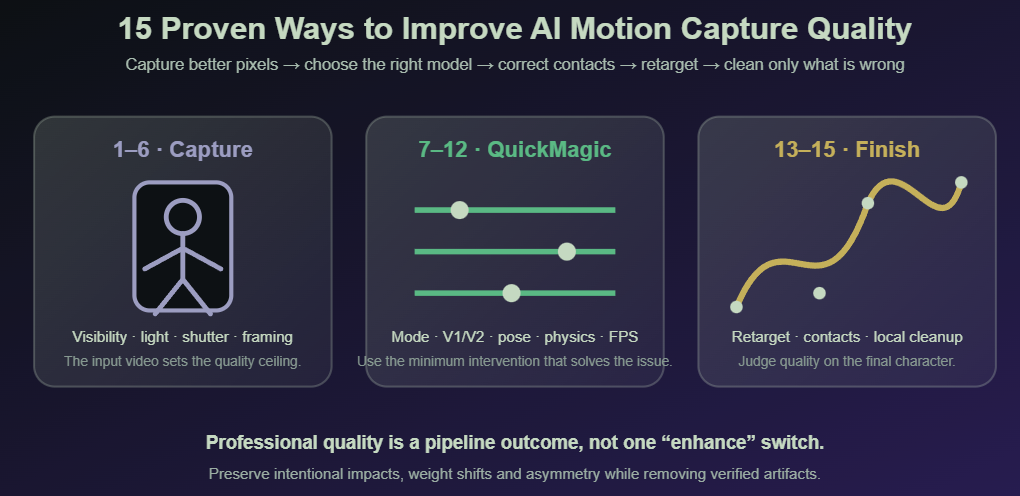
Source Video · QuickMagic · Retargeting · Cleanup
How to Improve AI Motion Capture Quality: 15 Proven QuickMagic Tips
Improve markerless motion capture from the source video through final delivery: record trackable footage, choose the correct capture mode and V1/V2 base model, tune Physics Optimization 2.0, correct visible tracking errors, retarget accurately, lock contacts and clean only the curves that are actually noisy.

Current QuickMagic facts
Capture-quality and cleanup videos
Stable Full-Body Animation with QuickMagic AI Markerless MoCap
Shows source-footage and generation choices for producing a stable full-body result.
Open video on YouTubeVideo AI MoCap to Game-Ready Animation: QuickMagic Cleanup Workflow
Demonstrates downstream cleanup and preparation of QuickMagic motion for a game-ready asset.
Open video on YouTubeTips 1–6: Capture better source evidence

1Use a level, stable camera at a practical height
For full-body capture, begin with a locked-off camera roughly around the performer's mid-torso or chest height, then adjust to keep perspective distortion low. A slight three-quarter view can separate overlapping limbs, while extreme high, low or tilted angles make body proportions harder to infer.
2Keep every required body part inside a safety margin
Full-body motion needs the head, hands and feet. Upper-body motion still needs the hands if gestures matter. Leave extra space around jumps, kicks, rolls and traveling actions rather than framing only the opening pose.
3Prioritize subject pixels, not only nominal resolution

1080p is a strong practical starting point, but a distant performer in a 4K frame can contain less usable joint detail than a sharp, correctly framed 1080p subject. Hands and faces need closer framing than broad body motion.
4Use enough light and shutter speed to control motion blur
Fast punches, spins, jumps and feet can smear even in high-resolution video. Add light, use a faster shutter when possible and avoid heavy low-light denoising. Higher output FPS cannot recover detail that was blurred in the source.
5Create clear silhouette and clothing contrast
Use clothing that reveals limb direction and differs from the background. Avoid long coats, loose skirts, reflective fabric and hair that continuously hides the neck, shoulders or face. A simple background helps, but subject separation matters more than a specific wall color.
6Control occlusion, overlap and source timing
Avoid prolonged crossed limbs, furniture blocking the knees or feet and multiple performers overlapping. Upload the original camera file. When a phone's variable-frame-rate recording causes duration or audio problems, create a constant-frame-rate mezzanine before processing.
Tips 7–12: Use the correct QuickMagic workflow
7Choose capture scope from what the video actually shows

Use Full Body when legs, feet and global travel matter; Upper Body for torso, head and arm gestures; and hand or face options only when those details are sufficiently visible. Do not ask a full-body workflow to invent a lower body from a tight close-up.
8Use V1.0 for standard action and V2.0 Beta for complex dynamics
V1.0 is the stable general-purpose choice for walking, ordinary acting and dance. V2.0 Beta is intended for climbing, stairs, slopes, crawling, rolling, jumps, falls, rapid balance changes and brief partial occlusion. V2 prediction is a continuity aid, not proof of the performer's exact invisible pose.
9Match Original, T-Pose or A-Pose to the target retargeter
A reference-pose mismatch can look like poor capture: shoulders rise, wrists twist and the pelvis tilts. Correct the source/target neutral pose before filtering animation curves.
10Use the minimum necessary Physics Optimization 2.0

QuickMagic's changelog describes low multipliers as preserving more motion accuracy and amplitude, while high multipliers increase smoothness and reduce amplitude. Start at 1×–2× for impacts and expressive motion, then increase only when a visible artifact justifies it.
11Use 2D Refinement for wrong observations, not final rig problems
Paid plans currently list 2D Refinement. Correct visibly misplaced body keypoints, left/right identity errors and contact labels in the source video, save the changes and regenerate. Do not use source correction to compensate for a target character's bad skin weights or mismatched proportions.
12Set FPS, root behavior and target preset deliberately
Match the animation rate to the delivery pipeline, choose traveling or in-place motion before foot cleanup, and use the most specific target preset available. Two FBX files can use different bone names, hierarchies and reference poses.
Tips 13–15: Finish the animation on the real target

13Retarget before judging foot sliding and body proportions
Align the source and target poses, map the root/pelvis and limb chains, and verify target scale and stride. Different leg lengths can introduce foot sliding even when the QuickMagic source is clean.
14Establish contacts before smoothing or key reduction
Correct root speed first, then lock feet or hands only during real contact intervals. Blend into and out of IK locks. Unreal Engine's Speed Planting workflow similarly uses animation curves to determine when IK goals should be pinned during retargeting.
15Apply local cleanup and physics assistance—not global flattening
Blender's Graph Editor provides detailed F-Curve editing and smoothing; select only noisy channels and ranges. Cascadeur AutoPhysics can suggest a more physically accurate version, but it remains an assistive tool: define contacts, review center of mass and preserve the performance intent before applying the result.
Problem-to-fix matrix
| Problem | Check first | QuickMagic action | Final-stage action |
|---|---|---|---|
| Foot sliding | Source contact and root travel | 2D Refinement and conservative physics | Match target stride, then use timed foot IK |
| Jitter | Blur, compression and occlusion | Lower-noise source and minimum useful iteration | Local F-Curve smoothing/key reduction |
| Forward lean | Camera angle and source skeleton | Reshoot or correct keypoints | Check retarget pose and pelvis mapping |
| Position drift | Long take and root consistency | Process representative shorter segments when needed | Align/blend roots in the DCC |
| Twisted wrists/arms | Left-right identity and source rotation | Model comparison or source correction | Fix pose, chains, axes and Euler discontinuities |
| Clipping | Source joint pose versus target mesh | Correct impossible source pose | Skin weights, joint limits and corrective shapes |
| Weak hands/face | Pixel size and visibility | Use appropriate close framing and capture mode | Map target hand/facial controls explicitly |
Software-specific finishing
| Software | Recommended quality tools | Primary caution |
|---|---|---|
| Blender | Graph Editor, IK constraints, NLA layers and corrective Shape Keys | Do not decimate all channels before contact validation |
| Maya | HumanIK, Graph Editor, animation layers, IK controls and pose-space correctives | Match source and target pose before filtering |
| Unreal Engine | IK Retargeter, Pelvis Motion, Speed Planting, FBIK and Control Rig | Runtime render FPS is separate from animation sample rate |
| Unity | Humanoid Avatar, Animation Rigging constraints and Animation Clip review | Check root transform and loop settings |
| iClone | Motion Correction, Edit Motion Layer, Reach/Release contacts and Curve Editor | Flatten layers only after approval |
| Cascadeur | AutoPhysics, Fulcrum Points, Physics Corrector and Secondary Motion | Physics suggestions still require animator judgment |
Professional quality checklist
- The required body parts stay inside the frame with a safety margin.
- Fast limbs are sharp enough to track.
- The subject is visually separated from the background.
- Capture scope matches the visible body region.
- V1.0 or V2.0 is chosen from movement complexity.
- Reference pose, FPS, root behavior and target preset are recorded.
- Physics Optimization uses the lowest multiplier that solves the issue.
- Visible source errors are corrected before export.
- The source is retargeted before target-specific foot locking.
- Smoothing and key reduction are limited to verified noisy curves.
- The final file is reimported and checked for timing, contacts and deformation.
Original source-page image
The current source-page cover appears to describe a Blender tutorial rather than this capture-quality article. It is embedded below for archival reference but is not used as the SEO hero image.

Frequently asked questions
What matters most for AI mocap quality?
The camera must provide usable visual evidence: body parts should be large enough, sharp, well lit and visible. Resolution alone cannot solve cropping or motion blur.
Should I always use V2.0?
No. V1.0 is appropriate for general movement and dance. Use V2.0 Beta for complex dynamics, terrain, airborne phases, falls, rolling and brief occlusion.
Is V2.0 the upper-body model?
No. Upper Body is a capture scope. V2.0 is a dynamic-motion base model. These options solve different problems.
Which Physics Optimization iteration is best?
Start with 1× or 2× and increase gradually. High values can smooth visible noise but can also reduce motion amplitude and impact.
How do I fix foot sliding?
Correct source contacts, retarget to the final character, match root speed and stride, then lock the foot only during planted frames.
Does 4K always produce better mocap than 1080p?
No. Correct framing, sharpness and contrast can be more important. A distant performer can occupy too few pixels even in a 4K image.
Should I smooth every bone?
No. Smooth only the affected bones and intervals after retargeting. Preserve impacts, natural weight shifts and asymmetric gestures.
Can Cascadeur automatically finish the animation?
AutoPhysics can suggest a physically accurate result, but the animator must review contacts, center of mass, interaction and performance intent.
Related QuickMagic guides
Test the hardest five to ten seconds first
Validate framing, capture scope, V1/V2, Physics Optimization, target preset and final retargeting on a short representative section before processing the full performance.


