





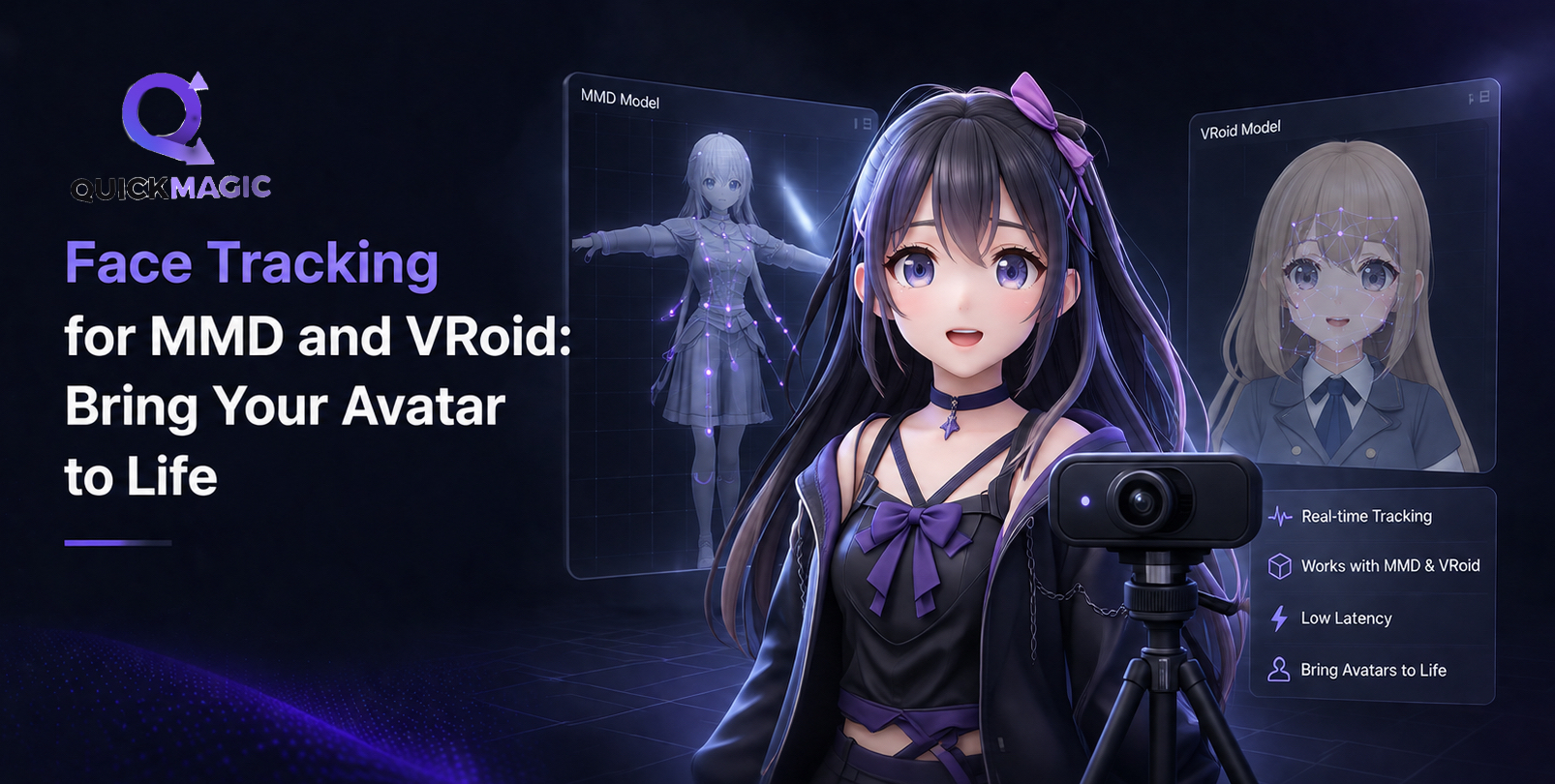
Face Tracking for MMD and VRoid: Bring Your Avatar to Life
Bottom Line Up Front
Face tracking for MMD and VRoid lets you control 3D avatar facial expressions using just a webcam or phone camera — no expensive hardware required. The key difference: MMD uses a morph system (blink, mouth shapes a/i/u/e/o) while VRoid uses 52 ARKit-compatible blendshapes. For free real-time tracking, VSeeFace is the top choice. For video-based AI capture with VMD export for MMD, QuickMagic offers a free tier and supports direct VMD, FBX, and BVH output. This guide compares 8 tools, walks through both workflows step by step, and fixes the 5 most common tracking problems.
Why Face Tracking for MMD and VRoid Matters
If you've ever watched a MMD music video or a VTuber stream and wondered "how do they make the avatar's face move like that?" — the answer is face tracking. It's the technology that maps your real facial expressions onto a 3D character model in real time or from recorded video.
For MMD (MikuMikuDance) creators, face animation has traditionally been a manual process: keyframing each morph individually, adjusting blink timing, and painstakingly syncing mouth movements to audio. A 3-minute MMD music video can take 20-40 hours of manual facial animation. Face tracking reduces that to minutes.
For VRoid Studio users, the VRM format's standardized 52 blendshapes mean face tracking data is more portable — the same tracking session can drive a VRoid model in VSeeFace, VTube Studio, or any VRM-compatible app without remapping.
The barrier to entry has never been lower. You don't need a $500 depth camera or a professional motion capture studio. A $30 webcam or your smartphone is enough to get started.
MMD Morph vs VRM Blendshape: Understanding the Difference
This is the single most important technical distinction for anyone doing face tracking for MMD and VRoid. Getting this right determines whether your tracking data will work with your model.
MMD Morph System
MMD models use a named morph system. Each facial expression is a separate morph target with a unique name. The standard MMD morphs include:
- Blink:
まばたき(mabataki) — eye closing - Half-blink:
半目(hanme) — half-closed eyes - Mouth shapes:
あ(a),い(i),う(u),え(e),お(o) — the five Japanese vowel shapes - Smile:
笑い(warai) — smiling expression - Brow:
怒り(ikari) for anger,困り(komari) for worry
The challenge: morph names are not standardized across MMD models. One model might use あ while another uses Mouth_A. Face tracking data mapped to one model's morphs may not transfer cleanly to another.
VRM Blendshape System
VRM (the format used by VRoid Studio) uses 52 ARKit-compatible blendshapes. These are standardized across all VRM models:
BrowInnerUp,BrowDownLeft,BrowDownRightEyeBlinkLeft,EyeBlinkRight,EyeLookInLeftJawOpen,MouthClose,MouthFunnelMouthSmileLeft,MouthSmileRight,MouthFrownLeft- ...and 40 more standardized shapes
This standardization means VRoid face mocap data works across all VRM-compatible applications — VSeeFace, VTube Studio, VRoid Studio, Unity, Unreal Engine — without any remapping. It's the "plug and play" of face tracking.
| Feature | MMD Morph | VRM Blendshape |
|---|---|---|
| Shape count | Model-dependent (6-30+) | 52 (standardized) |
| Naming convention | Japanese names (あ/い/う/え/お) | English ARKit names |
| Cross-model compatibility | Low — requires remapping | High — works universally |
| Export format | VMD | VRMA, FBX, BVH |
| Best for | MMD music videos, dance animations | VTubing, VR, game development |
Face Tracking Tools Compared: 8 Options for MMD and VRoid
Here's a comprehensive comparison of the tools available for MMD face animation and VRoid face mocap. Each tool serves different use cases — real-time streaming, video-to-VMD conversion, or professional-grade capture.
| Tool | Price | Method | MMD (VMD) | VRM Support | Best For |
|---|---|---|---|---|---|
| VSeeFace | Free | Webcam (real-time) | Indirect (via recording) | Yes (native) | Real-time streaming, VRM |
| QuickMagic | Free / $9.90 / $49.90 | Video AI (upload) | Yes (direct VMD export) | FBX/BVH export | MMD VMD output, batch processing |
| VTube Studio | Free (with watermark) / $14.99 | Webcam / iOS ARKit | No | Yes (native) | VTubing, iOS tracking |
| Wakaru | Free / $20 (Pro) | Webcam / iOS | No | Yes | VRM streaming, Japanese community |
| XR Animator | Free (open source) | Webcam (MediaPipe) | Indirect | Yes | Body + face combo, developers |
| MiKaPo | Free | Webcam (real-time) | Yes (VMD export) | Partial | MMD-specific face tracking |
| Webcam Motion Capture | Free / $12/mo | Webcam (browser) | No | Yes | Browser-based, no install |
| AGI Mocap | Free (beta) | Webcam (real-time) | Indirect | Yes | Experimental AI tracking |
Quick Comparison Summary
For MMD creators →
QuickMagic (direct VMD export from video) or MiKaPo (real-time webcam to VMD). These are the only tools that output VMD format natively for MMD face animation.
For VRoid / VTubing →
VSeeFace (free, excellent VRM support) or VTube Studio (best with iOS ARKit). These excel at real-time VRM blendshape tracking.
QuickMagic for Face Tracking: Video-Based AI Capture
QuickMagic takes a different approach from real-time webcam tools. Instead of live tracking, you upload a video and the AI processes facial expressions, head movement, and body motion, then exports the data in multiple formats — including VMD for MMD.
This video-based approach has several advantages for MMD face animation:
- Better accuracy: AI can analyze the full video context, not just frame-by-frame guesses
- VMD export: Direct output to the format MMD uses, no conversion needed
- Batch processing: Process multiple clips without sitting in front of a camera each time
- Multi-format export: Same capture session can produce VMD, FBX, and BVH
- No real-time hardware requirement: Record on your phone, process on any computer
For VRoid users, QuickMagic's FBX and BVH exports can be imported into Blender or Unity and retargeted to VRM models, though the workflow is less direct than using VSeeFace for real-time VRM tracking.
Workflow A: Real-Time VRoid Face Tracking (5 Steps)
This workflow uses VSeeFace for live VRM face tracking — ideal for VTubing, streaming, or real-time preview.
Open your character in VRoid Studio, go to Export → VRM. Choose the export version (VRM 0.x or 1.0). Ensure blendshapes are included — VRoid Studio generates all 52 ARKit blendshapes by default. Save the .vrm file.
Download VSeeFace (free, Windows). Launch it, go to Settings → Camera, and select your webcam. Set resolution to at least 720p. Under Tracking, enable "Face tracking" and adjust the smoothing slider to 0.3-0.5 for natural movement without excessive jitter.
In VSeeFace, click "Load VRM" and select your exported .vrm file. The model should appear in the 3D view. Adjust camera position and background as needed.
Click "Start tracking." Look directly at the camera with a neutral expression. VSeeFace will calibrate automatically. Move your face — the avatar should mirror your expressions in real time. Test blinking, mouth opening, smiling, and eyebrow movements.
VSeeFace can output to virtual camera (for OBS, Discord, Zoom) or record directly. For VTubing, add VSeeFace as a window capture in OBS. For recording MMD animation, use screen capture or VSeeFace's built-in recording, then convert to VMD using MiKaPo or QuickMagic's video upload.
Workflow B: Video AI to VMD for MMD (5 Steps)
This workflow uses QuickMagic to convert a recorded video into VMD data for MMD face animation — ideal for music videos and pre-rendered animations.
Use your phone or webcam to record a video of your face performing the expressions you want to capture. Tips: face the camera directly, use even lighting (no harsh shadows), keep your head relatively still, record at 30fps or 60fps, and keep clips under 2 minutes for the free plan.
Go to quickmagic.ai, sign in, and upload your video. Select "Face tracking" as the capture type. Choose your export format — select VMD for MMD compatibility.
QuickMagic's AI processes the video and extracts facial motion data. Preview the result to check tracking quality. Look for: mouth shape accuracy during speech, blink detection, and eyebrow movement. Re-record if the tracking is poor — lighting and camera angle are the usual culprits.
Once satisfied with the preview, download the VMD file. This file contains face morph data (blink, mouth shapes, expressions) and head rotation/position data.
Open MikuMikuDance. Load your model (File → Load Model). Go to File → Load Motion Data (VMD). Select the downloaded VMD file. The face animation data will be applied to your model's morphs. Check that morph names match — if your model uses non-standard morph names, you may need to remap using a tool like VMDConverter.
5 Common Face Tracking Problems and How to Fix Them
1. Jitter and Shaky Tracking
Symptom: The avatar's face twitches or vibrates, even when you're holding still.
Causes: Poor lighting, low webcam resolution, or insufficient smoothing.
Fix: Use diffused, even lighting (a ring light works well). Set webcam to at least 720p. In VSeeFace, increase the smoothing slider to 0.5-0.7. For QuickMagic video processing, ensure the recording is well-lit and stable — use a tripod or prop for your phone.
2. Mouth Not Opening Fully
Symptom: The avatar's mouth barely moves even when you open yours wide.
Causes: The mouth-open threshold is too low, or the morph maximum is capped.
Fix: In VSeeFace, go to Expression Settings and adjust the JawOpen sensitivity. In MMD, check the morph's maximum value — some models cap mouth_open at 0.8 instead of 1.0. For QuickMagic, ensure you're speaking clearly and opening your mouth normally during recording.
3. No Blink Animation
Symptom: The avatar never blinks, or blinks too rarely.
Causes: Blink threshold too high, or the blink morph is not mapped.
Fix: In VSeeFace, check that EyeBlinkLeft and EyeBlinkRight blendshapes are enabled. In MMD, verify the まばたき morph is receiving data — some VMD converters map blink data to blink instead of the Japanese name. Use a morph remapping tool if needed.
4. Tracking Loss When Turning Head
Symptom: The avatar freezes or glitches when you turn your head more than 30 degrees.
Causes: Webcam-based tracking loses the face at extreme angles because it can't see all facial landmarks.
Fix: Keep head turns within 20-25 degrees of center. For scenes requiring wider turns, record separate clips at different angles and combine in post. iOS ARKit tracking (via VTube Studio) handles wider angles better due to depth sensing.
5. VMD Data Missing Morphs in MMD
Symptom: The VMD file loads but some morphs (especially mouth shapes) don't animate.
Causes: Morph name mismatch between the VMD data and your MMD model.
Fix: Check which morph names your model uses (open in PMX Editor, look at the Morph tab). Common mismatches: あ vs A vs MouthA, まばたき vs Blink vs eye_blink. Use VMDConverter or Plugin_MorphStandardizer for MMD to remap morph names. QuickMagic's VMD export uses standard Japanese morph names (あ/い/う/え/お, まばたき) which work with most popular MMD models.
MMD Face Animation: Morph Mapping Guide
For MMD creators, understanding how tracking data maps to morphs is essential. Here's the standard mapping used by QuickMagic's VMD export:
Mouth_A / jaw_open| Tracking Data | MMD Morph Name (Japanese) | Common English Variant | What It Controls |
|---|---|---|---|
| Eye blink (left) | まばたき / 左ウィンク | blink / wink_L | Left eye closing |
| Eye blink (right) | 右ウィンク | wink_R | Right eye closing |
| Mouth open | あ | Jaw opening / mouth shape | |
| Mouth wide | い | Mouth_I | Mouth corners pulled wide |
| Mouth pursed | う | Mouth_U | Lips pursed forward |
| Smile | 笑い | smile / happy | Mouth corners up, cheeks raised |
| Brow raise | 上 (or model-specific) | brow_up | Eyebrows raised |
Loading VMD Face Data in MMD — Step by Step
- Open MikuMikuDance and load your model (File → Load Model)
- Select the model in the frame manipulation panel
- Go to File → Load Motion Data (VMD)
- Select your downloaded VMD file from QuickMagic
- Choose "Load" — the motion data will be applied to the model's timeline
- Check the morph tab to verify that face morphs are animated (look for keyframes on まばたき, あ, い, etc.)
- If morphs don't animate, check morph name compatibility using PMX Editor
- Adjust the model's morph maximum values if expressions look too subtle or too extreme
VRoid Face Mocap: Tips for Better Results
VRoid Studio's VRM format makes face tracking simpler thanks to standardized blendshapes. Here are tips specific to VRoid face mocap:
- Export VRM with blendshapes enabled: In VRoid Studio, when exporting, make sure "Blendshape" is checked. This includes all 52 ARKit shapes by default.
- Test blendshapes before tracking: Open the VRM file in VSeeFace's model viewer and manually trigger each blendshape to verify they work.
- Use VRM 1.0 for better compatibility: VRM 1.0 has improved blendshape definitions and is supported by newer versions of VSeeFace and VTube Studio.
- Calibrate eye direction: In VSeeFace, use the eye calibration feature to set your neutral eye position. This prevents the avatar from looking off-center.
- Adjust expression curves: VSeeFace lets you adjust the response curve for each blendshape — make small movements more sensitive and large movements less exaggerated for natural-looking results.
Hardware Recommendations by Budget
| Budget | Setup | Tracking Quality | Best Tools |
|---|---|---|---|
| $0 | Existing webcam or phone | Good for basic animation | VSeeFace + QuickMagic free tier |
| $30-50 | 1080p webcam + ring light | Good, suitable for streaming | VSeeFace / VTube Studio |
| $200-400 | iPhone (ARKit) + mounting arm | Excellent, depth-based | VTube Studio + iPhone ARKit |
| $500+ | iPhone Pro (LiDAR) + pro lighting | Professional grade | VTube Studio Pro + FaceID tracking |
Frequently Asked Questions
What is the best free face tracking tool for MMD?
VSeeFace is the most popular free face tracking tool for MMD and VRoid avatars. It supports webcam-based tracking, VRM model import, and hand tracking via MediaPipe. For video-based AI face capture with VMD export, QuickMagic offers a free tier with 50 seconds of processing per month. See our full comparison of free AI mocap tools →
How do I convert face tracking data to VMD for MMD?
QuickMagic can export face tracking data directly as VMD files compatible with MikuMikuDance. For real-time tools like VSeeFace, you can use the MiKaPo or VMagicMirror route: record the tracking session, then convert the recorded data to VMD format using the tool's export function or a third-party converter like MMDBridge. The QuickMagic video upload method is simpler — upload your video, select VMD export, and download the ready-to-use file.
What is the difference between MMD morph and VRM blendshape?
MMD uses a morph system with named morphs like blink, eye-smile, and mouth shapes (あ, い, う, え, お). VRM uses 52 ARKit-compatible blendshapes standardized across all VRM models. This means VRoid face mocap data is more portable between applications, while MMD face animation data needs to be mapped to each model's specific morph names. Learn more about motion capture fundamentals →
Can I use my phone camera for VRoid face mocap?
Yes. VTube Studio and Wakaru both support iOS device face tracking via the ARKit framework, which provides high-quality depth-based face capture. For Android, VSeeFace and Webcam Motion Capture use webcam-based tracking that works with phone cameras through browser or app interfaces. QuickMagic also accepts phone-recorded video for AI-based face tracking with VMD/FBX/BVH export.
Why does my MMD face animation have jitter?
Jitter is usually caused by poor lighting, low-resolution webcam input, or insufficient tracking smoothing. Fix it by: 1) ensuring even, front-facing lighting with no harsh shadows, 2) using at least 720p webcam resolution, 3) enabling smoothing/filtering in your tracking tool (VSeeFace offers adjustable smoothing sliders), and 4) keeping your head relatively still during capture. For QuickMagic video processing, stabilize your camera and avoid fast head movements.
Is QuickMagic face tracking free?
QuickMagic offers a free plan with 50 seconds of face and body tracking per month at no cost. The Starter plan costs $9.90/month for 150 seconds, and the Professional plan costs $49.90/month for unlimited processing. All plans support VMD, FBX, and BVH export formats. Read our free AI body tracking guide →
Can I live stream with VRoid face tracking?
Yes. VSeeFace, VTube Studio, and Wakaru all support real-time face tracking for live streaming. You need a webcam (or phone camera) and your VRM model loaded in the software. Most VTubers use VTube Studio with an iPhone for ARKit tracking, or VSeeFace with a webcam for budget setups. Get started with our beginner


