Turn any phone video into studio-quality 3D animation — no mocap suit, no markers, no green screen, no motion-capture studio.
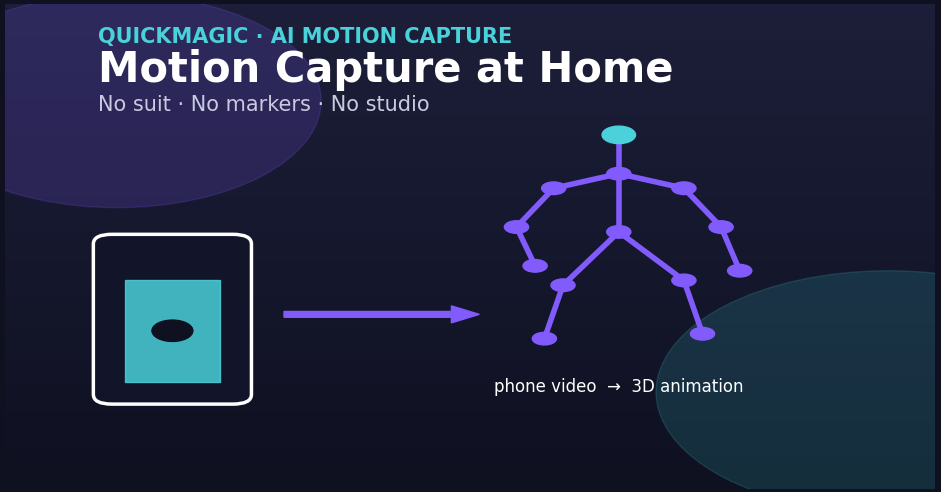
Alt: Smartphone recording a full-body dance at home, used as input for AI motion capture
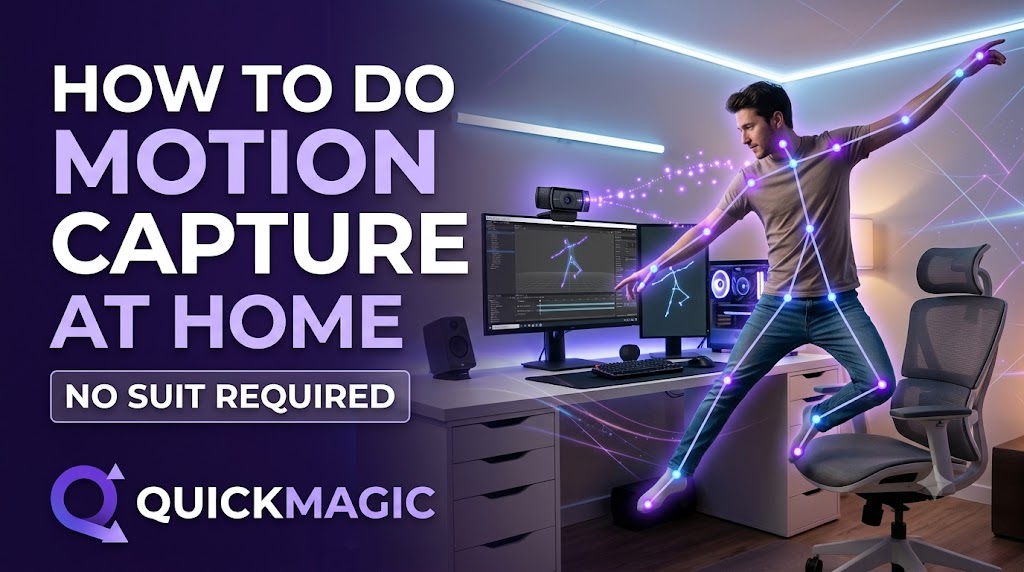
For two decades, professional motion capture meant one thing: a warehouse full of infrared cameras, a tight-fitting mocap suit covered in reflective dots, and a budget that started where most indie creators' dreams ended. That era is over. Thanks to breakthroughs in AI 3D animation, you can now capture believable, lifelike movement from a single ordinary video — recorded in your bedroom, living room, or garage.
In this guide we'll show you exactly how to do motion capture at home, explain the technology behind it (markerless motion capture, AI motion capture, real-time body tracking), and walk through a step-by-step pipeline you can start today with QuickMagic.
Table of Contents
1.What "No Suit Required" Actually Means
2.What You Need (Spoiler: Almost Nothing)
3.Step-by-Step: Capture Motion at Home in 5 Steps
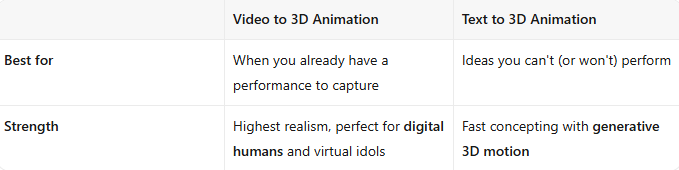
4.Beyond Video: Text to 3D Animation & Generative Motion
5.QuickMagic vs. The Alternatives
6.Who Is This For?
7.FAQ
8.Start Capturing Today
1. What "No Suit Required" Actually Means
Traditional optical mocap tracks markers stuck to a body suit. Markerless motion capture skips that step entirely: a neural network reads the human body directly from a 2D video and reconstructs the 3D pose frame by frame. The result is the same skeleton you'd get from a suit — without the suit.
Curious about the science? Markerless motion capture is part of a broader shift toward neural, vision-based pose estimation — the same family of techniques behind modern skeletal animation used in games and film.
That single shift unlocks an entire modern pipeline. With QuickMagic you get the full chain in one tool: real-time body tracking for live preview, video to 3D animation from any clip, text to 3D animation for concepting, generative 3D motion to clean up the result, motion retargeting onto any rig, and export-ready AI 3D animation for digital humans and virtual idols. These are the core building blocks of at-home mocap — and they all run on AI motion capture models that have already learned how human bodies move.
2. What You Need (Spoiler: Almost Nothing)
Here's the honest minimum setup for high-quality video to 3D animation at home:
No calibration. No rigid-body tracking. No studio rental. The secret sauce is real-time body tracking running on AI motion capture models that have already learned how human bodies move. If you want a deeper look at the engine, see How QuickMagic Works.
3. Step-by-Step: Capture Motion at Home in 5 Steps
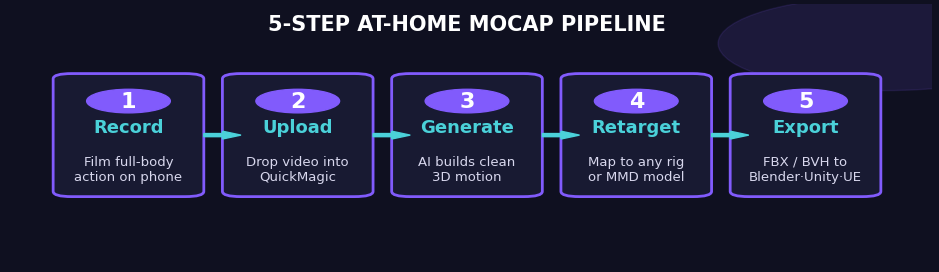
Alt: 5-step at-home mocap pipeline — record, upload, generate, retarget, export
①Record a clip. Film a person performing the action you want — a dance, a fight move, a walk cycle, a speech gesture. Keep the full body in frame. This raw footage is the input for video to 3D animation.
② Upload to QuickMagic. Drop the video into QuickMagic. Its markerless motion capture engine estimates a 3D skeleton with 60+ joints in seconds — no manual cleanup of dots.
③ Let AI generate the motion. QuickMagic applies generative 3D motion to smooth jitter, fix occlusions, and fill gaps, so the result looks like clean AI 3D animation rather than raw tracking noise.
④Retarget to your character. Use motion retargeting to map the captured skeleton onto any rig — a game avatar, a MMD model, or a digital humans character. One take, infinite characters.
⑤Export and use it. Download FBX (see the FBX format overview) or BVH and drop straight into Blender, Unity, Unreal, or your MMD pipeline. Done.
Want a walkthrough with screenshots? Read our motion capture guides and tutorial.
4. Beyond Video: Text to 3D Animation & Generative Motion
Video isn't the only entry point. QuickMagic also supports text to 3D animation — describe an action in words ("a character waves, turns, and jogs in place") and the system synthesizes plausible motion from scratch. This is where generative 3D motion really shines for previsualization and quick iteration. See the Text-to-3D feature page for examples.
You'll see overlapping categories in this space: tools like Animate 3D and SayMotion (both from DeepMotion) popularized video-to-3D and text-driven generation. (We mention them for context only and do not link to competitors.) QuickMagic builds on the same ideas but is tuned for creator-first workflows — faster turns, friendly pricing, and tight MMD / virtual-idol support.
5. QuickMagic vs. The Alternatives
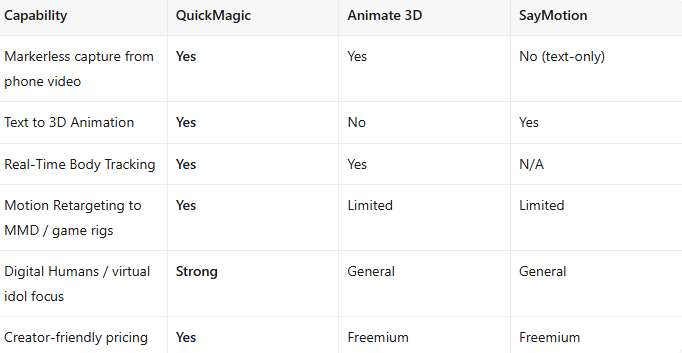
QuickMagic pairs the video strength of Animate 3D with the generative flexibility of SayMotion — in one place, built for creators. Compare plans on the pricing page.
6. Who Is This For?
- MMD & virtual idol creators — animate dancer models from your own moves. Start with the MMD guide.
- Game & indie devs — populate scenes with believable AI 3D animation without a mocap budget.
- YouTube / TikTok / Bilibili creators — turn shorts into digital humans content.
- Educators & agencies — teach or pitch with real-time body tracking demos, no hardware.
7.FAQ
Do I need a mocap suit or markers to use QuickMagic?
No. QuickMagic uses markerless motion capture — it reads the human body directly from a standard video, so no suit, dots, or green screen is required.
Can I really capture motion with just a phone?
Yes. Any 1080p+ smartphone video works. For best results use 4K / 60fps with side lighting and a clear 2–3 m floor space.
What file formats can I export?
QuickMagic exports standard FBX and BVH, which drop straight into Blender, Unity, Unreal, or your MMD pipeline.
Is QuickMagic free to try?
Yes. You can capture your first clip free with no credit card required.
Does QuickMagic support text-to-animation, not just video?
Yes. Beyond video, QuickMagic supports text to 3D animation for fast previsualization and concepting.
8. Start Capturing Today
You don't need a suit, a studio, or a six-figure budget to make professional AI motion capture. With QuickMagic, the pipeline is: record → upload → generate → retarget → export. That's it.
Try QuickMagic Free → QuickMagic
No credit card required. Capture your first clip in under five minutes.