





How do you fix foot sliding in mocap?
Hold the supporting contact point still relative to the ground during the planted phase, then release it naturally into the next step. AI-assisted cleanup can help locate and repair contact errors; manual IK and keyframe editing give you direct control over the final rig. In either case, check root travel and retargeting before approving the result.
For most projects, a useful starting point is a hybrid workflow: repair obvious errors in the source, transfer the motion, then polish the remaining contacts on the delivery character. A cleaner preview is valuable; a clean exported animation is the actual goal.
What is foot sliding—and what is not?
Foot sliding, or foot skating, is unwanted movement of a supporting foot relative to the surface it should be gripping. Look at the sole against a floor grid, not just at the ankle moving relative to the hips. A planted foot naturally moves backward relative to a traveling body even when it stays stationary in the scene.
A pivot is different: the heel may lift while the toe remains the support point. A foot roll changes which part of the sole touches the floor. Dance slides and deliberate shuffles may be correct performance choices. Freezing the whole foot throughout these actions can create a worse result than the original drift.
| Where sliding appears | Likely checks | Start here |
|---|---|---|
| Already in source motion | Uncertain tracking, obscured feet, unstable contact or noisy reconstruction | Inspect the source and correct the contact interval. |
| Only after retargeting | Leg proportions, reference pose, root mapping or scale | Review the target rig before changing the source again. |
| Only during scene playback | Stride speed, root-motion mode, scene movement or terrain | Check how the character is translated through the scene. |
| At a loop seam | Mismatched start/end contact, displacement or timing | Review the last and first steps together. |
AI vs manual mocap cleanup: which should you use?
| Decision | AI-assisted pass | Manual rig / curve editing |
|---|---|---|
| Good starting point | Repeated, visible contact errors across a collection of clips. | A specific shot, unusual contact or rig-dependent failure. |
| What you control | The requested scope and whether the proposed result is accepted. | The contact target, pose, timing, curves and transitions. |
| Main review risk | An intended pivot or slide gets treated as an error. | A hard lock creates knee pops or awkward entry and exit. |
| Time to budget | Setup, processing, review, export and any corrective pass. | Contact marking, rig adjustment, polish, baking and review. |
| Finish line | The final character plays correctly in the intended scene—not merely a better score or fewer keys. | |
This is a workflow comparison, not a speed or accuracy benchmark. A short clip with one easy stance can be simpler to fix manually than a long sequence with turns and occlusions. For a fair comparison, use the same source, destination rig and acceptance checks.
There are also assisted desktop options between these two approaches. Cascadeur's Fulcrum Motion Cleaning targets supporting limbs and their pivot behavior. It should not be described as purely manual cleanup; it is another tool to test on your own motion.
Video: diagnostics, repair and comparison
Watch the repair sequence for the intended workflow, not as proof that every clip will improve equally. The tutorial below adds an editorial checklist and manual method; it does not report a controlled hands-on benchmark.
The cleanup workflow at a glance
- 01Keep a baseline and find the error
- 02Mark planted contact intervals
- 03Run an AI-assisted cleanup pass
- 04Manually polish remaining contacts
- 05Validate the exported result
1. Preserve the original and isolate the problem
Duplicate the action or save a separate version before editing. Record the frame rate, start and end frames, scene units and intended root behavior. Keep a short reference preview so you can compare timing and weight shifts later.
Watch one complete pass at normal speed. Then inspect a single problem step from the side and from above. If the clip looks stable before retargeting but slides on the final character, investigate that transfer first. A source-wide correction may damage contacts that were already correct.
2. Mark the contact—not just the foot bone
Find when the heel or forefoot first supports weight, when the support point changes, and when the foot leaves the surface. Mark the stable interval separately from the approach and release. On a moving platform, evaluate contact relative to that platform rather than the world.
For a simple practice case, suppose the left sole settles at frame 40, stays planted through frame 60, then rolls onto the toe before lifting. Hold only the stable contact. Do not freeze the heel through the toe roll. These frame numbers are an illustration; replace them with observations from your clip.
3. Fix foot sliding with QuickMagic MotionEditor
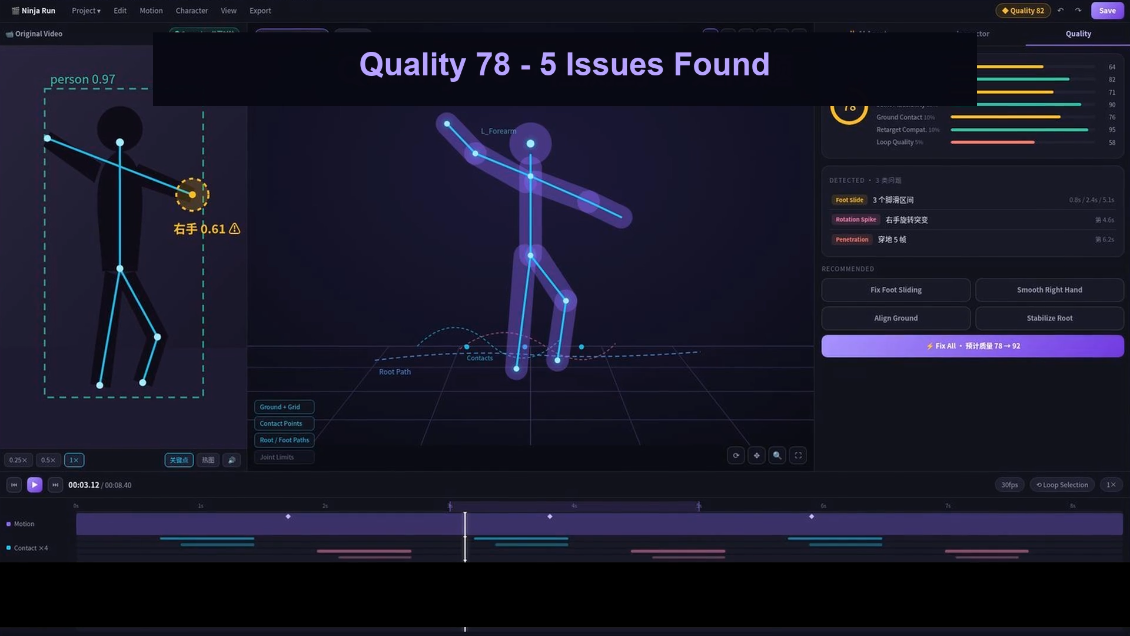
QuickMagic's AI motion editor documents foot-slide diagnostics, assisted repair, reviewable plans and before/after comparison. It is currently presented as Beta; availability and export options depend on the workflow and plan.
Open an editable motion result
Start with a supported motion in your workspace. If using an external animation, test compatibility first; do not assume an output format is also an accepted input. Keep the unedited version for comparison.
Inspect diagnostics and choose the scope
Run the available checks and relate each warning to the contact interval you marked. The demo shows a Fix All control. Review the proposed operation where available; a broad correction may need a narrower follow-up.

Describe the desired outcome
Reduce unwanted left-foot drift during the planted interval, frames 40–60. Preserve the upper-body performance and step timing. Keep the toe roll and lift-off after this interval.
Editorial prompt example, not a tested command. Verify the frame numbering and the plan's interpretation before applying it.Be explicit about what must remain unchanged. If the proposed operation replaces an action or changes a much wider interval than intended, revise the request. If the interface cannot express the required constraint, move that contact to the manual pass.
Compare and keep only useful changes
Replay the edited interval plus its neighboring frames. Check the sole, knees, pelvis and release into the next step. Reject a correction that plants the foot but visibly stretches the leg or removes the character's weight shift.

Feature descriptions and demonstration values: QuickMagic Motion Editor, reviewed October 16, 2026. Exact import compatibility, processing time and success rate were not independently tested.
4. Manually fix the remaining foot slide in Blender
This method assumes you have an animated character rig with usable leg IK controls. A raw imported skeleton may not have them. Retarget to a suitable control rig first, or have a rigger set up the leg chain, target and pole control. Avoid adding a second IK system on top of an existing one without understanding its constraints.
A. Match the existing pose before switching controls
Duplicate the action. At the start of the correction, match the IK controls to the current FK pose using the rig's snapping tools. Test the switch: the leg should not jump. Identify the control space—world, root or another parent—because a root-following target can drift with the character.
B. Hold the supporting point
Set the IK foot target to the correct contact position and key that position through the stable interval. On a stationary floor, use a world-stable target or the rig's equivalent world-space control. Keep the pelvis within the leg's reach and use the knee pole to maintain a consistent bend direction.
Blender's IK constraint provides target, pole-target and chain-length settings; chain length zero includes all ancestors, so it is not a safe default for an isolated leg. Follow your rig's intended setup. Blender IK constraint reference.
C. Blend the approach and release
Add keys around the stable interval so the target meets the incoming foot smoothly and releases into the next step. Use the rig's supported IK/FK or space-switch workflow, matching poses at switches. A simple influence fade without matching can produce a pop or an unwanted arc.
Separate toe roll from a full-sole plant. Watch the foot silhouette against the floor and preserve the intended pivot. For a jump, do not lock the foot before touchdown or after takeoff.
D. Clean curves locally, then bake if needed
Inspect only the affected curves. Remove accidental overshoot at a contact hold; smooth small unwanted fluctuations without flattening an impact or deliberate change of direction. If the knee snaps, revisit reach, pole orientation and pelvis motion instead of applying more smoothing.
For a file-based handoff, bake the evaluated pose to a separate action or export rig as appropriate. Blender's Bake Action supports Visual Keying to capture the constraint-evaluated transforms. Verify the frame range and selected bones. Do not clear constraints on your master rig just to make an export: test on a duplicate and preserve the editable setup. Blender Bake Action options.
5. Validate contacts after export and retargeting
Import the result into the destination application and play it on the actual character. Keep the same frame rate and intended displacement behavior. If both the clip and movement system translate the character, or neither provides the needed travel, contact can fail despite a clean source.

- Contact: the supporting point stays stable relative to the surface.
- Pose: knees do not snap, legs do not visibly overextend, and soles do not sink.
- Timing: landings and intentional accents remain aligned with the performance.
- Transitions: the edit starts and ends without a pop; loops and blends still work.
- Scene behavior: root travel, playback speed and ground placement agree.
Use a repeatable contact check
For your own test, follow the same sole contact point through the same stable interval before and after cleanup. Compare its horizontal excursion relative to the surface, with matching units and character scale. Do not compare an ankle marker in one version with a toe marker in another, or include an intentional pivot in one sample only. This is a suggested review method, not the undocumented measurement definition behind the demo's score.
| After-cleanup symptom | What to revisit |
|---|---|
| Foot sticks during lift-off | Shorten the hold and restore the release. |
| Knee pops or leg stretches | Check pelvis reach, IK setup and pole direction. |
| Foot is stable but body floats | Restore weight shift and impact timing; reduce over-smoothing. |
| Only the export skates | Check the bake, retarget pose, scale and root-motion settings. |
| Drift returns at a loop seam | Check contact phase and displacement across the wrap. |
Prevent avoidable cleanup at capture time
Keep both feet visible whenever possible, include the full body, and use even lighting with limited motion blur. Choose a camera position that does not hide one leg behind the other for the important contacts. A short test take can reveal problems before you record a longer performance.
Keep the intended acting: do not ask a dancer to remove deliberate shuffles simply to make tracking easier. Instead, preserve a reference video and note which contacts are meant to slide. Use capture settings supported by the service; the highest frame rate is not automatically the best choice if it worsens exposure or falls outside the input requirements.
Start with one difficult step
Choose a short contact interval, keep a baseline, try an assisted correction, and finish the remaining detail on the target rig. Scale up only after that small test survives export.
Explore QuickMagic MotionEditorFrequently asked questions
What causes foot sliding in mocap?
Foot sliding occurs when the supporting contact point drifts relative to its surface. Tracking uncertainty, retargeting, interpolation, incorrect scale, or a mismatch between stride speed and scene travel can cause it. Diagnose the stage where the error first appears.
Can AI fix foot sliding automatically?
AI-assisted cleanup can help correct detected contact errors. It still needs visual review: intentional pivots, sliding steps, knee behavior, and the final character should be checked before accepting the result.
How do I fix foot sliding manually in Blender?
Mark the contact interval, use the rig's leg IK controls to hold the supporting point relative to the ground, and blend into and out of that hold. Check pelvis height, knee direction and toe roll, then bake and test the exported animation if your pipeline requires it.
Should I clean mocap before or after retargeting?
Repair obvious source errors first, then validate and polish contacts on the final rig after retargeting. Different leg proportions and root settings can introduce sliding that was not present in the source.
Does smoothing remove foot sliding?
Not reliably. Smoothing can reduce unwanted high-frequency noise but does not enforce a planted contact. Excessive smoothing can weaken impacts and introduce drift. Treat contact locking and jitter reduction as separate tasks.
Why does an in-place walk slide in a game engine?
The character's movement speed may not match the animation's stride and playback rate. Check movement logic and root-motion settings before adding stronger foot locks. The same clip can look correct in isolation and skate when translated through the scene.
How long does mocap cleanup take?
There is no universal per-clip time. Count the difficult contacts, inspect the target rig, and include review, export and rework in the estimate. Compare AI and manual methods on the same clip rather than treating promotional processing times as production benchmarks.
Can I clean any external FBX, BVH or VMD in MotionEditor?
Do not assume every external file is compatible. Check the current import dialog and skeleton requirements with a short test clip. An advertised export format does not automatically confirm import or round-trip support for that format.


