





Quick verdict: choose by editing style, not the AI label
Try QuickMagic when you prefer describing a correction and reviewing the result. Try Cascadeur when you want to direct poses, contacts and timing inside an animation workspace. Both use assistance and automation. Neither removes the need to inspect the final animation.
The title's “AI vs Manual” is a useful search phrase, but not a literal division of these products. Cascadeur is not manual-only: it documents automated contact cleaning, animation unbaking and pose assistance. QuickMagic's assisted editing still needs human judgment about intentional sliding, performance timing and target-rig behavior.
Our recommendation is to test a representative clip through export before committing to either workflow. The steps below explain how. No timed comparison, accuracy ranking or “perfect cleanup” claim is made here.
QuickMagic vs Cascadeur at a glance
| Question | QuickMagic MotionEditor | Cascadeur |
|---|---|---|
| How do you direct edits? | Natural-language requests and reviewable plans. | Pose controllers, keys and timeline tools, with assistance. |
| How does cleanup start? | Diagnostics for foot sliding, jitter and penetration. | Rig preparation and focused tools such as contact cleaning and unbaking. |
| Is it automatic? | Assisted corrections; inspect what changes. | Automated operations within an animator-directed workflow. |
| What is useful to test? | A bounded contact repair or a clear pose revision. | An awkward support interval or a baked action needing pose-level editing. |
| What remains your job? | Preserve intent, inspect contacts and validate the destination character. | |
Product features: QuickMagic MotionEditor, Cascadeur contact cleaning and Animation Unbaking. Use-case recommendations are editorial judgments, not measured rankings.
Three distinctions that matter
- Repair is not replacement. Changing an entire walk may produce a different performance rather than repairing the original contacts.
- Fewer keys are not cleaner contacts. Unbaking makes dense motion easier to edit; inspect whether support and timing survive.
- A usable preview is not a finished handoff. Export settings, skeleton mapping and scene movement can introduce new errors.
Video: see the review loop
For the other editing approach, Cascadeur's Animation Unbaking documentation includes an official linked video example. It illustrates a different operation, so do not treat the two videos as a same-clip contest.
A fair comparison in five steps
- 01Prepare a common test clip
- 02Try the QuickMagic workflow
- 03Try the Cascadeur workflow
- 04Validate the production handoff
- 05Compare the complete workflow
1. Prepare one representative clip
Choose a short action that resembles your real workload: a walk-stop-turn, an interaction, or a landing. Avoid selecting only an easy idle if your deliverables are fast combat moves. Keep an untouched copy and a reference video when available.
Record frame rate, scene scale, root-motion expectations and the destination character. Mark the moments where a foot should support the body. Also mark intentional toe pivots, dance slides and airborne frames. These should not be erased just because a general cleanup pass prefers stable contacts.
Define success before you start: the supporting point stays stable, the knee does not pop, the character retains its weight shift, and the export plays correctly. A score is useful only if it agrees with what the shot needs.
2. Tutorial: a QuickMagic cleanup pass
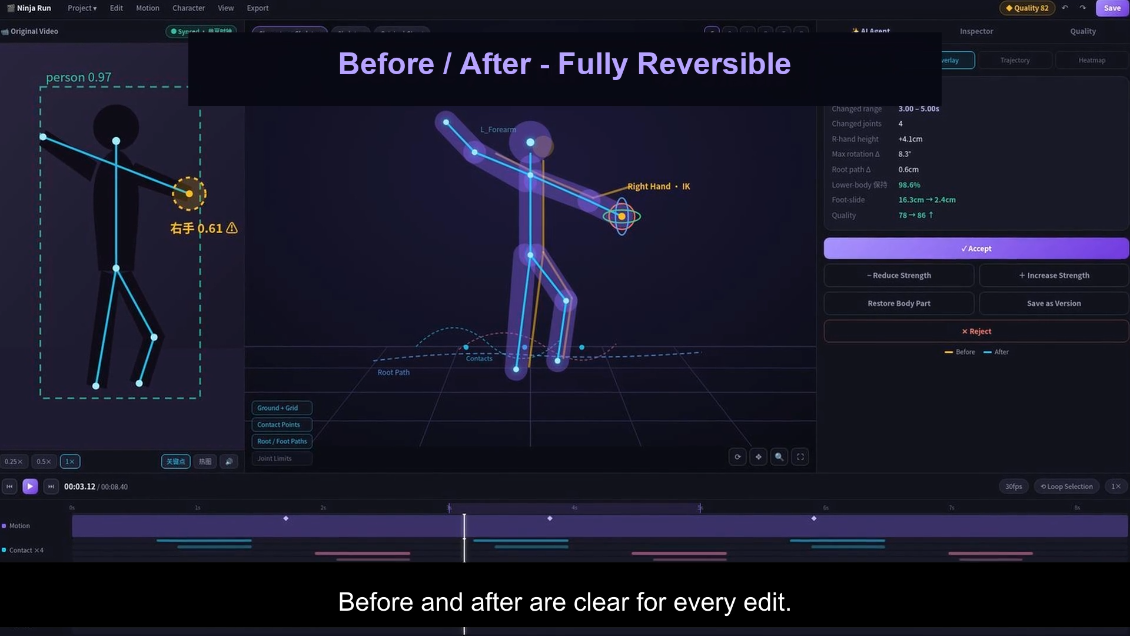
MotionEditor is presented as a Beta workflow with diagnostics, assisted repair and reversible comparison. Start with editable motion supported by the current workspace; confirm external-file compatibility before assuming any FBX, BVH or VMD can be imported. QuickMagic workflow reference.
Open, inspect and limit the request
Preserve the baseline, preview the whole clip, then focus on the marked problem range. Relate the available warnings to visible motion. A hand tremor and a sliding support foot need different corrections; avoid asking for maximum smoothing across the whole body.

Review the proposed change before accepting it
Reduce unwanted drift of the left supporting foot during frames 40–60. Preserve the upper-body motion, step timing and toe release after the contact.
Suggested prompt for a hypothetical interval—not a command tested for this article.Use the available repair controls, including Fix All when appropriate, and inspect the proposed scope. If the request is interpreted as a new action or a whole-clip change, narrow it. Compare the edited range and a few frames on either side.
Check the performance, not just the foot
Look for a stretched leg, snapping knee or flattened impact. Reject a correction that stabilizes a foot at the cost of the body's intended motion. If a specific contact remains difficult, retain the useful edits and send that remaining interval to your animator or another editing tool.
The demo's 16.3 cm → 2.4 cm value is one promotional example, not a benchmark against Cascadeur or a guaranteed result. Use your own consistent contact measurement and visual criteria.
3. Tutorial: a Cascadeur cleanup pass
Prepare the character and preserve the source
Start with a compatible imported character and animation. Save a separate scene before changing the motion. Tools that depend on Cascadeur's rig need that rig prepared correctly; an imported skeleton alone should not be assumed to have every controller or contact setting configured.
AutoPosing predicts poses from controller movement and requires a standard Cascadeur rig. This is why setup and controller behavior belong in the comparison, not just the number of clicks needed to apply an operation.
Unbake when dense keys make editing difficult
Animation Unbaking converts fully keyed motion into fewer keys and interpolation intervals. Its documented sequence includes Auto Interpolation Keys, Adjust Keys and Interpolations, and Auto Unlock. Manually rigged characters need suitable fulcrum groups for ground-touching rigid bodies.
After unbaking, compare the original and revised timing before changing poses. Keep an eye on quick accents and the beginning and end of a plant. Reducing key density is preparation for editing, not a substitute for checking animation quality.
Apply contact cleaning to the relevant interval
For a selected range, enable Interval Edit Mode, select the interval on the timeline, then apply Fulcrum Motion Cleaning from the toolbar. The documented tool automatically identifies supporting limbs and adjusts their motion. Review whether those supports match the intended action. Official contact-cleaning instructions.

Use the tool's settings only to solve the problem you can see. Check the support point, leg reach and release into the next step after each adjustment. More aggressive correction is not automatically better, especially on pivots and deliberate shuffles.
Refine poses and physical motion selectively
Use the animation workspace for the remaining artistic decisions: where the weight settles, when the knee bends, and how the next step begins. Test physics-assisted adjustments when the action needs them, but keep intentional stylization. The final question is whether the shot reads correctly, not whether every automated suggestion was accepted.
Pricing and export: compare the usable plan
Check the plan that can complete your delivery, not just the cheapest advertised access. The following is a feature-and-license snapshot reviewed October 16, 2026; billing terms and regional prices can change.
| Check | QuickMagic | Cascadeur |
|---|---|---|
| Free output | The Motion Studio listing specifies FBX. | Free lists CASC-only output and non-commercial use. |
| Paid interchange formats | Basic lists formats/presets including FBX, BVH, BIP, VMD and C4D. | The paid-plan matrix lists FBX, DAE, USD and GLTF alongside CASC. |
| Budget / eligibility | Basic is shown at $11.9 per month billed yearly. Confirm MotionEditor usage and commercial terms. | Indie has a revenue threshold below $100,000/year. Check current localized checkout pricing. |
| Long-term access | Check storage, credit and subscription conditions. | Yearly Indie/Pro plans provide access to eligible perpetual builds—not all future releases. |
Sources: QuickMagic pricing and Cascadeur plans. Product-wide format listings do not prove compatibility for every import, rig or MotionEditor operation.
Budget for setup, review, revisions and the export test. “Free to try” and “ready for commercial delivery” are different questions. Do not assume a browser workflow has no hardware requirements, or that a desktop workflow automatically works offline without license checks.
4. Can you use QuickMagic and Cascadeur together?
Yes, as a workflow to evaluate—not as an assumed one-click integration. A sensible experiment is an assisted first pass, followed by focused pose and contact work on the important shots. However, moving between tools adds rig and export work, so keep the extra stage only if it improves the delivered result.
- Export a short sample in a format supported by both your plan and the receiving application.
- Verify scale, frame rate, axis orientation, reference pose and root travel.
- Prepare the receiving rig without overwriting the original export.
- Polish only the remaining issues and compare against the baseline.
- Reimport the final export into your delivery scene and inspect contacts again.
If your destination is Blender, Unity or Unreal Engine, sign off on that destination character—not only on the tool's preview mannequin. Different proportions, retargeting rules and movement speeds can reintroduce sliding.
5. Choose with a repeatable test
Run the same clip through each candidate workflow and record the following. This gives you a practical decision even when the products do not expose comparable quality scores.
| Measure | What to record |
|---|---|
| Setup effort | Import, rig preparation and time spent finding the correct controls. |
| Contact quality | Remaining drift during the same planted interval on the same target rig. |
| Preserved performance | Whether impact timing, intended pivots and expressive gestures survive. |
| Rework | How many changes must be narrowed, undone or corrected elsewhere. |
| Delivery | Successful export, correct playback and a license suited to the project. |
Record total time, including review and failed attempts. Do not compare one tool's processing time with another tool's full editing session. A product demonstration and a creator anecdote are not substitutes for that test.
Choose QuickMagic when…
You prefer bounded language requests and want to evaluate an assisted first pass before detailed rig editing. This is a reasonable starting experiment for repeated cleanup tasks and early production drafts; it is not a promise of unattended batch repair.
Choose Cascadeur when…
You want to work directly with poses, support intervals and interpolation, and the extra setup gives you useful control over the shot. Its automation can be part of that process rather than something you must avoid.
Choose a combined workflow when…
A first pass saves enough later editing work to justify the transfer. If the handoff takes longer than the repair, staying in one tool may be the better choice.
Start with the contact you can clearly judge
Pick one visible problem, define what must remain unchanged, and compare the delivered animation. That will tell you more than a blanket claim that AI or manual editing is always better.
Explore QuickMagic MotionEditorFrequently asked questions
Is Cascadeur a manual-only mocap cleanup tool?
No. Cascadeur includes assisted tools such as Animation Unbaking, AutoPosing and Fulcrum Motion Cleaning. The useful distinction is conversational editing versus an animator-directed workspace, not automation versus no automation.
Can Cascadeur fix foot sliding automatically?
Its Fulcrum Motion Cleaning tool automatically detects supporting limbs and adjusts them. You still need a suitable rig, correct contact interpretation and visual review of the result.
Does QuickMagic replace Cascadeur?
Not for every workflow. Consider QuickMagic for language-guided revisions and an assisted first pass. Consider Cascadeur when you want to shape keys, poses and physical motion directly. Validate either result on the final character.
Which tool is faster for mocap cleanup?
This article does not establish a measured winner. Compare the same source clip and target rig, counting setup, processing, review, rework and export—not just the time spent applying a correction.
Can I use Cascadeur Free for commercial exports?
The reviewed plan page lists Free as non-commercial with CASC-only output. Choose a qualifying paid plan for commercial use and supported interchange export, and check current eligibility before purchasing.
Does QuickMagic Free include every export format?
No. The reviewed pricing page lists FBX for Free Motion Studio; additional formats are listed on paid plans. MotionEditor usage and export availability should be confirmed in your account.
Can I use QuickMagic and Cascadeur together?
Potentially, through a compatible file workflow. Test a short export first, confirm the receiving rig and license, and check contacts after transfer. A shared file extension does not guarantee a lossless or automatic handoff.
Does Cascadeur have video motion capture?
Yes. Its documentation includes a Mocap (Alpha) feature that transfers poses from images or video to a scene character. It is inaccurate to describe Cascadeur as incapable of generating motion from video.


