See the result: one action on two different 3D characters
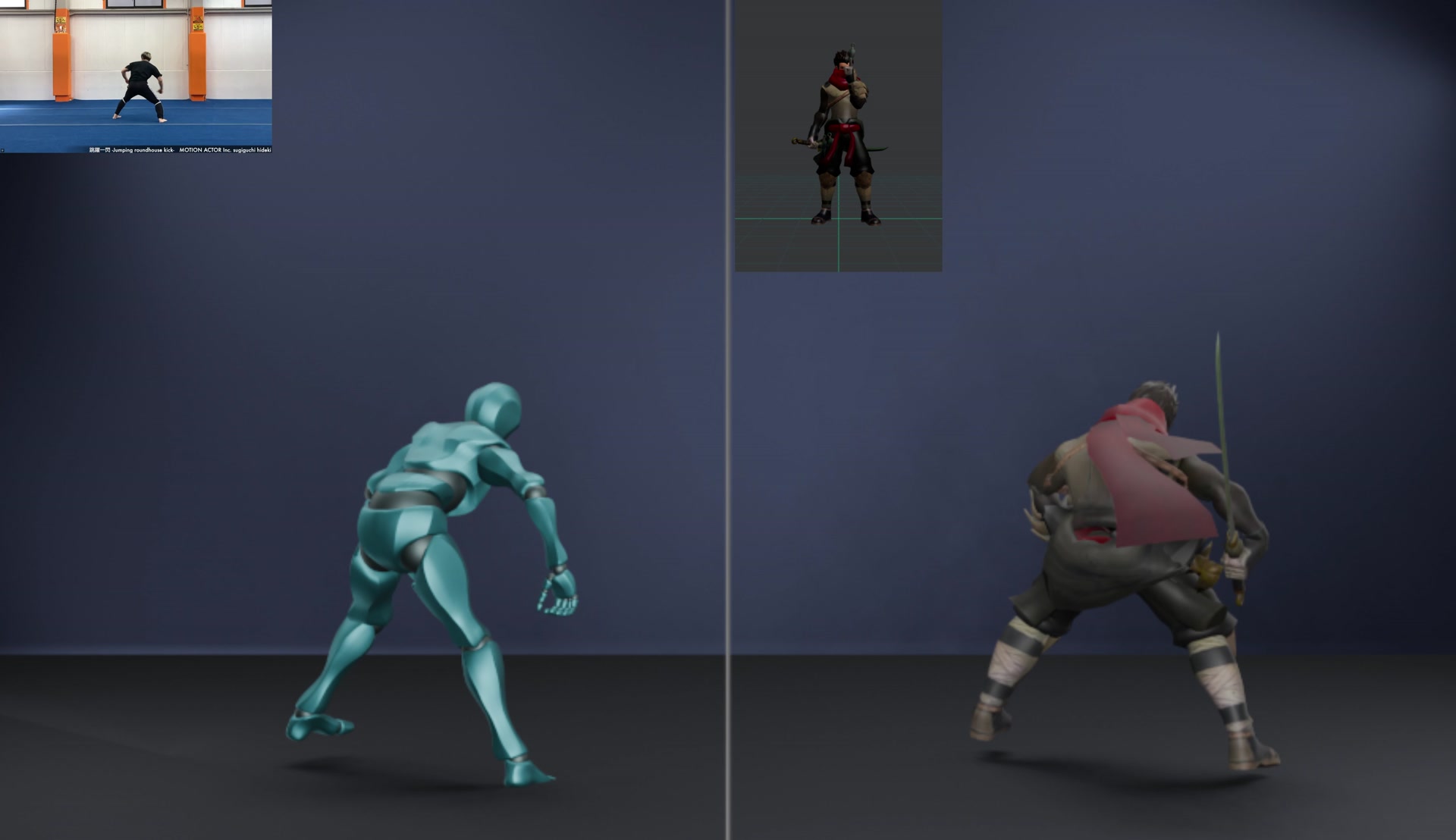
What does retargeting look like? This short comparison shows a cyan mannequin on the left and a clothed character on the right performing a corresponding turning, jumping and kicking action. Watch the body movement across the two silhouettes, then follow the rigging and retargeting steps below.
About 2.25 seconds · loops after you press Play · Open or download the original-resolution comparison. The small insets show a live-action reference and a character reference. This supplied result clip does not show the rigging controls, retarget settings or export process.
Read the result in two key frames


What to check when you retarget your own animation
- Preparation and rotation: compare when the body turns and how the arms balance the action.
- Kick or airborne pose: inspect the hips, raised knee and shoulders for unwanted stretching or intersections.
- Landing and recovery: watch the feet over several frames for sliding, floating or abrupt changes in height.
Use these as review checkpoints, not as a quality score for this clip. The video alone does not reveal its rig, skin weights, settings, file format or how the clothing motion was produced. The full walkthrough below provides the separate, documented interface workflow.
Rigging vs. retargeting: what happens at each stage?
Rigging prepares a 3D character to move; retargeting gives that character an existing animation. A rig supplies the skeleton, while skinning determines how the mesh follows the bones. Motion retargeting transfers a performance from a source skeleton to the prepared target character.
You rig the character, not the animation. In the demonstrated QuickMagic workflow, the character first passes through Auto Rigging with a Mixamo preset. You then choose a source motion and transfer it to that generated rig. A successful transfer still needs a deformation and playback check before export is accepted.
QuickMagic’s motion-retargeting overview explains source-to-target mapping and validation in a 3D production workflow. This tutorial specifically covers the web-based Motion to Character Beta shown in the supplied November 26 session—not a manual Blender or Unreal retargeting setup.
| Stage | What it does | What you must check |
|---|---|---|
| Auto-rigging | Prepares the uploaded character for animation | Reference pose, limbs and mesh deformation |
| Motion retargeting | Applies a selected source performance to the target | Pose, timing, root movement and contacts |
| Animated export | Delivers the active character animation for another application | Actual file delivery and behavior after import |
Workflow evidence: one mannequin design under two input conditions, with three retarget runs. The new comparison clip above is a separate visual example. The supplied materials document working animation exports and remaining deformation concerns; this is not a universal quality or compatibility benchmark.
Watch the complete Motion to Character tutorial
The 4-minute-37-second walkthrough combines actual interface screenshots with synthetic English narration. Its ending shows animation rendered from the downloaded FBX files. It is an edited tutorial, not a continuous screen recording.
Download the tutorial · English SRT subtitles · Narration transcript. Subtitle timing is approximate.
1. Prepare a humanoid character for rigging
Have a QuickMagic account, the credits required by the current operation, a humanoid character file and a source motion already available in QuickMagic. The documented upload tests used FBX; other formats and file-size limits were not established.
- Use a T-pose or A-pose with arms clear of the torso, following the upload guidance.
- Use complete limbs and reasonably standard proportions.
- Keep loose hair, clothing, weapons and props clear or separate where the guidance requests it.
- Preserve the original character file before trying an automated rigging workflow.

Already have a rig? The rigged and animated input was accepted, but it still passed through Auto Rigging. No skip-rigging control was observed. Do not assume this route preserves an existing production skeleton or its controls.
2. Auto-rig the 3D character in QuickMagic
- Open QuickMagic Motion to Character and choose Upload Character.
- Select your FBX and give the character a recognizable name.
- Read the pose and mesh guidance. The demonstrated skeleton preset is Mixamo.
- Review the current estimate, then click Auto Rigging once.
- Wait until the character is marked Rigged before selecting a motion.

Checkpoint: an estimated 95% progress message is not completion. Wait for the final state and avoid submitting the same operation repeatedly merely because progress pauses.
3. Retarget an existing animation to the rigged character
- Choose Browse My Motions.
- Open the relevant source tab: Video to Motion, Text to Motion or Audio to Motion.
- Select the project card you want to apply to the character.
- Review the estimate again; the displayed value can change after motion selection.
- Click Retarget and wait for the source/target comparison viewer.

The chooser selected existing QuickMagic projects. No external animation-file upload was observed here. The recorded session browsed all three source tabs, but submitted only Audio and Text motions. If you need an arbitrary external animation or a custom mapping setup, confirm that route separately.
4. Check the character rig and retargeted animation
Review both mesh deformation and motion transfer. A rigged status confirms the operation finished; it does not guarantee that shoulders, wrists or fingers deform correctly. Likewise, a moving target does not prove that timing and contacts are suitable for your scene.
The source appears on the left and the retargeted character on the right. Pause and use the shared slider to compare the same interval. Look at the whole body before focusing on individual joints.
- Play the whole clip to understand its overall rhythm and movement.
- Pause at expressive poses and scrub through transitions.
- Inspect wrists and fingers for spikes or extreme bends.
- Check shoulder volume, torso deformation, knees and foot contact.
- Review timing and displacement, allowing for different character proportions and viewport framing.

Quality warning: successful retargeting means the motion was transferred and can be previewed—not that the mesh deforms correctly in every frame. A clean reference pose alone did not eliminate the visible problem on this mannequin.
5. Reuse the generated rig with another animation
To test a second performance on the generated rig, click the current motion card to reopen the chooser. Select another existing project, review its estimate and retarget again.

The recorded case C used MF02_Wave from Text to Motion. Comparing two clips is useful for seeing whether a problem occurs across performances, but it does not by itself diagnose its source.
Open My Characters to inspect saved records. Both test records were visible when the page was reopened. The dialog also had an Import button; switching characters through that button was not separately exercised.

6. Export the animated character as FBX
Use the bottom Download button for the active animated result. The separate Download control on the character card is the character export entry. Its separate local output was not confirmed in the recorded session.

- Confirm the intended character and motion are active.
- Use the bottom Download control.
- Check the browser download list and local destination for the actual file.
- Open the FBX in your intended application and confirm that the meshes, armature and animation action are present.
- Play the take and inspect deformation, scale, orientation, materials, duration and foot placement.
- Keep the source and exported files distinct while making any downstream repairs.
Cases A and C opened in Blender with two meshes, a 65-bone armature and one animation action with 340 curves, according to the supplied inspection data. These are properties of the example files, not specifications for every export. Unity and Unreal Engine imports were not tested.
Watch the actual exported character animation
The showcase presents case A Coffee Chat followed by case C Wave, rendered from the downloaded FBX files. The short Wave take is repeated for viewing. Blender camera, lighting and materials were adjusted; animation curves and skin weights were not repaired.
This is a presentation render, not QuickMagic’s website rendering output. Download the showcase.
Troubleshooting character rigging and animation retargeting
| What you see | Next check |
|---|---|
| Rigging stays around 95% | Wait for Rigged. Progress was explicitly estimated in the interface; the source session does not establish a service-time guarantee. |
| Pointed wrists or stretched hands | Inspect geometry, skinning, finger weights and pose. Compare the exported file independently. The static input did not eliminate the browser artifact in this example. |
| Source and target appear different in size | Check comparable framing, then inspect orientation and scale in your destination application. |
| The retargeted clip is longer | Inspect the action range and frame rate before synchronizing dialogue or editing a shot. The Coffee Chat source and output durations differed in this session. |
| Download does not appear | Check the browser’s download result and local folder before retrying. Browser-control timeouts occurred in the source session, so delays were not isolated to the product. |
| The balance decrease differs from the estimate | Record the chosen project, estimate and before/after balance; ask support to reconcile the transaction. A discrepancy alone does not prove duplicate charging. |
What did the recorded operations cost?
Each rigging operation showed and decreased 15 V. Each of the two Audio retargets showed 12 V but was accompanied by a 24 V balance decrease. The Text retarget showed and decreased 5 V. The total observed decrease was 83 V.
These are estimates and balance snapshots from November 26, 2026, not a reconciled billing ledger or a current price promise. The Audio discrepancy remains unexplained. Review the live estimate and transaction information before repeating an operation.
What the example established—and what it did not
This editorial guide uses the supplied session records and media. It does not represent a new live product test. The short mannequin-versus-clothed-character comparison added above is a separate result video, not a fourth documented test or evidence that the earlier deformation concerns were resolved. Both input conditions used the same mannequin design: one already rigged and animated, the other a static unrigged T-pose with the same two meshes and 27,850 vertices.
| Run | Input and motion | Documented result |
|---|---|---|
| A | Already-rigged FBX + Audio Coffee Chat | Preview, downloaded animated FBX and Blender import |
| B | Static unrigged T-pose + same Coffee Chat motion | Preview; separate export not captured; wrist spikes remained |
| C | Reuse B’s generated rig + Text MF02_Wave | Preview, downloaded animated FBX and Blender import without rerigging |
Timing: Coffee Chat’s source card displayed 00:09 while its retargeted viewer showed 00:11. The exported action spans frames 1–347.253 at 30 fps, about 11.54 seconds between endpoints. Wave spans frames 1–149.751 at 30 fps, about 4.96 seconds. The cause of the Audio duration change was not established.
The session did not establish non-humanoid support, upload limits, other input formats, malformed-file handling, engine compatibility, universal skinning quality or material fidelity. Character-only file delivery was unconfirmed. No deletion workflow was tested.
Evidence files: session results · FBX inspection data. General concepts: QuickMagic motion retargeting overview.
3D character rigging and retargeting FAQ
What is motion retargeting?
Motion retargeting transfers animation from a source skeleton to a target character. It is different from rigging, which prepares the skeleton and the relationship between bones and the mesh.
How do I retarget motion to my character in QuickMagic?
In the documented Motion to Character workflow, upload an FBX, name the character, review the Mixamo preset and run Auto Rigging. When the character is Rigged, open Browse My Motions, choose an existing project and select Retarget. Compare the result and download the active animated export.
Do I need a T-pose or an A-pose?
The observed upload guidance recommends a T-pose or A-pose with arms clear of the torso and complete limbs. The tested static input used a T-pose, but that did not eliminate wrist deformation on this mannequin. A reference pose alone does not guarantee good skinning.
Can I upload a character that is already rigged?
An already-rigged and animated FBX was accepted in the supplied session, but it still went through Auto Rigging. No skip-rigging control was observed, so the example does not establish preservation of an existing production rig.
Can I upload an external animation file in Browse My Motions?
No external motion-file upload control was observed in that chooser. It selected existing QuickMagic projects under Video to Motion, Text to Motion and Audio to Motion. Audio and Text projects were actually retargeted in the recorded tests.
Can I apply another motion without rigging the character again?
The documented session replaced Coffee Chat with the Text to Motion project MF02_Wave on the same generated rig without another rigging step. Both character records also appeared in My Characters; importing a saved record to switch characters was not separately tested.
Which Download button exports the animation?
In the shown interface, the bottom Download button exports the active animated result. The character-card Download is a separate character export entry. Animated FBX downloads were confirmed for cases A and C; a separate character-only file was not confirmed.
Can the animated FBX be used in Blender, Unity or Unreal Engine?
Cases A and C were downloaded and imported into Blender in the supplied session. Unity and Unreal Engine imports were not tested. Validate the skeleton, scale, reference pose, timing and deformation in your actual destination rather than treating FBX as a universal compatibility guarantee.
Why do the wrists stretch after retargeting?
The source and skinning setup, reference pose or rig mapping may need inspection. This example showed pointed wrist stretching with both input conditions, but did not isolate the cause. Inspect the mesh, weights and exported result before deciding how to repair it.
How much does QuickMagic Motion to Character cost?
In the November 26, 2026 session, each rigging step showed 15 V and matched that observed balance decrease. The two Audio retargets showed 12 V but were each accompanied by a 24 V decrease; the Text retarget showed and decreased 5 V. These are session observations, not a current price guarantee or a confirmed billing diagnosis.
Download the example FBX files
- Short character-animation comparison video
- Static T-pose character fixture
- Case A: Coffee Chat animated FBX
- Case C: Wave animated FBX
- Full English tutorial · Web subtitles · Chapter timings
Rig once, then test a short animation
Prepare one character, complete Auto Rigging and apply one short source motion. Inspect the hands, shoulders and feet, then verify the animated FBX. Once the result is acceptable, try another clip on the same generated rig.
Open Motion to Character