Turn Human Video Into Robot Motion for Unitree G1, H1, and H1-2
TL;DR: QuickMagic Robot Motion Capture in 7 Steps
- Step 1: Set up a well-lit recording space with your camera or smartphone.
- Step 2: Record a video of yourself performing the desired motion.
- Step 3: Upload to QuickMagic, select Animation Model, and choose T-Pose keyframe.
- Step 4: Select Unitree G1(Beta), H1, or H1-2 as your export format.
- Step 5: Configure motion settings — Full Body or Upper Body, enable In-place Motion if needed.
- Step 6: Generate motion and download the JSON/PKL robot file.
- Step 7: Import into Unitree SDK and test on your robot.
Key benefit: No motion capture studio needed. Convert any human video into robot-ready motion data for Unitree humanoid robots in minutes.
Table of Contents
- Why Robot Motion Capture?
- Prerequisites & Setup
- Step 1: Set Up Your Recording Environment
- Step 2: Record Human Motion Video
- Step 3: Upload to QuickMagic and Select Robot Model
- Step 4: Choose the Unitree Export Format
- Step 5: Configure Motion Capture Settings
- Step 6: Generate and Export the Robot Motion File
- Step 7: Import and Test on Unitree Hardware
- Export Format Comparison
- Best Practices for Robot Motion
- Troubleshooting
- Pro Tips
- Frequently Asked Questions
- Quick Start Checklist
Why Robot Motion Capture?
Programming humanoid robots to perform natural, human-like movements has historically been one of the biggest challenges in robotics. Traditional approaches require expert animators working in specialized software, or expensive motion capture studios with marker suits, multi-camera arrays, and dedicated capture volumes.
QuickMagic AI changes this. By leveraging state-of-the-art deep learning models, QuickMagic AI converts any standard video of a human performing a motion into robot-ready motion data. The platform automatically maps human joint angles to the specific skeleton of Unitree G1, H1, and H1-2 humanoid robots, outputting native JSON or PKL files that can be directly imported into the Unitree SDK or Control Panel.
This means you can film a dancer, an athlete, or yourself performing any movement, and within minutes have that exact motion ready to run on a real humanoid robot — all from a smartphone recording.
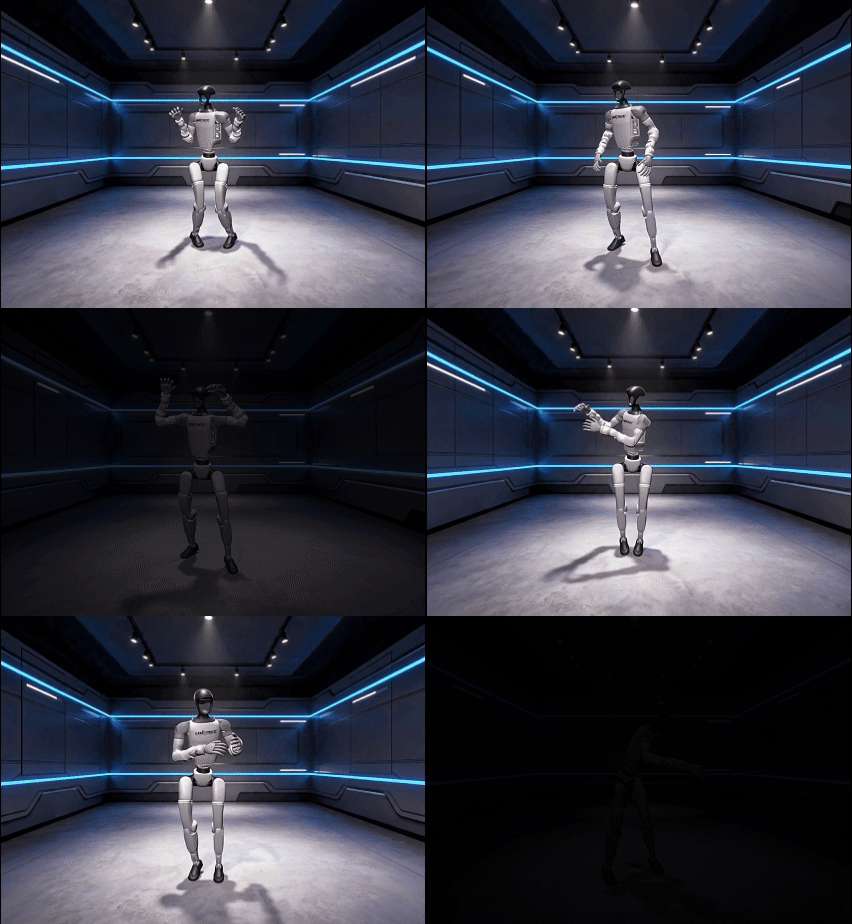
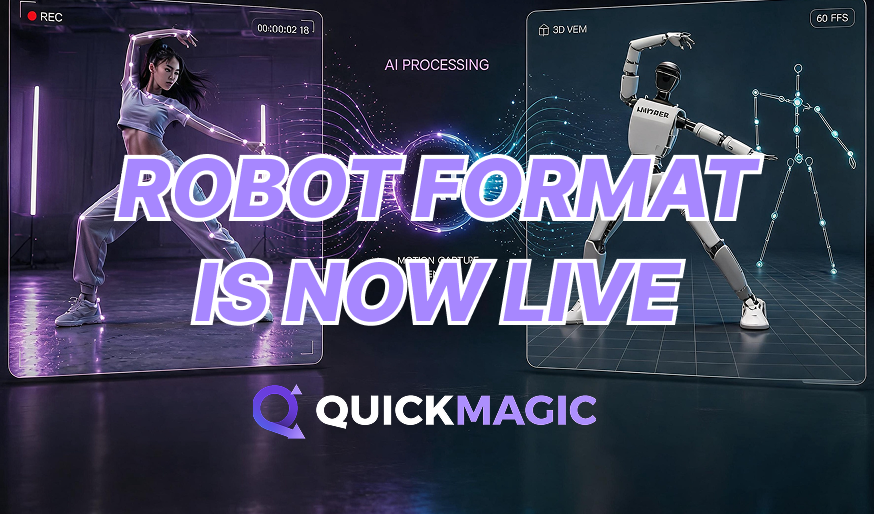
Figure 1: QuickMagic AI Robot Format transforms any human video into robot-ready motion data for Unitree humanoid robots.
Prerequisites & Setup
Before starting, ensure you have the following:
- A QuickMagic AI account — Sign up at quickmagic.ai. The robot export format requires a registered account.
- A recording device — Any smartphone, webcam, or camera capable of recording at 720p or higher.
- Unitree robot hardware — G1, H1, or H1-2 humanoid robot with access to the Unitree SDK or Control Panel.
- Unitree SDK / Control Panel — Installed on a computer that can communicate with the robot.
Step 1: Set Up Your Recording Environment
Set Up Your Recording Environment
A well-prepared recording environment is essential for high-quality robot motion capture. Since QuickMagic AI is a markerless system, lighting and camera positioning directly affect the quality of joint tracking.
Best Practices:
- Lighting: Use bright, even, diffused lighting. Avoid backlighting that creates silhouettes. Natural daylight from a large window or ring light works well.
- Background: A plain, contrasting background (white wall, solid color backdrop) helps the AI isolate body contours from the environment.
- Camera Position: Position the camera at waist height, 3-5 meters away from the performer. Capture the full body from head to toe in the frame.
- Camera Stability: Use a tripod or any stable surface. Shaky footage degrades tracking accuracy.
- Floor: A flat, non-reflective floor surface is ideal. Avoid mirrors or highly reflective surfaces in the background.
Step 2: Record Human Motion Video
Record Human Motion Video
Record a video of yourself or another person performing the movement you want the robot to replicate. QuickMagic AI processes standard MP4 and MOV video files and extracts motion data using computer vision and deep learning pose estimation.
Recording Guidelines:
- Full body visible: Ensure your entire body is visible throughout the recording. Cropped limbs cannot be tracked.
- Face the camera: Front-facing or 45-degree angles produce the best tracking results.
- Minimize occlusions: Avoid objects, furniture, or other people blocking the performer.
- Natural speed: Perform movements at a natural, comfortable speed. Extremely fast actions may cause motion blur.
- Record 2-3 takes: Capture multiple takes to have options for the best animation quality.
Step 3: Upload to QuickMagic and Select Robot Model
Upload to QuickMagic and Select Robot Model
Upload your recorded video to the QuickMagic AI platform and configure the motion generation settings:
- Log in to your QuickMagic AI account.
- Click "Upload Video" and select your recorded file.
- In the Motion Generation panel, select the Animation Basic Model (V1.0 for production, or V2.0 Beta for newer features).
- Choose Function Selection: Full Body for complete body motion or Upper Body for arms/head only.
- Select T-Pose as the first keyframe. This aligns the robot's reference pose with the motion data, ensuring proper joint mapping.

Figure 2: QuickMagic Motion Generation panel with Unitree G1(Beta) export format selected, Full Body motion, and T-Pose keyframe for proper joint alignment.
Step 4: Choose the Unitree Export Format
Choose the Unitree Export Format
In the Export Format section, select the appropriate Unitree format for your target robot:
- Unitree G1 — Optimized for G1's 37-degree-of-freedom (DOF) skeleton with direct SDK import.
- Unitree H1 — Optimized for H1's 41-DOF skeleton with direct SDK import.
- Unitree H1-2 — Optimized for H1-2's 44-DOF skeleton with direct SDK import.
Each format pre-configures the joint mapping to match the specific DOF configuration of the target robot, ensuring that the motion data is compatible without additional conversion.

Figure 3: QuickMagic output format selection UI showing the Unitree G1 (Beta) robot export option alongside other formats.
Step 5: Configure Motion Capture Settings
Configure Motion Capture Settings
Before generating the motion, fine-tune the settings to match your intended use case:
Capture Type:
- Full Body — Captures and maps all major joints including spine, legs, arms, and head. Best for walking, dancing, and complex whole-body movements.
- Upper Body — Captures only arms, hands, and head. Ignores leg movement. Best for seated gestures, arm movements, and upper-limb manipulation.
Advanced Features:
- In-place Motion Function — Removes global locomotion, keeping the robot performing the motion in a fixed position. Enable this for gestures, dances, or movements where the robot should not walk forward.

Figure 4: QuickMagic robot export format comparison table — Unitree G1 (37 DOF), H1 (41 DOF), H1-2 (44 DOF), and BVH for all platforms.
Step 6: Generate and Export the Robot Motion File
Generate and Export the Robot Motion File
Click Generate Motion to start processing. QuickMagic AI performs the following operations:
- Pose Estimation — The deep learning model analyzes every frame of the video, detecting 2D body joints and landmarks.
- 3D Reconstruction — Joint positions are reconstructed in 3D space using inverse kinematics and physics constraints.
- Robot Skeleton Mapping — The human motion is mapped to the Unitree robot's specific joint configuration (37, 41, or 44 DOF depending on the selected format).
- Output Generation — A JSON or PKL file is generated containing the robot-native motion data with properly mapped joint angles and keyframes.
Processing time is typically 1-5 minutes depending on video length. Once complete, download the generated file.

Figure 5: QuickMagic AI generates robot-ready motion data that can be directly imported into Unitree robot control software.
Step 7: Import and Test on Unitree Hardware
Import and Test on Unitree Hardware
With the motion file ready, import it into your Unitree robot system:
- Open the Unitree SDK or Control Panel software on your computer.
- Navigate to the Motion Library or Animation Import section.
- Load the downloaded JSON or PKL file from QuickMagic.
- The motion data will be automatically parsed and mapped to the robot's joint actuators.
- Test in simulation first — If available, run the motion in the simulator to verify the motion looks correct before deploying to the physical robot.
- Deploy to robot — Once verified in simulation, send the motion to the robot and observe the result.
Export Format Comparison
QuickMagic supports multiple export formats for different robot and animation workflows:
| Format | Target Robot | Description | Compatibility |
|---|---|---|---|
| Unitree G1 | Unitree G1 | Full-body motion, joint mapping for G1's 37 DOF | Direct import into Unitree SDK/Control Panel |
| Unitree H1 | Unitree H1 | Full-body motion, joint mapping for H1's 41 DOF | Direct import into Unitree SDK/Control Panel |
| Unitree H1-2 | Unitree H1-2 | Full-body motion, joint mapping for H1-2's 44 DOF | Direct import into Unitree SDK/Control Panel |
| BVH | All (generic) | Generic BVH for manual bone editing | Requires manual bone mapping in target software |
| FBX | Animation software | Standard animation format for DCC tools | Import into Maya, 3ds Max, Blender, UE5 |
Best Practices for Robot Motion Capture
Video Requirements
- Resolution: Minimum 720p, recommended 1080p or 4K.
- Frame rate: 30fps minimum, 60fps preferred for fast movements.
- Duration: 5-30 seconds per motion clip for optimal processing time.
- Lighting: Even, diffused lighting with no harsh shadows or backlighting.
Format Selection Rules
- Choose Unitree G1 for G1 hardware with 37 DOF.
- Choose Unitree H1 for H1 hardware with 41 DOF.
- Choose Unitree H1-2 for H1-2 hardware with 44 DOF.
- Choose BVH only if you need to manually retarget to a custom robot or animation software.
Post-Processing Tips
- Use the In-place Motion Function for stationary movements (gestures, dancing).
- Select Upper Body mode when the robot is seated or has fixed lower body.
- Always test in simulation before deploying to physical hardware.
- Record multiple takes and choose the best motion curve from the generated options.
Troubleshooting
| Problem | Cause | Solution |
|---|---|---|
| Robot joints look twisted or misaligned | Wrong reference pose or format mismatch | Ensure T-Pose is selected as first keyframe and the correct Unitree format is chosen |
| Motion looks jittery or unstable | Low-quality video or tracking errors | Use higher resolution recording, improve lighting, or slow down the movement |
| Robot falls or loses balance | Motion includes locomotion the robot can't support | Enable the In-place Motion Function to remove global translation |
| File won't import into Unitree SDK | Wrong file format selected | Verify the export format matches your robot model (G1, H1, or H1-2) |
| Motion is too fast for the robot | Original video had fast movements | Record the motion at a slower, deliberate speed, or adjust playback speed in the SDK |
Pro Tips
Frequently Asked Questions
What robots does QuickMagic support for motion capture?
QuickMagic AI supports Unitree G1, H1, and H1-2 humanoid robots with native export formats. Each format is optimized for the robot's specific joint configuration: G1 has 37 degrees of freedom (DOF), H1 has 41 DOF, and H1-2 has 44 DOF. The export files are in JSON or PKL format, ready for direct import into the Unitree SDK or Control Panel.
Can I use QuickMagic robot motion capture without a motion capture studio?
Yes. QuickMagic AI is a markerless motion capture solution that works with any standard video recording device including smartphones, webcams, and DSLR cameras. No specialized suits, reflective markers, or multi-camera arrays are required. A simple smartphone recording in a well-lit environment is sufficient for high-quality robot motion generation.
What file format does QuickMagic export for Unitree robots?
QuickMagic exports robot motion data in JSON or PKL format, which are native to the Unitree SDK and Control Panel. These files contain joint angle data mapped to the specific DOF configuration of each robot model (G1: 37 DOF, H1: 41 DOF, H1-2: 44 DOF). The files can be imported directly without additional conversion.
How accurate is QuickMagic AI robot motion capture?
QuickMagic AI uses advanced deep learning models trained on millions of motion samples to achieve professional-grade motion capture accuracy. For robot applications, the system maps human joint angles to the Unitree robot skeleton with high fidelity, preserving the full motion dynamics including posture, limb movement, and body orientation. The accuracy is suitable for research, entertainment, and human-robot interaction applications.
What is the difference between Full Body and Upper Body motion capture?
Full Body motion capture tracks all major joints including the spine, legs, arms, and head, producing a complete motion sequence. Upper Body mode focuses only on the arms, hands, and head, ignoring leg movement. Upper Body is useful when the robot is stationary (e.g., seated or mounted) and only needs upper-limb animation, or when working with robots that have limited lower-body mobility.
What is the In-place Motion Function and when should I use it?
The In-place Motion Function removes global translation (locomotion) from the captured motion, keeping the robot performing the motion in a fixed position. This is useful when the robot is constrained to a small area or when you want to focus on the movement itself (e.g., gestures, dances, arm movements) without the robot walking forward. Enable this in the Advanced Features section of the QuickMagic Motion Generation panel.
Can I export robot motion data for other robot platforms?
QuickMagic currently supports native export for Unitree G1, H1, and H1-2 robots. For other robot platforms, you can export the motion in BVH format (generic bone hierarchy) and use the robot platform's retargeting tools to map the motion to your target skeleton. Support for additional robot platforms is planned for future releases.
Is there a cost for using the robot motion capture feature?
QuickMagic offers a free tier that includes core motion capture features. The robot export format (Unitree G1, H1, H1-2) may require a specific subscription tier depending on your account type. Visit the QuickMagic pricing page or contact support for current pricing details.
Quick Start Checklist
Before You Start
Recording
QuickMagic Processing
Robot Deployment
Ready to Bring Your Robot to Life?
Get started with QuickMagic AI robot motion capture today. No studio, no suits, no hardware required.
Try QuickMagic AI Free