





Kurze Antwort: Wie konvertiert man Video in FBX, BVH oder BIP?
Nehmen Sie eine klare Performance auf, laden Sie das Originalvideo auf QuickMagic hoch, wählen Sie den Erfassungsumfang und das Zielskelett, generieren und überprüfen Sie die 3D-Bewegung, exportieren Sie dann FBX für breite Kompatibilität, BVH für leichtes Skelett-Motion oder BIP für einen 3ds Max Biped-Workflow. Retargetieren und bereinmen Sie die Animation anschließend in der Zielsoftware.
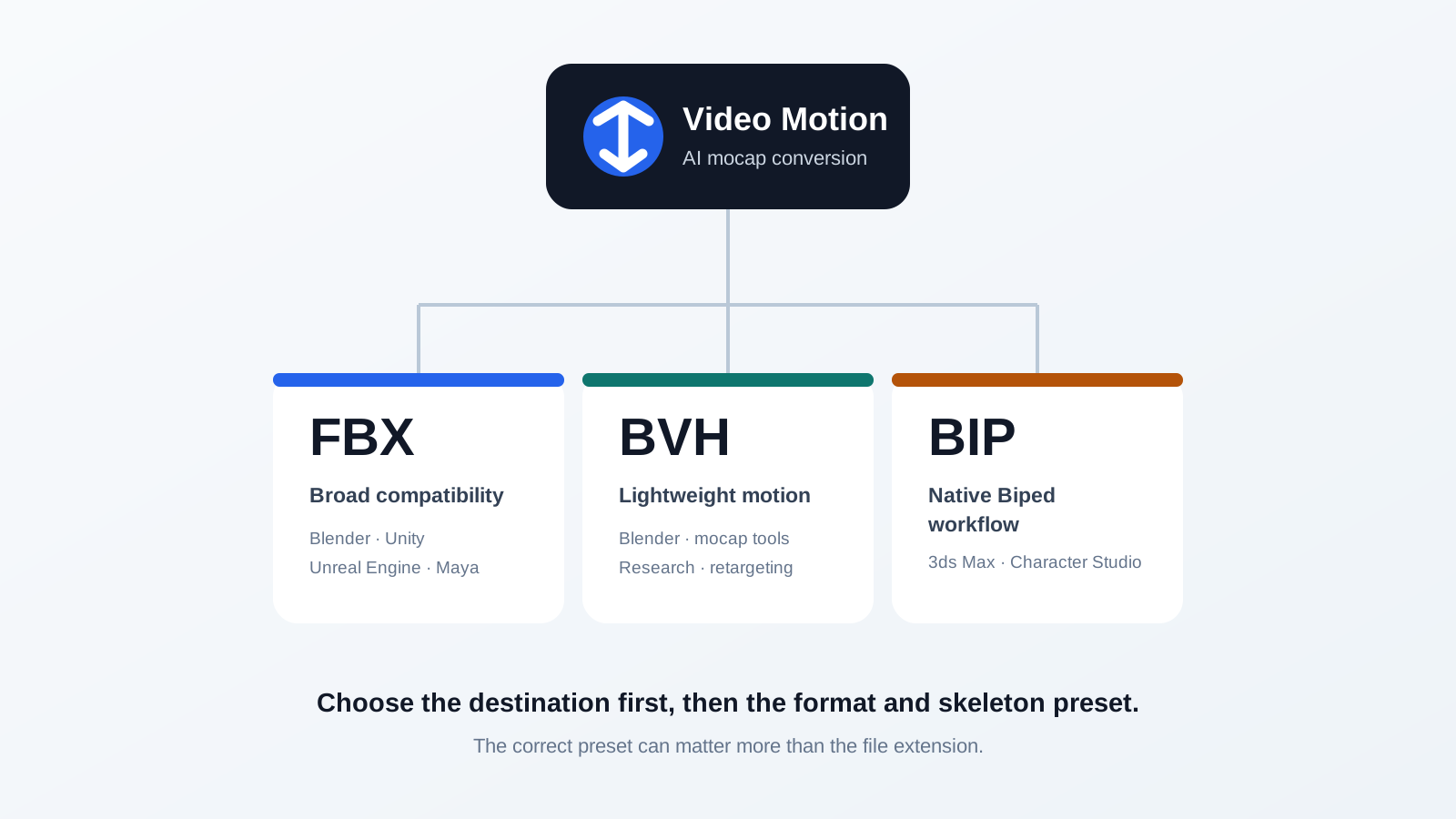
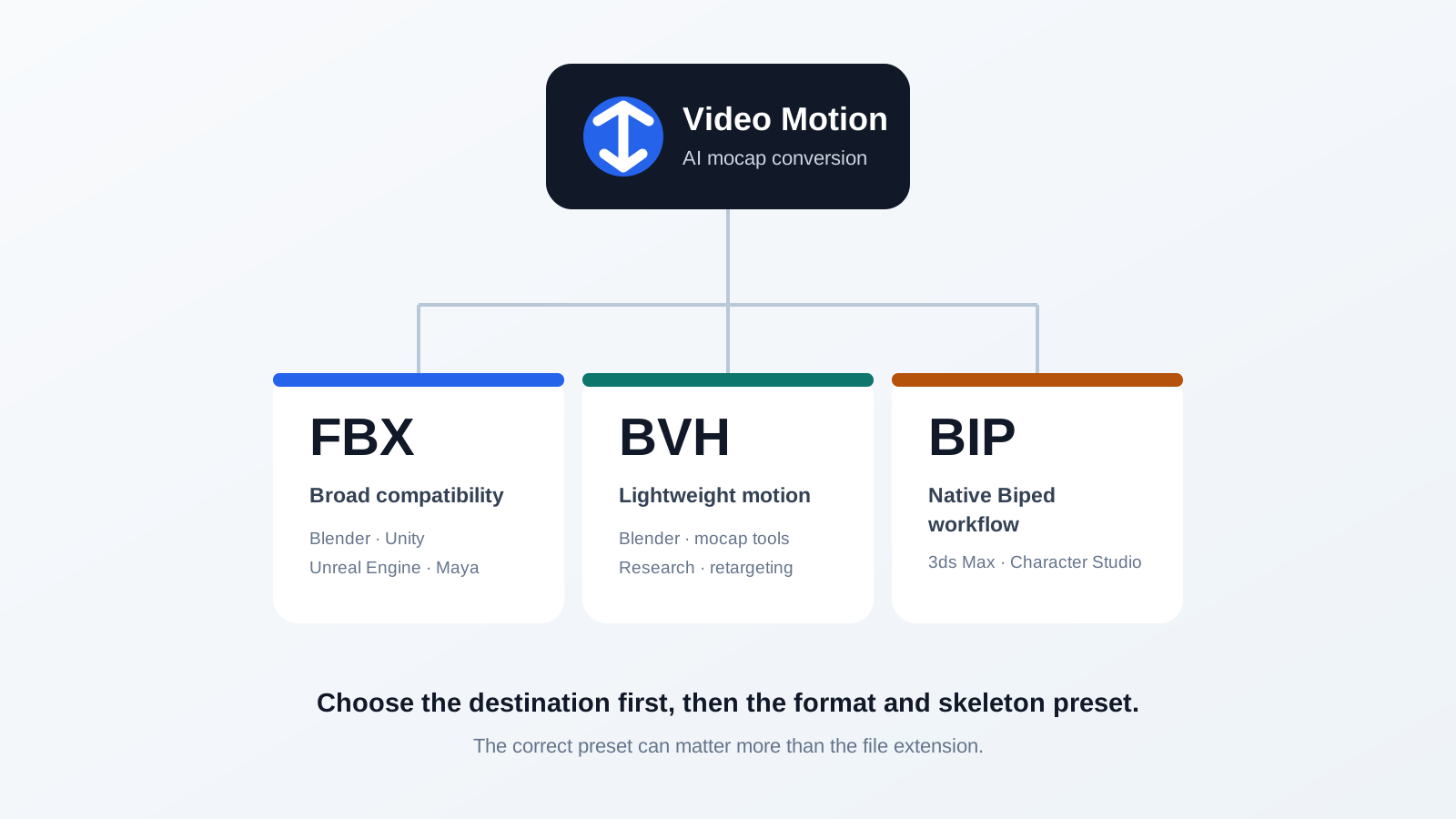
FBX
Beste allgemeine Wahl.
Blender, Unity, Unreal, Maya, MotionBuilder und viele Retargeter.
BVH
Beste leichte Wahl.
Gelenkhierarchie, Offsets und Bewegungskanäle ohne Produktionsszenendaten.
BIP
Beste Spezialistenwahl.
Native, wiederverwendbare Bewegung für 3ds Max Character Studio Biped.
Video wird nicht direkt in FBX oder BVH „transkodiert“
Ein MP4, MOV, AVI oder WebM enthält Pixel. Es enthält keine editierbaren Bones oder Animationskurven. QuickMagic verwendet zunächst KI-Motion-Capture, um die Körperbewegung des Darstellers Frame für Frame zu schätzen, eine 3D-Skelettlösung zu konstruieren und diese generierte Bewegung dann in das ausgewählte Animationsformat zu schreiben.
Die aktuellen öffentlichen Seiten von QuickMagic beschreiben die Ein-Kamera-Erfassung für Ganzkörper-, Oberkörper-, Hand- und Gesichts-Workflows, mit Unterstützung für statisches oder sich bewegendes Filmmaterial und mehrere Ausgabebildraten. Die Ausgabequalität hängt weiterhin von der Sichtbarkeit des Darstellers, Unschärfe, Verdeckung, Bodenkontakt, Kamerabewegung und der Komplexität der Aktion ab.
Wie man Video Schritt für Schritt mit QuickMagic konvertiert
Wählen Sie zuerst das eigentliche Ziel
Identifizieren Sie die Anwendung, das Zielcharakter-Skelett, die Engine-Version, die Projekt-FPS, die Referenzpose und ob die Bewegung den Weltraum-Translations beibehalten oder an Ort und Stelle exportiert werden soll.
Nehmen Sie eine kurze, verfolgbare Performance auf
Nehmen Sie für den ersten Test 5–10 Sekunden auf. Halten Sie den gesamten Körper und beide Füße sichtbar, verwenden Sie einen stabilen Bildausschnitt und gleichmäßiges Licht, und vermeiden Sie starke Unschärfe, lange Verdeckung von Gliedmaßen oder Kleidung, die Gelenkpositionen verdeckt.
Laden Sie die Datei in Originalqualität hoch
Öffnen Sie QuickMagic Video Mocap und laden Sie das Kameraoriginal anstelle einer rekomprimierten Social-Media-Kopie hoch. Wählen Sie den Darsteller und einen nutzbaren Erfassungsbereich aus, falls verfügbar.
Konfigurieren Sie die Erfassungs- und Exporteinstellungen
Wählen Sie Ganzkörper- oder Oberkörpererfassung, Hand-/Gesichtsoptionen bei Bedarf, Original/T/A-Pose nach Bedarf, 24/30/60/120 FPS passend zum Projekt, In-Place- oder Traveling-Root-Verhalten und die nächstgelegene Zielvoreinstellung.
Generieren und überprüfen Sie die Lösung
Überprüfen Sie das Ergebnis aus mehreren Blickwinkeln. Überprüfen Sie Fußkontakt, Beckenhöhe, Root-Translation, schnelle Drehungen, gekreuzte Gliedmaßen, Hände, Kopfbewegungen und Momente, in denen der Darsteller teilweise verdeckt ist.
Verfeinern Sie vor dem Export
Wenn eine 2D-Verfeinerung verfügbar ist, korrigieren Sie offensichtliche Quellgelenkfehler und generieren Sie neu. Die Korrektur der Quelllösung ist wiederverwendbarer als dieselbe Reparatur an jedem Zielcharakter zu wiederholen.
Exportieren Sie FBX, BVH oder BIP
Wählen Sie das Format zusammen mit der Voreinstellung des Zielskeletts. Bewahren Sie einen unbearbeiteten Quellexport auf, damit spätere Retargeting- und Bereinigungsänderungen leicht vergleichbar bleiben.
Retargetieren und backen
Richten Sie Quell- und Ziel-Rest-Posen aus, mappen Sie das Skelett, bestätigen Sie Maßstab und Achsen, übertragen Sie Root-Motion und backen Sie das endgültige Ergebnis in editierbare Animationssteuerungen oder Kurven.
Kontakte und Artefakte bereinigen
Korrigieren Sie Fußschleifen, Zittern, Clipping, Root-Drift, Handkontakte und zielspezifische Deformationen vor dem endgültigen Rendern oder der Game-Engine-Integration.
FBX vs. BVH vs. BIP: Welches Format sollten Sie wählen?
| Frage | FBX | BVH | BIP |
|---|---|---|---|
| Primärer Zweck | Allgemeiner 3D- und Engine-Austausch | Leichter Austausch von Skelettbewegungen | 3ds Max Biped-Bewegungsbibliothek |
| Typischer Inhalt | Skelett und Animation; zusätzliche Daten je nach Export | Gelenkhierarchie, Offsets und bildweise Kanäle | Biped-Keyframes und zugehörige Bewegungsdaten |
| Mesh und Materialien | Das Format unterstützt sie, aber Mocap-Exporte können animationsfokussiert sein | Nein | Kein allgemeines Modellaustauschformat |
| Gesichtsanimation | Nur mit kompatibler Voreinstellung/Kanälen möglich | Kein standardmäßiger Gesichts-Blend-Shape-Workflow | Nicht die allgemeine Wahl für Gesichts-Rigs |
| Beste Ziele | Blender, Unity, Unreal, Maya, 3ds Max, MotionBuilder | Blender, Bewegungseditoren, Forschung, benutzerdefinierte Retargeter | 3ds Max Character Studio Biped |
| Hauptvorteil | Breiteste Kompatibilität und viele Voreinstellungen | Einfach, lesbar und leichtgewichtig | Direkter Biped-Bearbeitungsworkflow |
| Hauptnachteil | FBX allein garantiert keine passenden Bones oder Posen | Kein Mesh, keine Produktionseinschränkungen oder Standard-Gesichtsdaten | Nicht für beliebige Rigs vorgesehen |
Wählen Sie FBX, wenn
- Das Ziel Blender, Unity, Unreal Engine, Maya, MotionBuilder, Cinema 4D, iClone oder ein allgemeines Retargeting-Tool ist.
- Eine passende Voreinstellung für Unreal, Mixamo, C4D, CC/iClone oder Roblox verfügbar ist.
- Sie das Quellskelett inspizieren und neu zuordnen müssen, bevor Sie es auf einen Charakter anwenden.
Wählen Sie BVH, wenn
- Sie eine kompakte Hierarchie plus rohe Gelenkanimation wünschen.
- Das Ziel einen zuverlässigen BVH-Importer oder Mocap-Retargeter hat.
- Sie kein Mesh, keine Materialien, keine Control-Rig-Einschränkungen oder Standard-Gesichtskanäle in derselben Datei benötigen.
Wählen Sie BIP, wenn
- Das Ziel spezifisch ein 3ds Max Character Studio Biped ist.
- Ihr Team Biped-Layer, Footsteps, Motion Mixer oder eine wiederverwendbare BIP-Bibliothek verwendet.
Dateiformat und Zielvoreinstellung sind unterschiedliche Entscheidungen
Ein Dateiformat bestimmt, wie Daten gespeichert werden. Eine Zielvoreinstellung bestimmt die Bone-Namen, Hierarchie, Referenzpose, Root-Setup und optionale Kanäle, die in diese Datei geschrieben werden.
Ein generisches FBX, Mixamo FBX und Unreal-orientiertes FBX können alle die gleiche .fbx-Erweiterung haben, aber unterschiedliche Skelettkonventionen enthalten. Die falsche Voreinstellung kann eine T-Pose, gedrehte Handgelenke, gestreckte Gliedmaßen, fehlende Animation oder ein fehlgeschlagenes Retargeting verursachen.
Empfohlener Export nach Zielsoftware
Beginnen Sie mit einem kompatiblen FBX – oft generisch oder Mixamo – oder verwenden Sie BVH, wenn Ihr bevorzugtes Retargeting-Add-on auf BVH basiert. Überprüfen Sie Szenen-FPS, Maßstab, Ruhepose, Root und Armature-Mapping.
Verwenden Sie eine Unity-orientierte Ausgabe, falls unterstützt, oder ein kompatibles FBX. Konfigurieren Sie den Avatar als Humanoid oder Generic, weisen Sie einen Animator Controller zu und überprüfen Sie Root Transform- und Loop-Einstellungen.
Verwenden Sie die passende Unreal-Voreinstellung, falls verfügbar. Importieren Sie die Quelle, konfigurieren Sie Quell- und Ziel-IK-Rigs, mappen Sie Chains im IK Retargeter, richten Sie die Retarget-Pose aus und validieren Sie Root-Motion.
Verwenden Sie BIP für Character Studio Biped. Für CAT oder ein benutzerdefiniertes Skelett wählen Sie FBX und einen geeigneten Capture-Animation- oder benutzerdefinierten Retargeting-Workflow.
Verwenden Sie FBX, charakterisieren Sie das Quellskelett in HumanIK, mappen Sie das Ziel-Rig, retargetieren Sie und backen Sie die Bewegung in editierbare Steuerungen.
Sehen Sie sich die QuickMagic-Bewegungsbereinigung in der Praxis an
Cascadeurs öffentliche YouTube-Demonstration zeigt eine nützliche Produktionsrealität: Mocap zu generieren ist nur die erste Stufe. Die Bewegung wird dann entbaked, bereinigt, pose-korrigiert und erhält eine zusätzliche physikalische Verfeinerung vor der endgültigen Verwendung.
Zusätzlicher iClone-Workflow
Reallusions iClone Video Mocap-Video demonstriert einen integrierten KI-Erfassungs- und Bewegungsbearbeitungs-Workflow. Es ist besonders relevant, wenn das Ziel Character Creator oder iClone ist und nicht eine generische FBX-Retargeting-Pipeline.
Community-Beispiele, die von QuickMagic auf X verlinkt wurden
Die offizielle Website von QuickMagic verlinkt derzeit auf die folgenden öffentlichen X-Beiträge als Ersteller-/Community-Beispiele. Verwenden Sie sie als visuelle Referenzen für das, was Künstler bauen, nicht als autoritative Dokumentation für Formatunterstützung oder technische Einstellungen.
X kann eine Anmeldung erfordern oder den Zugriff regional einschränken. Da die Beitragstexte für den automatisierten öffentlichen Abruf nicht zuverlässig verfügbar waren, werden hier keine unbestätigten Behauptungen aus diesen Beiträgen wiedergegeben.
Häufige Export- und Retargeting-Probleme
| Problem | Wahrscheinliche Ursache | Was zu prüfen ist |
|---|---|---|
| Animation wird in T-Pose importiert | Falsche Voreinstellung, fehlender Animation-Take oder fehlgeschlagenes Mapping | Bestätigen, dass Animation auf dem Quellskelett vorhanden ist, und die korrekte Hierarchie neu zuordnen. |
| Füße gleiten | Quellkontakt, Zielproportionen, Root-Verhalten oder Pose-Unterschied | Maßstab, Schrittlänge, Root-Translation, FPS, Kontakt-Timing validieren, dann Fußsperren hinzufügen. |
| Arme oder Handgelenke verdrehen sich | T-Pose/A-Pose oder lokale Achsen-Unterschied | Referenzposen ausrichten und Schulter-, Unterarm- und Hand-Mapping überprüfen. |
| BVH hat kein Charakter-Mesh | Erwartetes Verhalten | Das BVH-Skelett auf ein separat geriggedes Modell retargetieren. |
| BIP lässt sich nicht anwenden | Das Ziel ist kein kompatibler Biped | Character Studio Biped erstellen/verwenden oder für ein benutzerdefiniertes Rig auf FBX wechseln. |
| Gesicht bleibt neutral | Nur Körper-Export oder inkompatible Gesichtskanäle | Kompatiblen Gesichts-Workflow/Voreinstellung verwenden und Kanäle separat mappen. |
| Timing ändert sich nach Import | Projekt-FPS unterscheidet sich von Export-FPS | Ziel-Timeline anpassen oder den Clip absichtlich neu abtasten. |
Häufig gestellte Fragen
Kann QuickMagic MP4 in FBX konvertieren?
Ja, aber es ist keine einfache Codec-Konvertierung. QuickMagic schätzt die 3D-Skelettbewegung des Darstellers aus dem MP4 und schreibt diese generierte Animation dann in FBX oder ein anderes unterstütztes Format.
Was ist das beste QuickMagic-Exportformat?
FBX ist der sicherste allgemeine Ausgangspunkt. Wählen Sie BVH für leichte Skelettbewegungen und BIP speziell für 3ds Max Biped. Eine passende Zielvoreinstellung kann wichtiger sein als die Dateierweiterung.
Kann Blender QuickMagic BVH verwenden?
Ja. Blender kann BVH importieren, aber Sie müssen normalerweise das importierte Skelett auf den Produktionscharakter retargetieren. FBX kann bequemer sein, wenn eine kompatible Voreinstellung bereits zu Ihrem Workflow passt.
Sollte ich BVH für Unity oder Unreal Engine verwenden?
Es kann durch Konvertierung oder Retargeting funktionieren, aber eine passende Engine-Voreinstellung oder kompatibles FBX ist normalerweise der direktere Produktionsweg.
Können Blender, Unity oder Unreal BIP verwenden?
Nicht direkt als normaler Workflow. BIP ist für 3ds Max Character Studio Biped ausgelegt. Verwenden Sie FBX oder BVH für andere Ziele.


