





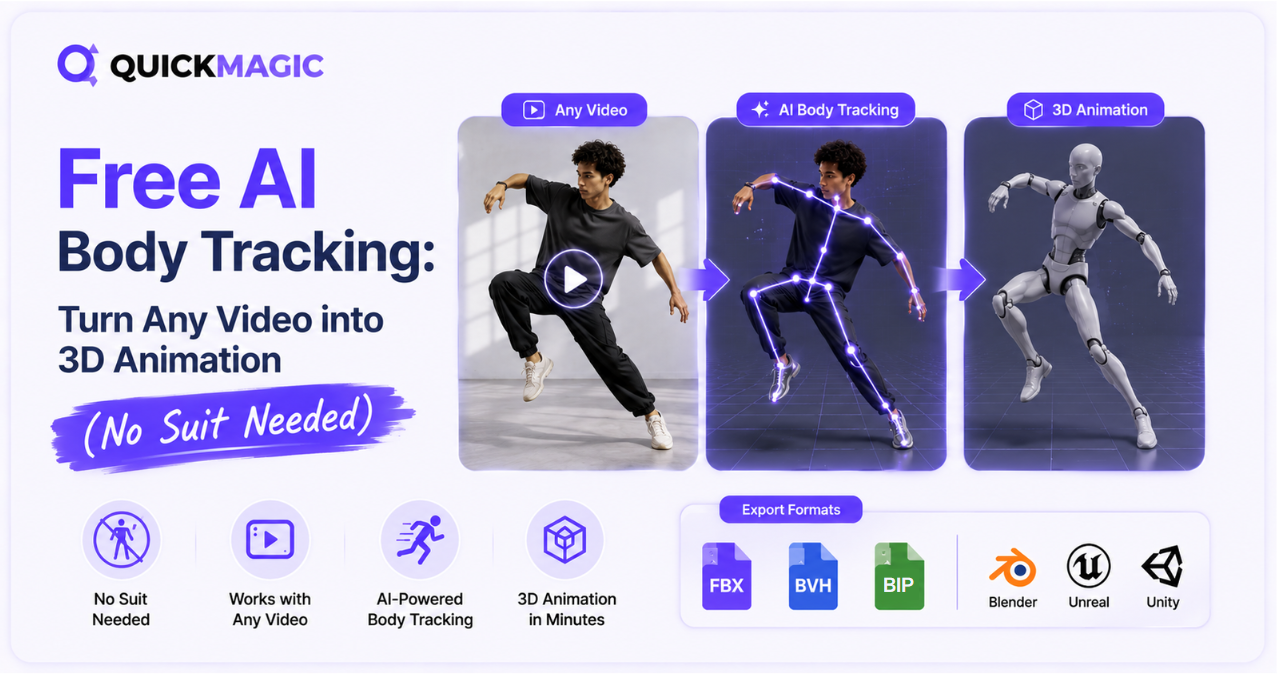
Was ist KI-Body-Tracking?
KI-Body-Tracking ist der Prozess, bei dem künstliche Intelligenz – insbesondere Computer Vision und Deep-Learning-Modelle – verwendet wird, um menschliche Körperbewegungen aus 2D-Video zu erkennen und zu rekonstruieren und diese Bewegung dann in 3D-Skelettanimationsdaten zu konvertieren. Im Gegensatz zu traditionellem Motion Capture, das tragbare Sensoren, reflektierende Marker oder optische Kamera-Arrays erfordert, analysiert KI-Body-Tracking Pixel in einem Standardvideo, um Gelenkpositionen, Gliedmaßenwinkel und Körpertrajektorien Bild für Bild zu schätzen.
Die Technologie stützt sich auf Posenschätzungsmodelle, die mit Millionen von menschlichen Bewegungsproben trainiert wurden. Diese Modelle identifizieren wichtige Körperlandmarken – Schultern, Ellbogen, Handgelenke, Hüften, Knie, Knöchel und Wirbelsäule – und verfolgen ihre 3D-Positionen in jedem Bild. Das Ergebnis ist eine riggende Skelettanimation, die auf jeden 3D-Charakter umgezielt werden kann.
Wichtige Unterscheidung: Body Tracking AI konzentriert sich auf Rumpf- und Gliedmaßenbewegungen. Viele moderne Tools, einschließlich QuickMagic, erweitern dies um Hand- und Fingerverfolgung sowie Gesichtsausdruckserfassung und schaffen so eine vollständige Performance-Capture-Pipeline mit einer einzigen Kamera.
Wie kostenloses KI-Body-Tracking funktioniert
Der Prozess vom Video zur 3D-Animation folgt einer vorhersagbaren Pipeline. Hier ist, was unter der Haube passiert:
Videoeingabe
Sie laden ein Video hoch, das mit einer beliebigen Kamera aufgenommen wurde – Smartphone, Webcam oder Profikamera. Das Video kann eine einzelne Person oder mehrere Personen zeigen. Sowohl statische (stativmontierte) als auch bewegte Kamerabilder werden von modernen KI-Body-Tracking-Tools unterstützt.
KI-Posenschätzung
Das KI-Modell analysiert jedes Bild, um Körperlandmarken zu erkennen. Es ordnet 2D-Pixelpositionen 3D-Gelenkkoordinaten zu und schätzt Tiefe und Rotation auch aus einer Einzelkameraperspektive. Hier leistet Deep Learning die Hauptarbeit – das Modell wurde trainiert, menschliche Posen in unzähligen Körpertypen, Kleidungsstilen und Lichtverhältnissen zu erkennen.
3D-Skelett-Rekonstruktion
Die erkannten Landmarken werden zu einem 3D-Skelett mit korrekter Gelenkhierarchie zusammengesetzt. Das System berechnet Knochenlängen, Rotationswinkel und die globale Körperposition im 3D-Raum. Fortschrittliche Tools wenden Anti-Penetrationskorrektur an, um zu verhindern, dass Gliedmaßen unnatürlich durcheinander gehen.
Bewegungsdaten-Export
Die rekonstruierte Animation wird in gängige 3D-Animationsdateiformate konvertiert – FBX, BVH, BIP, VMD und andere – die in praktisch jede 3D-Software für Retargeting, Bearbeitung und Rendering importiert werden können.
Warum KI-Body-Tracking dem traditionellen Mocap vorziehen?
Traditionelles Motion Capture war jahrzehntelang der Industriestandard, aber KI-Body-Tracking hat die Wirtschaftlichkeit und Zugänglichkeit der Animation grundlegend verändert. Hier ein Vergleich:
| Merkmal | Traditionelles Mocap | KI-Body-Tracking |
|---|---|---|
| Erforderliche Hardware | Mocap-Anzug, Sensoren, optische Kameras, Kalibrierungswerkzeuge | Jede Kamera (Handy, Webcam, DSLR) |
| Einrichtungszeit | 30–60 Minuten (Anzug anpassen, Kalibrierung, Kamera-Positionierung) | Unter 1 Minute (Video hochladen) |
| Kosten | 10.000–150.000+ USD für professionelle Systeme | Kostenloser Einstieg (Freemium-Modelle) |
| Studioraum | Spezieller Aufnahmebereich mit kontrollierter Beleuchtung | Beliebiger Ort – Wohnzimmer, Büro, im Freien |
| Mehrpersonen-Aufnahme | Erfordert zusätzliche Anzüge und Sensoren | Aus einem einzigen Video unterstützt (toolabhängig) |
| Nachbearbeitung | Echtzeit, erfordert aber Bereinigung in spezieller Software | KI-verarbeitet, dann in Standard-3D-Tools bereinigt |
| Zugänglichkeit | Studios und gut finanzierte Teams | Jeder mit einem Handy und Internetanschluss |
Der Kernvorteil der Body-Mocap-ohne-Anzug-Technologie sind nicht nur die Kosten – es ist die Zugänglichkeit. Ein einzelner Indie-Entwickler, ein VTuber oder ein Student mit einem Laptop und einem Handy kann jetzt Animationsqualität produzieren, die zuvor eine eigene Mocap-Bühne erforderte.
Full Body Motion Capture AI: Was kann man erfassen?
Moderne Full Body Motion Capture AI-Systeme können aus einem einzigen Video eine überraschende Bandbreite an Bewegungsdaten extrahieren. Hier ist, was möglich ist:
Körperbewegung
Vollständige Skelettkette von Kopf bis Fuß – Wirbelsäulenrotation, Schulterbewegung, Armschwünge, Hüftrotation, Kniebeugung und Knöchelgelenk. Deckt Gehen, Laufen, Tanzen, Kämpfen, Sport und mehr ab.
Hand- und Fingerverfolgung
Handgelenkrotation, Fingerkrümmung, einzelne Fingergelenke und Handposen. Entscheidend für Gesten, Gebärdensprache, Instrumentenspiel und detaillierte Performance-Erfassung.
Gesichtsausdruckserfassung
Augenbrauenbewegungen, Augenblinzeln, Mundformen, Kieferrotation und Wangenbewegungen. Ermöglicht Lippensynchronisation, emotionale Ausdrücke und detaillierte Gesichtsperformances.
Mehrpersonen-Tracking
Erkennung und Verfolgung mehrerer Personen im selben Video gleichzeitig, Erzeugung separater Skelettanimationen für jede Person. Ideal für Kampfchoreografien und Tanzduette.
QuickMagic unterstützt alle vier Erfassungstypen – Ganzkörper, Oberkörper, Hand und Gesicht – aus einem einzigen Video-Upload, mit sowohl Einzel- als auch Mehrpersonen-Tracking-Modi.
Body Mocap ohne Anzug: Der QuickMagic-Ansatz
QuickMagic ist eine kostenlose KI-Motion-Capture-Plattform, die Videos und Textaufforderungen in produktionsreife 3D-Animationsdaten umwandelt. Sie benötigt keine Sensoren, Anzüge, Marker oder optische Kameraaufbauten – Sie laden ein Video hoch, und die KI extrahiert Bewegungsdaten, die Sie in Ihre 3D-Pipeline exportieren können.
Was QuickMagic anders macht
Mehrere Funktionen zeichnen QuickMagic in der Landschaft des kostenlosen KI-Body-Trackings aus:
- Einzelkamera, jede Kamera. Funktioniert mit Aufnahmen von Handys, Webcams oder Profikameras. Keine Multi-Kamera-Anforderung, kein Greenscreen, keine kontrollierte Beleuchtung.
- 13+ Exportformate. Export in FBX, BVH, BIP, C4D, VMD, Mixamo, UE4, UE5.5, UE5.6, Character Creator & iClone, Roblox, OnlyFace und UniRobot. Deckt praktisch jedes große 3D-Animationswerkzeug ab.
- Anti-Penetrationskorrektur. Integrierte intelligente Korrektur verhindert, dass Gliedmaßen durcheinander gehen – ein häufiges Artefakt bei Einzelkamera-Motion-Capture.
- Benutzerdefinierte Startpose. Legen Sie eine bestimmte Startpose für die Animation fest, nützlich zum Abgleichen vorhandener Clips oder zum Aufbau einer Charakterhaltung.
- Ausgabe mit mehreren Bildraten. Unterstützung für 24, 30, 60 und 120 FPS Ausgabe bedeutet, dass Ihre Animation der Bildrate Ihres Projekts ohne manuelle Konvertierung entspricht.
- Text to Motion. Generieren Sie 3D-Animation aus Textaufforderungen. Beschreiben Sie eine Aktion, Pose oder Performance, und die KI erstellt einen Bewegungsentwurf – keine Videoeingabe erforderlich.
- Roboter- und Embodied-AI-Unterstützung. Exportieren Sie Bewegungsdaten in Formaten, die mit Unitree G1, H1 und H1_2 humanoiden Robotern für Robotersimulation und Imitationslernen kompatibel sind.
Schritt für Schritt: Video in 3D-Animation verwandeln
Hier ist eine praktische Anleitung des KI-Body-Motion-Capture-Workflows mit QuickMagic:
Nehmen Sie Ihr Video auf
Nehmen Sie ein Video der Performance auf, die Sie erfassen möchten. Für beste Ergebnisse:
- Kameraposition: Platzieren Sie die Kamera auf Brusthöhe, 2–3 Meter entfernt, und erfassen Sie Ihren gesamten Körper mit etwas Rand.
- Beleuchtung: Verwenden Sie gleichmäßiges, diffuses Licht von vorne. Vermeiden Sie hartes Seitenlicht, das tiefe Schatten wirft.
- Kleidung: Tragen Sie körpernahe Kleidung, die sich von Ihrem Hintergrund abhebt. Vermeiden Sie lockere, fließende Kleidungsstücke, die Gelenkpositionen verdecken.
- Hintergrund: Ein sauberer, einfarbiger Hintergrund funktioniert am besten. Vermeiden Sie unruhige Muster.
- Bildrate: Nehmen Sie mit 60 FPS oder höher auf, um Bewegungsunschärfe bei schnellen Bewegungen zu minimieren.
- Startpose: Fügen Sie zu Beginn 2–3 Sekunden einer T-Pose oder neutralen Standposition hinzu, um der KI die Kalibrierung der Körperproportionen zu erleichtern.
Hochladen zu QuickMagic
Gehen Sie zu quickmagic.ai und laden Sie Ihr Video hoch. Die Plattform akzeptiert normales Videomaterial von jeder Kameraquelle.
Aufnahmeeinstellungen konfigurieren
Wählen Sie Ihren Aufnahmemodus:
- Ganzkörper- oder Oberkörper-Tracking
- Einzel- oder Mehrpersonen-Erkennung
- Statischer oder bewegter Kamera-Modus
- Hand- und Gesichtsverfolgungs-Optionen (wo zutreffend)
- Bildrate für die Ausgabe (24/30/60/120 FPS)
- Tracking-Modus: Statisch (feste Position) oder global (Ganzkörperbewegung durch den Raum)
KI-Verarbeitung
Die KI von QuickMagic analysiert Ihr Video, erkennt Körperlandmarken Bild für Bild und rekonstruiert eine 3D-Skelettanimation mit Anti-Penetrationskorrektur. Die Verarbeitungszeit hängt von Videolänge und Komplexität ab.
Vorschau und Export
Sehen Sie sich die generierte Animation in der Vorschau an. Wenn Sie zufrieden sind, exportieren Sie in Ihrem bevorzugten Format:
- FBX – Universelles Format für Blender, Maya, 3ds Max, Unity, Unreal Engine
- BVH – Motion-Capture-Standard für MotionBuilder und Rigging-Tools
- VMD – MikuMikuDance-Format für MMD-Projekte
- BIP – 3ds Max Biped-Format
- Mixamo – Adobe Mixamo-kompatible Ausgabe
- UE4 / UE5.5 / UE5.6 – Unreal Engine MetaHuman-Voreinstellungen
- Roblox – Roblox-kompatible Animation
- UniRobot – Unitree-Roboter-Bewegungsformat
Importieren und Retargeting
Importieren Sie die exportierte Datei in Ihre 3D-Software. Zielen Sie die Animation auf Ihr Charakter-Rig um, bereinigen Sie etwaiges Ruckeln mit Glättungsfiltern und rendern Sie Ihre endgültige Animation.
KI-Body-Motion-Capture: Best Practices für saubere Ergebnisse
Die Qualität Ihrer KI-Body-Tracking-Ausgabe hängt stark von der Qualität Ihres Eingangsvideos ab. Befolgen Sie diese Praktiken für möglichst


