





How do you fix foot slide and jitter?
Diagnose first, edit a specific interval, then compare. For foot slide, identify when a foot should be planted; for jitter, identify the noisy joint and frame range. Make a focused correction in Motion Editor, preserve intentional movement, and check the exported result on the final character.
The goal is not a motionless foot at every moment or the smoothest possible animation. A convincing performance still needs lift-off, pivots, impacts and quick changes of direction. Cleanup succeeds when the unwanted motion disappears without removing those details.
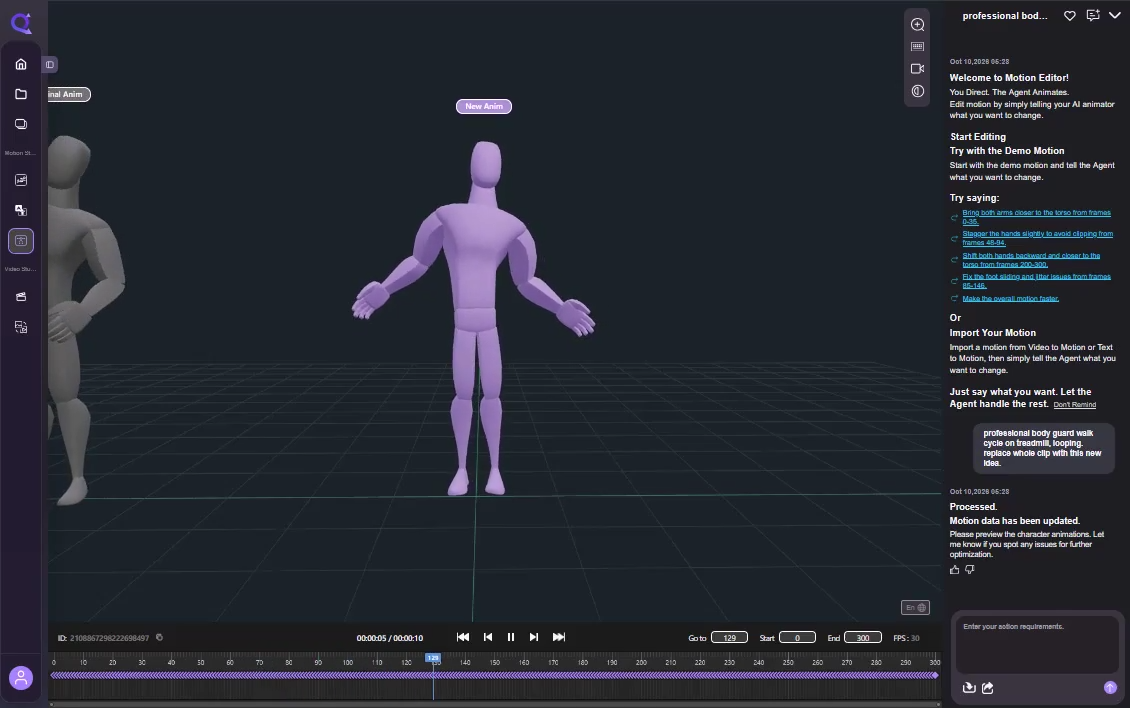
What this tutorial is based on: the supplied creator video, the supplied Motion Editor page and its product-demo assets, plus QuickMagic's published workflow guidance. Screenshots are frames from those recordings. Example prompts below are suggested starting points, not commands executed in an independent performance test. Interface labels may differ by version.
Watch the workflow before editing
Creator walkthrough: chatting, changing and comparing
At approximately 00:45, the chat requests different finger actions in portions of the clip. Around 01:28, a two-part action is compared with the original. Around 02:02, the request changes scope to a whole-clip walking replacement. These examples make one lesson especially useful for cleanup: say exactly what is allowed to change.
Later Blender and Mixamo screens do not, by themselves, establish a one-click export or automatic retargeting integration. Validate that handoff separately in your own pipeline.
Product demonstration: diagnostics and review
Foot slide, jitter or a different problem?
| Symptom | What you see | First question |
|---|---|---|
| Foot slide | A supporting foot drifts across the floor. | Should it really be planted during these frames? |
| Jitter | Small unwanted shakes or pose fluctuations. | Which body part and interval contain the noise? |
| Penetration | A foot sinks into the floor, or body parts overlap. | Is the issue in the source pose, ground setup or final mesh? |
| Root mismatch | The character moves through the scene at the wrong speed. | Does scene travel match the stride and displacement settings? |
Compare the original source motion with the destination character. An error present only after retargeting needs a different investigation from one already visible before export. QuickMagic's capture-quality guide recommends checking the faulty stage rather than smoothing every symptom indiscriminately.
The six-step cleanup workflow
- 01Open the motion and preserve the original
- 02Identify the symptom and frame range
- 03Correct a specific foot-contact interval
- 04Smooth only the unwanted jitter
- 05Review the result and undo unwanted changes
- 06Export and validate on the final character
Step 1. Open motion and keep a baseline
Start from an existing QuickMagic video-mocap or text-to-motion result. The published tutorial describes opening the result in Motion Editor and using the viewport, chat panel and frame timeline to refine it. See the documented entry workflow.
Before editing, keep an untouched version or export. Record the clip's duration and frame rate, and note whether you expect traveling motion or an in-place cycle. This gives you a baseline when a correction looks smoother but accidentally changes something important.
Play the whole clip once. Then choose a small problem area. Do not begin with “fix everything” if you cannot yet describe what is wrong.
Step 2. Identify the exact interval
For a foot, find the first clear contact, the supporting phase and the point where it lifts or pivots. For a shaky wrist or shoulder, note where the unwanted fluctuation starts and stops. Include a few surrounding frames in your review so you can see how the edit enters and leaves the original motion.

If your version shows diagnostics, use them as pointers to inspect—not as a replacement for watching the movement. The product demo displays a “Fix All” action. A broad pass can be a trial on a saved version, but accepting it still requires checking contacts and performance timing.
The demo displays a foot-slide change from 16.3 cm to 2.4 cm. No independent reproduction or measurement protocol is supplied with these materials. Treat that as a demonstration value, not a promised reduction for your own asset.
Step 3. Request a focused foot-slide correction
Use a request that names the foot, the contact interval and the movement you want to preserve. The sample numbers below are placeholders; check the actual timeline before sending them.
From frames 90–118, reduce the left foot's drift during its planted contact. Preserve the original lift-off and turn. Keep the upper-body performance unchanged, and explain the proposed edit before applying it.
Example request—not a tested command. Replace the frame numbers with your own.Review the proposed scope if the Agent presents a plan. If it asks which frames to edit, answer with an explicit range. A whole-clip replacement is a creative change, not a local repair.
After the edit, ask: does the foot still lift when it should, and does the body remain balanced over the support? Check the knees and hips as well as the foot. A planted foot that produces an unnatural stretch is not a finished correction.
For an intentional pivot, ask to preserve the rotation. For a jump, do not treat the airborne section as a planted interval. The request should follow the action, not force every frame into contact.
Step 4. Reduce local jitter without flattening the motion
Identify the smallest region that needs attention. A hand tremor, a shoulder fluctuation and a full-body tracking failure should not all receive the same broad request.
Reduce the unwanted right-wrist jitter from frames 145–175. Preserve the gesture's timing and strongest poses. Leave the fingers, torso and lower body unchanged unless a necessary dependency is explained.
Example request—not a tested command. Replace the frame numbers with your own.This is an intended constraint, not a guarantee that every channel remains untouched. Verify the result. If the movement becomes soft or delayed, undo it or ask for a lighter change:
Use a smaller correction over the same interval. Restore the sharp wrist accent near frame 160, and keep the rest of the clip as it was.
Example request—not a tested command. Replace the frame numbers with your own.Compare at normal speed before relying on slow playback. Slow motion helps you locate noise; normal speed helps you judge whether the original energy survives. Do not remove a deliberate shake simply because it looks irregular frame by frame.
If the entire pose repeatedly collapses or flips, return to the source or mapping problem instead of adding stronger smoothing. Local cleanup works best when the underlying motion is already broadly usable.
Step 5. Compare the result, not just the score

The creator recording uses a gray Original Anim and purple New Anim. Compare them at matching times. Inspect the changed interval, its boundaries and any supposedly untouched body parts.
- Contact: the supporting foot is stable when intended.
- Timing: starts, stops and impacts still occur at the intended moments.
- Scope: a local request did not unexpectedly rewrite the whole action.
- Transitions: the edit does not introduce a jump at its beginning or end.
- Style: the performance still communicates the same weight and intent.

Keep a change only when it passes your review. Use the available undo, reject or version controls in your build, or return to your saved original. The aim is a reviewable editing loop, not a sequence of irreversible guesses.
Step 6. Export, then test the final rig
The official tutorial documents an export panel with target-format selection, first-frame pose, displacement options and optimization toggles. “Foot Sliding Fix,” penetration prevention and key reduction address different tasks; turn on the options you need rather than assuming all options improve every clip. Review the export options.
| Setting or choice | What to verify |
|---|---|
| Format / skeleton preset | The receiving rig can use the exported motion; availability depends on the plan. |
| First-frame pose | The selected reference pose matches your import or retargeting workflow. |
| Displacement | In-place or traveling motion matches how the application moves the character. |
| Foot-slide optimization | Contact improves without freezing intended steps or pivots. |
| Key reduction | Important poses and timing survive; fewer keys are not the quality target. |
Open the export on the character you will actually deliver. Check scale, frame rate, root motion and floor contact again. Different proportions can change how a foot meets the floor, so source cleanup is not the final sign-off.
Keep the original motion, edited motion, exported file and a short note describing the accepted changes. A version that works only in an online preview is not yet a verified production handoff.
When cleanup creates a new problem
| Problem after editing | Next check |
|---|---|
| The foot sticks during a step | Shorten the requested contact interval and preserve lift-off. |
| The gesture looks floaty | Reduce the correction and restore intentional accents. |
| The knee pops or leg stretches | Review contact, body position and the destination rig rather than locking harder. |
| The wrong section changes | Confirm frame range, frame rate and whether the request was interpreted as whole-clip. |
| Only the exported character slides | Check retargeting, displacement and scene movement before re-editing the source. |
Start with one small repair
Choose a visible problem, describe a bounded change, compare it with the original, and validate the final export. That is a more useful cleanup loop than chasing a perfect-looking score.
Open QuickMagicFrequently asked questions
How do I fix foot sliding in QuickMagic Motion Editor?
Locate the frames where the foot should be planted, inspect the motion and ground relationship, then request a correction limited to that contact interval. Review any proposed plan and compare the result. Use the available foot-sliding export optimization where appropriate, and recheck contacts on the destination character.
How do I reduce jitter without making the animation look floaty?
Identify the noisy body part and frame range, then request a small, local smoothing edit. Compare the entry, exit and strongest gestures at normal speed. Reduce or undo the change if it removes intentional accents, changes timing or weakens a landing.
Does the SayuriArtsy video prove that foot sliding was fixed?
No. The supplied creator recording shows conversational motion edits, gray original versus purple edited previews, and examples of changing gestures or replacing actions. The diagnostic panel and numerical cleanup example belong to the separate product demonstration.
What does the 16.3 cm to 2.4 cm result mean?
Those values are displayed in the supplied product demonstration. They are not an independently reproduced benchmark or a guaranteed outcome for your clip. Judge the result using the same contact interval, coordinate space and target character, as well as visual playback.
Is Keyframe Reduction the same as jitter removal?
No. Fewer keys do not automatically mean better motion. Treat key reduction as a separate export or editing decision, and check that timing, contacts and sharp intentional movements survive. Do not use a smaller file as your only measure of cleanup quality.
Should I fix foot sliding before or after retargeting?
Correct visible errors in the source motion first, then validate again after retargeting. Different character proportions, root settings or contact behavior can create new sliding on the target rig. Final contact approval should happen on the character used in production.
Why does my character skate after exporting an in-place clip?
An in-place clip and a traveling clip handle displacement differently. Check how the receiving application moves the character and whether that movement matches the steps. Do not assume that removing root travel automatically fixes foot contact.
Can I use these example prompts exactly as written?
Use them as starting points, not guaranteed commands. Replace the sample frame ranges and body-part names with values from your own clip. The prompts in this article are editorial examples; they were not executed as a measured cleanup test.


