This guide is based on hands-on testing with Autodesk Maya 2024, Blender 4.2, Unreal Engine 5.3, and QuickMagic Animation Basic Model V2.0. All solutions have been verified in production workflows.
Part 1: Universal Motion Capture Problems
Whether you're using AI video-based mocap like QuickMagic or traditional optical/inertial systems, certain problems are universal. This section covers the four most searched mocap problems and provides cross-platform solutions for Autodesk Maya, Blender, and Unreal Engine.
Mesh Clipping / Self-Intersection
What it is: Mesh clipping occurs when body parts pass through each other or through the character model during animation — arms penetrating the torso, legs passing through each other, or hands clipping through the hips.
Root cause: Mocap data drives the skeleton, but the mesh surface is controlled by skin weights. When mocap motion ranges exceed the rig's intended design — or when bone rotations are extreme — the mesh deforms in ways that cause self-intersection. In AI mocap, inaccurate 2D keypoint tracking can produce extreme joint rotations that trigger clipping.
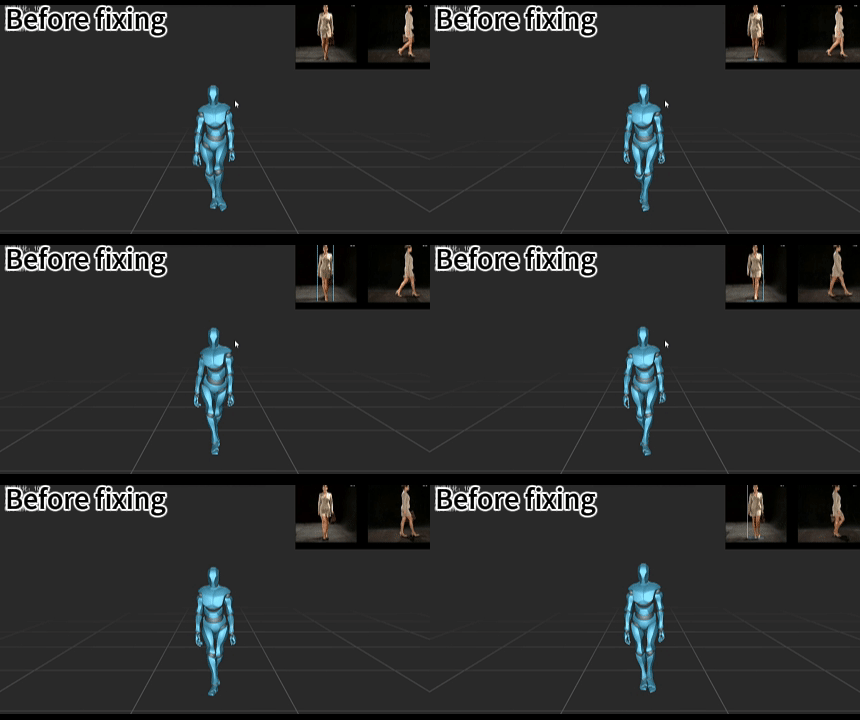
Example: Mesh clipping during motion capture — body parts intersect unnaturally when joint rotations exceed rig limits. (Reused from Hip Stretching visualization)
Fix in Autodesk Maya:
- Use the ADV Plugin's MoCap Matcher to ensure proper bone mapping — misaligned bones are the #1 cause of clipping
- Apply corrective blend shapes (Pose Space Deformers) for extreme poses where clipping occurs
- Use Maya's
Paint Skin Weightstool to smooth weight transitions at problem joints (shoulders, hips, elbows) - For arm-through-torso clipping: add an IK constraint with a pole vector to limit arm inward rotation
Fix in Blender:
- Open the Weight Paint mode and smooth weights at clipping zones (armpits, inner thighs, hips)
- Use the
Edit Bone > Rollfunction to correct bone orientation causing rotational clipping - For hand-through-body clipping: add a Copy Location constraint with a limit to prevent the hand from crossing the torso boundary
- Consider using
Auto-Rig Pro's corrective shape keys feature for persistent clipping areas
Fix in Unreal Engine:
- Use the
Control Rigto add positional constraints that prevent limb penetration - Enable
Physical Animation Componentfor real-time collision prevention during runtime - For MetaHuman characters, use the built-in corrective morph targets at extreme poses
QuickMagic-specific fix:
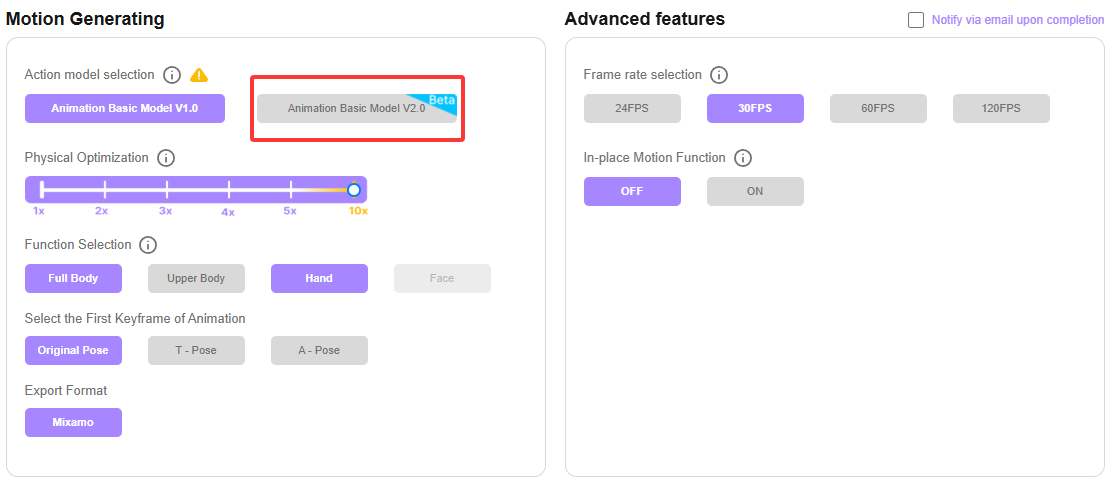
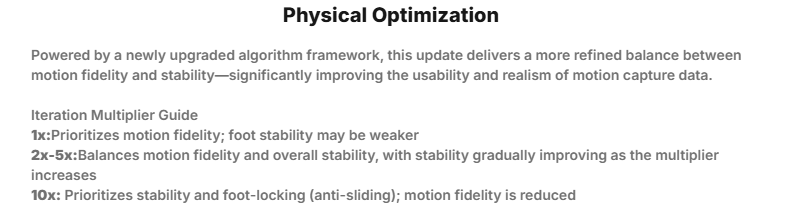
- Reduce Physical Optimization from 10x to 1x-5x — aggressive stabilization over-restricts movement and can cause unnatural poses that trigger clipping
- Use the 2D Correction panel to manually fix keypoint tracking errors that produce extreme joint rotations
- Switch from Animation Basic Model V1.0 to V2.0 for improved reconstruction of complex motions
Pro Tip: Mesh clipping is often a rigging problem, not a mocap problem. Before adjusting mocap data, check if your rig's skin weights and joint orientation are properly set up. A well-rigged character will clip far less, even with imperfect mocap data.
Foot Sliding / Foot Skating
What it is: Foot sliding (also called "ice skating") occurs when a character's feet appear to slide or drift across the ground during contact phases — when they should be firmly planted. This is one of the most noticeable and common mocap artifacts.
Root cause: Foot sliding happens when the character's translation speed doesn't match the animation's implied movement speed. In retargeting, it occurs because source and target skeletons have different leg lengths, causing stride length mismatches. In AI mocap, inaccurate foot-ground contact detection during 2D tracking causes the system to misidentify which frames should be "planted."
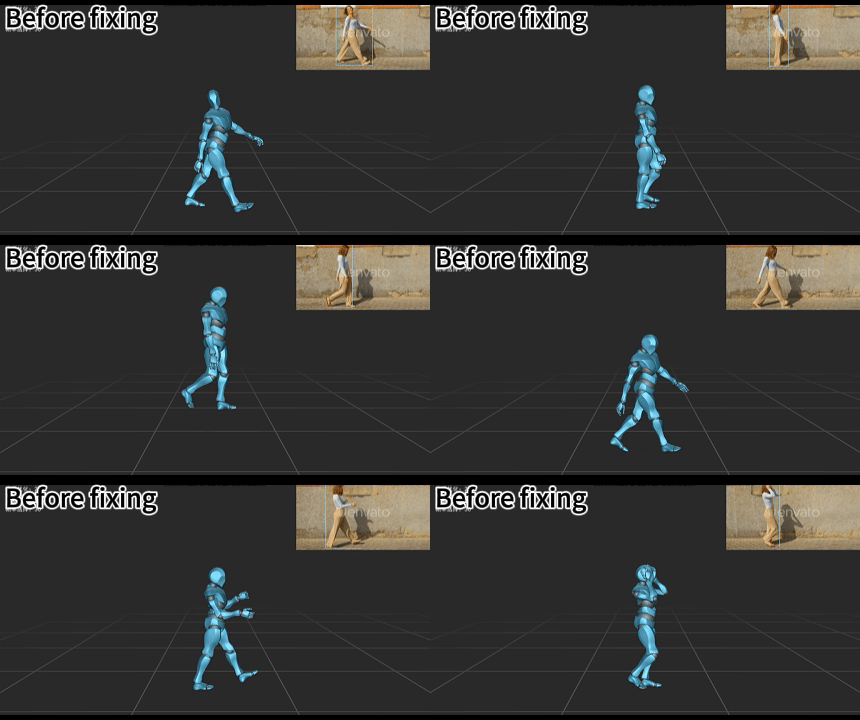
Example: Foot sliding in motion capture — feet drift across the ground instead of staying planted during contact phases. (Reused from Random Bouncing visualization)
Fix in Autodesk Maya (ADV Plugin):
- In the ADV IK/FK Blend panel, set IK Foot Weight to 1.0 for the foot that should be planted
- Enable Floor Contact for foot controllers — this automatically locks feet to ground level during contact
- Set breakdown keys at the first and last frame of each contact phase to hold the foot position
- Use Maya's
Graph Editorto flatten the foot's Translate X/Z curves during contact frames
Fix in Blender:
- Open the
Graph Editorand select the foot bone's Translate X and Z channels - Scrub to the first contact frame (when the foot touches the ground), note the position
- Copy that keyframe and paste it onto the last frame before the foot lifts
- Delete all intermediate keys during the contact phase, then set tangent handles to Flat
- For Rigify rigs: bake mocap onto FK bones first, then add IK constraints to hold foot position during contact
Fix in Unreal Engine (IK Retargeter):
- Use the IK Retargeter with FBIK solver to lock foot position during contact
- Create IK goals on both foot bones and set the root bone to the pelvis
- Use the
Foot Lockcurve to define contact phases — set to 1.0 when planted, 0.0 when in swing - Enable
Root Motionextraction so the animation drives the character's forward movement, eliminating speed mismatch
QuickMagic-specific fix:
- Open the IK tab inside the 2D Correction panel
- Manually adjust the foot contact constraints — mark the frames where feet should be planted
- Regenerate the motion data after correction
- For lying-down or complex ground motions, enable Animation Basic Model V2.0 which has improved contact detection
Pro Tip: Always fix foot sliding after retargeting, not before. Retargeting changes stride length and bone proportions, which can introduce new sliding. Fix the final retargeted animation on the target rig for best results.
Jitter / Micro-Vibration
What it is: Jitter appears as high-frequency shaking or vibrating in the character's limbs, spine, or head. The character looks like they're trembling or have "Parkinson's" — small rapid oscillations that make the animation feel unstable and unnatural.
Root cause: In AI mocap, jitter comes from per-frame prediction errors — each frame's 2D keypoint detection has slight noise, which propagates into 3D motion. In traditional mocap, sensor noise and optical tracking uncertainty cause similar artifacts. Excessive keyframe density amplifies the problem.
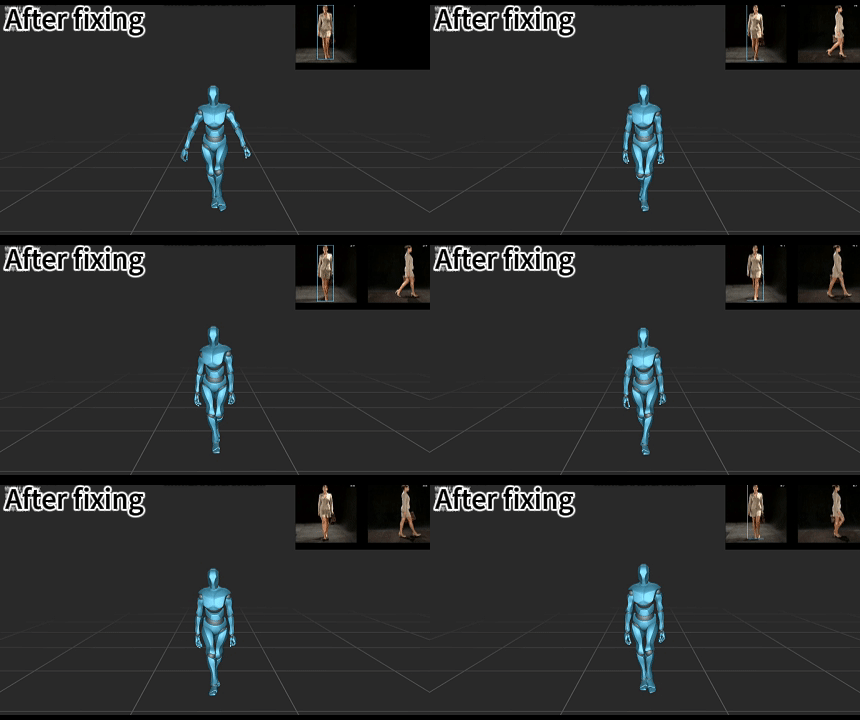
Example: Jitter in motion capture — high-frequency vibration makes the character appear to tremble or bounce unexpectedly. (Reused from Random Bouncing visualization)
Fix in Autodesk Maya:
- Open the
Curve Editorand select the noisy bone's rotation curves - Apply
Curves > Smoothfilter with a radius of 3-5 frames - Use
Decimateto reduce keyframe density — aim for keyframes every 3-5 frames for body motion - For severe jitter: select the bone, run
Keys > Bake Simulationwith a sample rate of 2-3, then smooth the result
Fix in Blender:
- Import the FBX file and open the
Graph Editor - Select all bone keyframes (press
Ain the Graph Editor) - Use
Key > Smooth Keys(Shift+O) to apply a smoothing filter - For dense keyframes: use
Key > Decimateto reduce count by 50-70% - For localized jitter (e.g., only hands): select only the affected bone's curves and smooth individually
Fix in Unreal Engine:
- In the Animation Sequence editor, use the
Animation Blueprintto add aSmoothnode to the pose - Reduce animation compression — overly aggressive compression introduces quantization noise that looks like jitter
- Use the
Animation Modifierplugin to apply programmatic smoothing to specific bones
QuickMagic-specific fix:
- Increase Physical Optimization — this is QuickMagic's built-in jitter reduction system
- Start with 5x for moderate jitter, go up to 10x for severe cases
- Warning: 10x may over-restrict movement and cause hip stretching (see Hip Stretching)
- Ensure the source video has: clear image quality, stable camera, even lighting, and the subject fills at least 50% of the frame
Balance warning: Over-smoothing removes jitter but also kills sharp, intentional movements (punches, kicks, head turns). Always compare before/after to ensure you haven't destroyed the motion's character. Find the minimum smoothing that eliminates noise without flattening intentional motion.
Root Motion Drift / Character Floating
What it is: The character slowly drifts in world space, floats above the ground, or sinks below it during playback. The character may also suddenly shoot upward or lose vertical positioning.
Root cause: The root joint's translation data doesn't match the ground plane. This happens when: (1) the source skeleton's root isn't at world origin, (2) retargeting introduces offset, (3) the mocap data has vertical drift from poor tracking, or (4) in AI mocap, 2D keypoint errors during complex motions (lying down, rolling) cause the system to lose ground reference.
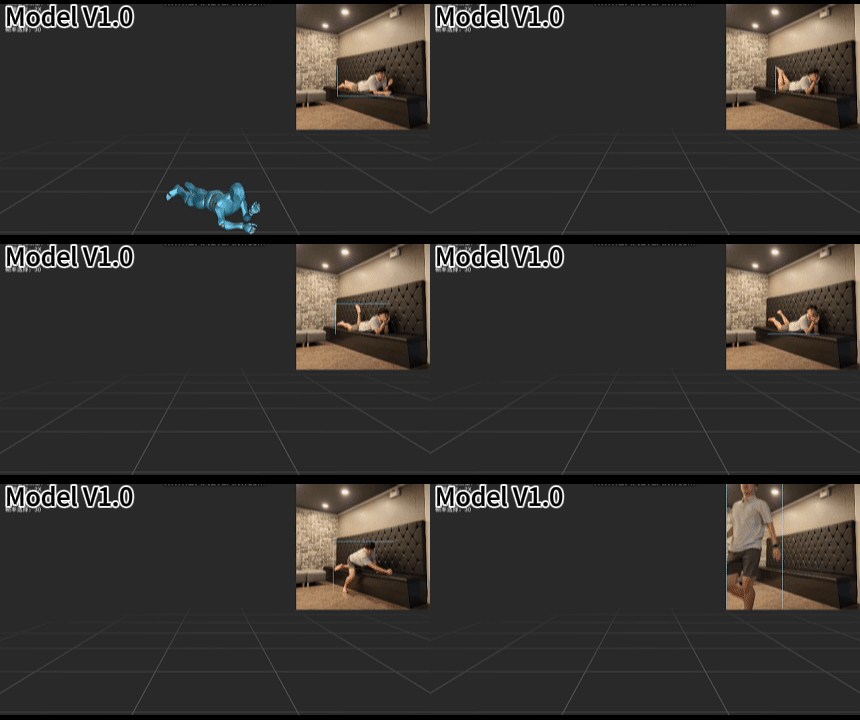
Example: Character launching / root drift — the character suddenly shoots upward or floats above the ground during motion playback. (Reused from Character Launching visualization)
Fix in Maya / Blender / Unreal:
- Reset the root joint's Translate Y to 0 at the first frame — this establishes the correct ground level
- In the Graph Editor, identify the drift direction and apply a counter-offset to the root bone's translation curve
- For floating: check that the source skeleton's root is at (0, 0, 0) before retargeting
- For sinking: ensure the target rig's root bone is at the correct height relative to the mesh
QuickMagic-specific fix:
- Go to the IK tab in the 2D Correction panel
- Manually adjust the foot-ground constraints before reprocessing
- Enable Animation Basic Model V2.0 — it's specifically optimized for complex motions prone to vertical drift
- For lying-down motions: ensure the full body is visible in frame and the background is clean
Part 2: AI Motion Capture Specific Problems
The following issues are specific to AI video-based motion capture tools like QuickMagic. These problems arise from the AI's interpretation of 2D video data and can usually be resolved by adjusting processing parameters or using the 2D Correction tools.
1. Random Bouncing
Symptom: During walking or running motions, the character occasionally produces unexpected bouncing or jittering.
Cause: Inaccuracies in 2D keypoint tracking cause the AI to misinterpret foot contact, producing vertical noise.
Random bouncing: the character produces unexpected vertical jitter during walking or running motions.
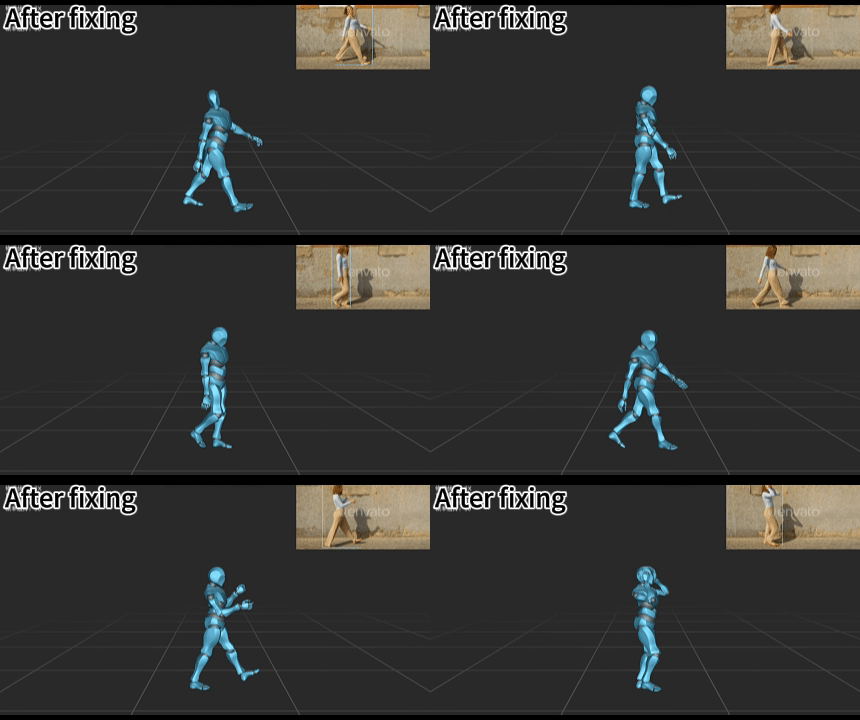
Alternate angle: 2D keypoint tracking inaccuracies cause the AI to misinterpret foot contact frames.
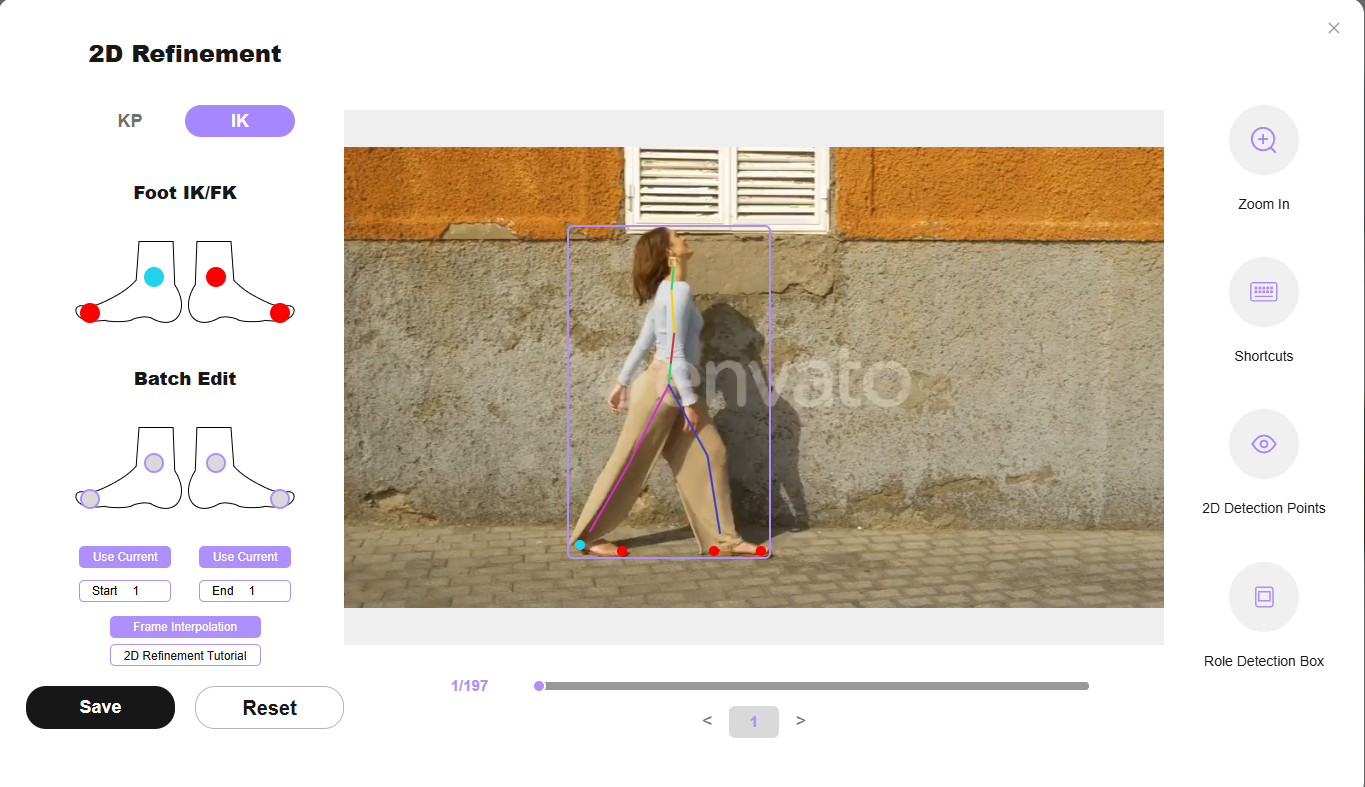
The IK tab in the 2D Correction panel — manually adjust foot contact constraints here before regenerating.
QuickMagic fix: Open the IK tab inside the 2D Correction panel and manually adjust the foot contact constraints before regenerating the motion data. This stabilizes lower-body tracking.
For detailed workflow, refer to the 2D Refinement documentation.
2. Character Launching / Sudden Upward Drift
Symptom: When capturing special motions such as lying down, the character shoots upward or loses proper vertical positioning during playback.
Cause: Errors in 2D keypoint tracking cause the AI to lose ground reference.
Character launching: the character suddenly shoots upward or loses vertical positioning during complex motions like lying down.
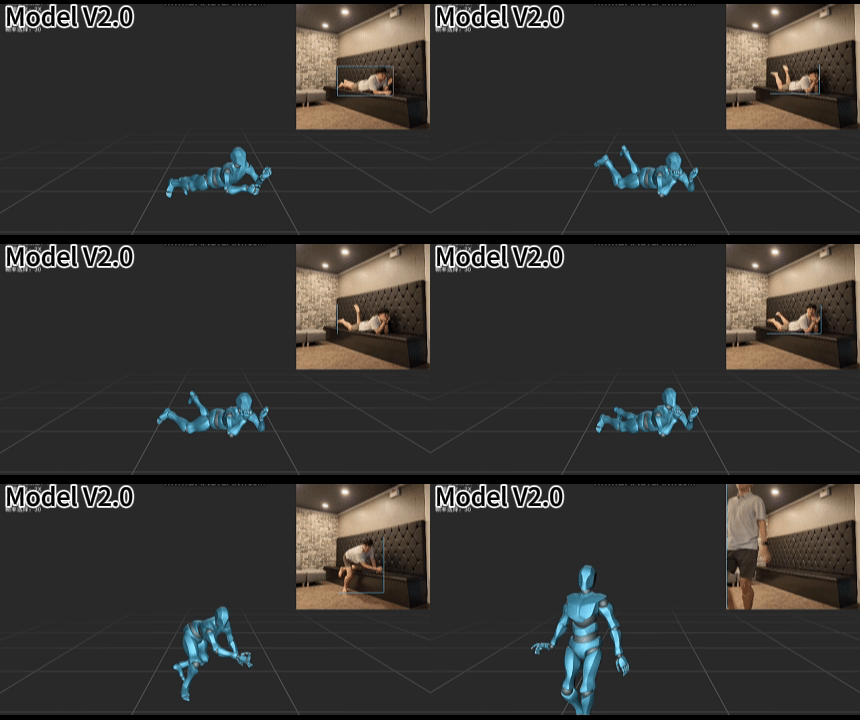
Alternate angle: the AI loses ground reference during special motions, causing the character to drift upward.
QuickMagic fix:
- Go to the IK tab in the 2D Correction panel and manually adjust the foot-ground constraints before reprocessing (same workflow as Issue 1)
- Enable Animation Basic Model V2.0 — specifically optimized for complex motions prone to tracking instability
3. Hip Stretching / Lower-Body Twitching
Symptom: The character's hips appear to stretch or the lower body twitches unnaturally.
Cause: When using 10x Physical Optimization, the stabilization strength becomes overly aggressive, excessively restricting lower-body movement.
Hip stretching: the character's hips stretch unnaturally when 10x Physical Optimization over-restricts lower-body movement.
Alternate angle: aggressive stabilization at 10x causes twitching and unnatural lower-body movement.
QuickMagic fix: Reduce the Physical Optimization setting to 1x-5x, depending on your needs. This balances jitter reduction with natural movement preservation.
Pro Tip: Start at 1x Physical Optimization and increase incrementally. For most motions, 3x-5x is the sweet spot — enough smoothing to clean noise without distorting the motion.
4. Arm Spinning
Symptom: The character's arms spin or self-rotate unexpectedly.
Cause: When using Animation Basic Model V1.0, certain motion types are not fully reconstructed, resulting in unwanted arm rotation.
Arm spinning: the character's arms rotate or self-spin unexpectedly when using Animation Basic Model V1.0.
QuickMagic fix: Switch to Animation Basic Model V2.0. This model has improved arm stability and reconstruction for a wider range of motion types.
5. Poor Rotation Tracking
Symptom: When capturing turning or spinning motions, the model experiences reduced pose tracking accuracy.
Cause: Blurry footage, overly fast turns, or unstable camera movement prevent the AI from accurately tracking body rotation.
QuickMagic fix:
- Use footage with: clear image quality, smooth turning speed, and stable camera movement
- For motion clips involving fast turns or spins, enable Animation Basic Model V1.0 — its Physical Optimization system provides better stability for spinning motion
Note: This is one case where V1.0 outperforms V2.0. The V1.0 Physical Optimization system was specifically designed for rotational stability. If you're getting arm spinning (Issue 4) with V1.0, switch to V2.0, but if you're getting rotation tracking errors, switch back to V1.0.
6. High Kick / High Leg Lift Motions
Symptom: When capturing high leg lifts or kicks, the animation appears stiff or loses important motion details like leg height and swing timing.
Cause: Large movement ranges and fast motion speed cause the AI to over-smooth or lose key motion characteristics.
High kick issue: the animation appears stiff or loses key details like leg height and swing timing during high leg lifts.
QuickMagic fix:
- Use 1x-3x Physical Optimization to better preserve key motion characteristics (leg height, swing timing, movement rhythm)
- Enable Animation Basic Model V1.0 — its Physical Optimization system improves tracking stability for difficult motions
Pro Tip: For martial arts or dance content with frequent high kicks, shoot at 60fps if possible. Higher frame rates give the AI more data points to reconstruct fast limb movements accurately.
7. Split Movements
Symptom: When capturing split movements, the model experiences limb positioning errors or tracking confusion.
Cause: Limb occlusion, motion blur, or insufficient visual distinction between clothing and background prevent accurate tracking.
QuickMagic fix: Upload split videos with:
- Clean, uncluttered backgrounds
- Fully visible limbs (no occlusion from clothing or props)
- Smooth and stable motion
- Clear contrast between the character's clothing, body, and background
These factors significantly improve capture accuracy for extreme poses.
Troubleshooting Quick Reference
Use this table to quickly identify and fix common motion capture problems across platforms.

Best Practices for Clean Mocap
Video Recording Tips
- Shoot in well-lit environments with even, diffused lighting (overcast outdoor or softbox indoor)
- Use a static camera — do not track or pan with the subject
- Wear form-fitting clothing in colors that contrast with the background
- Keep the full body in frame throughout the entire motion
- Exaggerate movements by ~20% — camera perspective and AI processing reduce visible motion amplitude
- For fast motions (kicks, jumps): shoot at 60fps for better temporal resolution
- Avoid loose clothing, skirts, or long sleeves that hide limb geometry
QuickMagic Processing Tips
- Trim videos precisely to conserve coins (1 coin = 1 second of processing)
- Start with 1x Physical Optimization and increase only if jitter is visible
- Use Animation Basic Model V2.0 for most motions; switch to V1.0 for fast spins
- Always check the 2D keypoint overlay before generating — fix obvious tracking errors first
- Process multiple takes and compare results before committing to final animation
Post-Processing Workflow
- Always retarget to your final character rig before fixing foot sliding and mesh clipping
- Fix jitter first, then foot sliding, then mesh clipping — in that order
- Work on a duplicate of your rig scene, never the original
- Use animation layers for non-destructive cleanup
- Export at the same frame rate as your source video (30fps standard, 60fps for fast motion)
FAQ — Frequently Asked Questions
What is mesh clipping in motion capture and how do I fix it?
Mesh clipping occurs when body parts pass through each other or the character model during animation. Fix it by using collision-aware IK constraints in Maya or Blender, adjusting skin weights, or using corrective blend shapes. In AI mocap tools like QuickMagic, reduce Physical Optimization settings and use 2D Correction to fix keypoint tracking errors that cause clipping.
How do I fix foot sliding in mocap animation?
Fix foot sliding by using IK foot locking during ground contact frames. In Maya, set IK Foot Weight to 1 and enable Floor Contact. In Blender, use the Graph Editor to hold foot position during contact phases. In Unreal Engine, use the IK Retargeter with FBIK solver. In QuickMagic, adjust foot contact constraints in the 2D Correction IK tab.
What causes jitter in motion capture data?
Jitter is caused by high-frequency noise from AI per-frame prediction errors, low-quality video input, or aggressive compression. Fix it by applying smoothing filters in Maya's Curve Editor, using Blender's Smooth Keys function, or adjusting QuickMagic's Physical Optimization settings from 10x down to 1x-5x.
How do I fix character floating or launching in AI mocap?
Character floating or sudden upward drift is typically caused by 2D keypoint tracking errors during complex motions. Fix it by manually adjusting foot-ground constraints in QuickMagic's 2D Correction IK tab before reprocessing, and enable Animation Basic Model V2.0 for better tracking stability.
What are the best QuickMagic settings for capturing high kicks?
For high kicks and leg lifts, use 1x-3x Physical Optimization to preserve key motion characteristics like leg height and swing timing. Enable Animation Basic Model V1.0 for better tracking stability on difficult motions. Avoid 10x Physical Optimization as it over-restricts large movements.
How do I clean up mocap data in Blender?
Import the FBX file, open the Graph Editor, select all bone keyframes, and use Key > Smooth Keys to reduce jitter. For foot sliding, manually adjust foot IK constraints to lock position during contact frames. Use Decimate to reduce keyframe density if needed.
What is IK foot locking and when should I use it?
IK foot locking fixes foot position in world space during ground contact frames to prevent sliding. Use it whenever a character's feet should be planted: walking, running, standing, or any motion where feet touch the ground. It is essential for eliminating foot sliding artifacts in retargeted mocap.
How accurate is AI motion capture compared to traditional mocap?
AI motion capture produces grounded, stable motion data with accurate foot planting detection. While it may not match the sub-millimeter precision of optical mocap systems for complex interactions, it provides excellent results for character animation, game development, and content creation at a fraction of the cost and with no specialized equipment required.

This guide was last reviewed and updated on July 14, 2026. Tested with Maya 2024, Blender 4.2, Unreal Engine 5.3, and QuickMagic Animation Basic Model V2.0. For questions or feature requests, contact the QuickMagic team.