


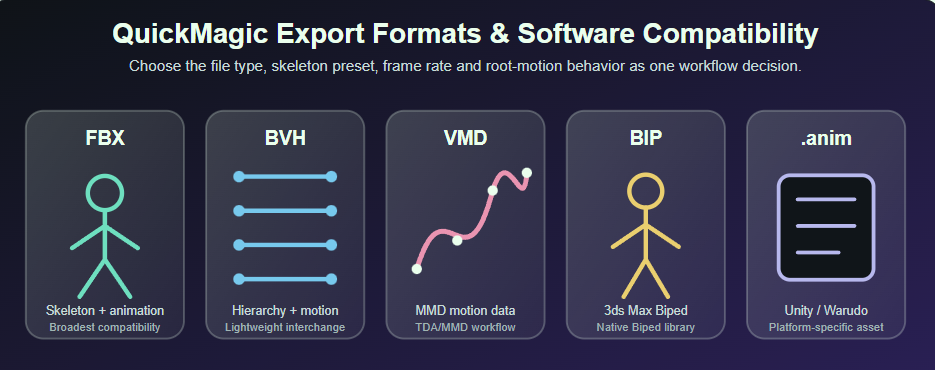
FBX · BVH · VMD · BIP · Unity/Warudo Animation

QuickMagic Export Formats Guide: Software Compatibility & Workflow Presets

Choose the correct QuickMagic output for Blender, Maya, Unreal Engine, Unity, 3ds Max, MikuMikuDance, Cinema 4D, Character Creator, iClone, Warudo and Roblox— without confusing the file extension with the target skeleton or software preset.

Published March 2, 2026 · Updated July 15, 2026 · QuickMagic Editorial Team

QuickMagic export formats including FBX, BVH, VMD, BIP and animation assets
Direct answer: Use FBX as the general starting point for Blender, Maya, Unreal, Unity, Cinema 4D, iClone and Roblox. Use BVH when you need a lightweight skeleton hierarchy and raw motion without a mesh. Use VMD-TDA for MikuMikuDance-compatible characters. Use BIP for 3ds Max Biped. Use Unity Anim or the current Warudo-compatible output only when the destination specifically expects that platform asset. After choosing the file type, select the target skeleton preset, frame rate and root-motion behavior.
Current availability note: QuickMagic's format guide lists FBX, BVH, VMD, BIP and .anim. The current pricing page lists FBX on Free, and FBX/Unreal/Mixamo/BIP/VMD/Only Face/Unity Anim/C4D/ CC&iClone/Roblox on Starter and Professional. BVH and Warudo animation were announced in the V1.3.4 changelog but are not shown under every current plan label. Check the active account's export menu before committing a production pipeline.

Key facts for choosing correctly

Most compatibleFBX with the correct target preset
Lightweight motionBVH hierarchy + animation
MMD workflowVMD-TDA
3ds Max BipedBIP
Face onlyOnlyFace is a target-channel preset
Plan source of truthCurrent pricing page + export UI
Diagram explaining the difference between a motion file format and a target skeleton preset
Two exports can both be FBX files but still contain different bone names, hierarchies, reference poses and channels. The target preset can matter more than the extension.

Watch QuickMagic export workflows in practice

These third-party demonstrations show the broader QuickMagic generation flow and a Mixamo-to-Blender pipeline. They are included to illustrate why a software-specific skeleton preset can reduce retargeting work.

QuickMagic: High Quality Video to MoCap

Overview of video-to-motion generation, account tiers and the typical process from upload through animation export.

Open video on YouTube

QuickMagic AI Motion Capture + Mixamo + Blender Tutorial

Demonstrates a QuickMagic-to-Mixamo-to-Blender workflow and the value of using a skeleton preset that the destination already recognizes.

Open video on YouTube

Both players are static YouTube iframes and do not require runtime JavaScript. If a browser, network, region or local file viewer blocks embedded playback, use the red direct links. Every article illustration is embedded in this HTML file.

QuickMagic export compatibility matrix

OutputPrimary destinationWhat it normally carriesMain advantageMain limitationCurrent plan note
FBXBlender, Maya, Unreal, Unity, C4D, iClone, Roblox, MotionBuilderSkeleton hierarchy, animation curves and potentially scene/mesh data depending on presetBroad support and many target-specific presetsFBX does not guarantee that the target rig uses the same bones or poseListed on Free, Starter and Professional
BVHBlender, research tools, mocap editors and generic retargetersJoint hierarchy, offsets and motion channelsSimple, readable and lightweightNo mesh, materials, production constraints or standard facial dataAnnounced and listed in the format guide; verify active export menu
VMD-TDAMikuMikuDance and compatible MMD toolsMMD-oriented motion data; compatibility depends on the target model and channelsDirect MMD/TDA workflowBone names, scale and morph compatibility are specificListed on Starter and Professional
BIP3ds Max Biped / Character StudioBiped motion and keyframe dataNative Biped motion-library workflowNot intended for arbitrary CAT or custom skeletonsListed on Starter and Professional
Unity AnimUnity projects and supported humanoid/avatar workflowsUnity Animation Clip asset for the intended project setupCan reduce an external FBX conversion stepUnity asset compatibility depends on Avatar and project versionListed on Starter and Professional
Warudo animationWarudo character-animation workflowsPlatform-specific animation; exact extension can be Unity .anim or current Warudo WANIM depending on workflowDirect VTuber/Warudo usageDo not assume every `.anim` label means the same file structureAnnounced in V1.3.4; verify current export extension
OnlyFaceiClone/CC/C4D or compatible facial targetsFacial channels in a target-oriented FBX/preset workflowSeparates facial performance from body motionTarget blend shapes/joints must be compatibleListed on Starter and Professional

File format and target preset solve different problems

A file format determines how motion data is stored. A target preset determines which bones, names, hierarchy, reference pose, root behavior and facial channels are written into that file. Choosing only “FBX” is therefore incomplete.

Example

A Mixamo FBX, Unreal FBX and CC&iClone FBX can all use the .fbx extension while containing different skeleton conventions. Importing the wrong one may produce missing bones, rotated wrists, stretched limbs, a T-pose or a failed retarget.

Decision tree for choosing QuickMagic FBX, BVH, VMD, BIP or platform-specific animation exports
Choose the exact target first. Then select the file type and preset together.
Best general-purpose option

FBX: the default for most 3D pipelines

FBX is usually the safest starting point because Blender, Maya, 3ds Max, MotionBuilder, Unreal Engine, Unity, Cinema 4D, Character Creator, iClone and Roblox can participate in FBX-based animation workflows.

Choose FBX when

  • You need a broadly supported skeletal-animation file.
  • The destination is a DCC, game engine or retargeting tool.
  • You need a target-specific preset such as Unreal, Mixamo, C4D, CC&iClone or Roblox.
  • You may need to inspect or remap the source skeleton before applying it to a character.

FBX does not guarantee

  • Identical bone names or bone counts
  • A matching T-pose/A-pose
  • Correct root-motion behavior
  • Automatic facial compatibility
  • Identical units, up axis or frame rate
Recommended practice: use the most specific target preset available. Choose generic FBX only when you intentionally plan to characterize or retarget the source skeleton yourself.
Best lightweight hierarchy format

BVH: skeleton hierarchy and motion without production scene data

BVH stores a joint hierarchy, joint offsets and per-frame motion channels. Blender's official BVH importer/exporter describes the format as skeletal hierarchy plus animation.

Choose BVH when

  • You need a lightweight mocap interchange file.
  • The destination has a reliable BVH importer or retargeter.
  • You want to inspect joint channels in research, robotics or motion-analysis tools.
  • You do not need the character mesh or materials in the same file.

Do not choose BVH when

  • The workflow depends on facial blend shapes or a software-specific rig.
  • The destination expects a native Unreal, Mixamo, Biped or iClone mapping.
  • You need production constraints, control rigs or a complete scene.
Best for MMD/TDA

VMD: motion data for MikuMikuDance workflows

VMD is used by MikuMikuDance-compatible tools for motion data. Blender's MMD Tools, for example, supports importing and exporting VMD bone, morph and related MMD animation data.

Choose VMD-TDA when

  • The target is a compatible TDA/MMD character.
  • The production already uses PMX/PMD models and MMD motion tools.
  • You want to avoid converting a general FBX into an MMD-specific motion file.

Validate before batch export

  • Japanese/English bone naming and aliases
  • Parent/child hierarchy
  • Character scale and floor height
  • Twist, IK and helper-bone expectations
  • Whether the target morphs match any facial data
Best for 3ds Max Biped

BIP: native motion for Character Studio Biped

Autodesk documents BIP as a Biped motion format containing footsteps and keyframe data and supporting reusable motion libraries.

Basic workflow

  1. Create or select a Biped in 3ds Max.
  2. Match the Biped structure and figure proportions as closely as possible.
  3. Load the QuickMagic BIP motion.
  4. Review footsteps, root travel, scale and body proportions.
  5. Edit with Biped tools, Motion Mixer or layers.
Use FBX, HumanIK, CAT Capture Animation or another retargeting path when the target is not a Biped. A .bip file is not a universal custom-rig animation file.
Platform-specific

Unity Anim and Warudo animation: verify the exact asset type

Unity uses .anim files as Animation Clip assets inside a Unity project. Warudo's current documentation supports raw Unity .anim in its CharacterAnimations folder and also describes a Warudo-native .wanim recorder output.

Do not treat every “anim” label as interchangeable. QuickMagic's source guide groups Unity Anim and Warudo under .anim, while current Warudo documentation also uses WANIM. Confirm the exact extension generated by QuickMagic and the exact importer expected by the installed Unity/Warudo version.

Unity checklist

  • The target Avatar is configured as Humanoid or uses the expected Generic hierarchy.
  • The Animation Clip is placed in the correct Assets folder.
  • An Animator Controller references the clip.
  • Root Transform and loop settings are reviewed.

Warudo checklist

  • The file uses a format supported by the installed Warudo version.
  • The character has compatible humanoid bones.
  • The animation is placed in the correct CharacterAnimations location or mod.
  • Non-bone material/expression animation is handled separately.

QuickMagic target presets explained

PresetUse it forWhat to verify
Unreal / UE4 / UE5.xUnreal skeleton and IK Retargeter pipelinesExact target skeleton version, root bone, retarget pose and Animation Sequence import
MixamoMixamo-named rigs, Blender add-ons and many game-retarget workflowsMixamo bone naming, T-pose and root-motion expectations
C4DCinema 4D character and retargeting workflowsCharacter Definition mapping, axis, scale and baked joints
CC&iCloneReallusion Character Creator and iCloneCharacterization profile, motion root and version compatibility
OnlyFaceFacial animation redirection without full-body motionTarget blend-shape/joint names, neutral pose and value ranges
RobloxRoblox Studio animation import and compatible avatar rigsTarget rig hierarchy, FBX animation import and Roblox avatar requirements
Boy / GirlQuickMagic body-proportion/skeleton variants where availableActual hierarchy and whether the destination has a matching retarget profile

Recommended export by software

SoftwareFirst choiceAlternativeTypical import/retarget path
BlenderMixamo FBX or generic FBXBVHImport source → map to Rigify/custom rig using Auto-Rig Pro, Rokoko tools or manual constraints
MayaFBXMixamo/target presetImport FBX → characterize with HumanIK → retarget → bake
Unreal EngineMatching Unreal presetGeneric/Mixamo FBXImport source → IK Rig → IK Retargeter → export target Animation Sequence
UnityUnity Anim when supportedFBX/MixamoConfigure Avatar → import/use Animation Clip → Animator Controller
3ds Max BipedBIPFBXCreate Biped → load BIP → edit with Biped/Motion Mixer
3ds Max CAT/custom rigFBXBVHImport source → CAT Capture Animation or custom retarget
MikuMikuDanceVMD-TDAFBX → VMD conversionLoad motion on a compatible model → verify bones/IK/morphs
Cinema 4DC4D presetFBXImport/merge → Character Definition → retarget and bake
Character Creator / iCloneCC&iClone presetFBXImport External Motion or Character Creator characterization
WarudoCurrent Warudo-compatible outputUnity .anim or FBX conversionPlace/import into the supported animation location and map to humanoid character
Roblox StudioRoblox presetCompatible FBXAnimation Editor → Import From FBX Animation → validate target rig

Choose frame rate and root motion before exporting

QuickMagic frame-rate, plan-duration and root-motion decision diagram
The current pricing table links higher paid-plan frame rates to shorter maximum durations. Match the production timeline rather than automatically choosing the highest available FPS.

Frame-rate guidance

FPSTypical useTrade-off
24Film/cinematic timelinesLower key density; may not preserve the fastest actions as densely
30General real-time, creator and game workflowsBalanced default and the current Free-plan rate
60Fast action, slow motion or high-frequency editingMore keys and a shorter current maximum paid-plan duration
120Specialized fast-motion samplingVery dense curves and the shortest current maximum duration

Root-motion choice

  • Traveling animation: preserve horizontal root movement for cinematics or root-motion gameplay.
  • In-place animation: remove global travel for navigation systems, loops and state-machine locomotion.
  • Do not decide after foot locking: changing root behavior later can reintroduce foot sliding.

Pre-export validation checklist

  • The destination software and version are known.
  • The target skeleton or character type is known.
  • The selected format is available on the active plan.
  • The software preset matches the target hierarchy.
  • The frame rate matches the production timeline.
  • Traveling versus in-place root motion is decided.
  • Body, hands and face requirements are separated.
  • A short representative clip is tested first.
  • The imported character has the correct scale and orientation.
  • Foot contacts, wrists and shoulders are checked after retargeting.

Common export and compatibility problems

ProblemLikely causeRecommended fix
Character imports in a T-poseWrong target preset, animation disabled or incompatible skeletonVerify the export contains animation and select a target-compatible preset.
Arms or wrists twistT-pose/A-pose or local-axis mismatchCorrect the retarget/reference pose before editing motion curves.
Character is too large, small or lying downUnit/up-axis conversion mismatchFix import scale and axis settings; avoid rotating every animated bone.
VMD does not move the intended model correctlyBone names, hierarchy, IK or scale do not match the TDA/MMD presetTest on a compatible model or remap with an MMD conversion tool.
BIP cannot be applied to the characterThe destination is not a 3ds Max BipedCreate/use a Biped or choose FBX and a custom-rig retargeting workflow.
Unity .anim does not playMissing Avatar/Animator setup or incompatible project assetAssign an Animator Controller and verify the Avatar and clip import settings.
Warudo cannot read the animationWrong extension or installed version expects another Warudo formatConfirm whether the workflow expects Unity .anim, WANIM or a character animation mod.
Face remains neutralBody-only export or incompatible facial channelsUse OnlyFace/compatible face data and map it to the target rig separately.
Feet slide after importRoot-motion, target-proportion or retarget-pose mismatchCorrect root behavior and retarget pose before adding target foot locks.
A format shown in an older guide is missingPlan entitlement or product UI changedUse the active export screen and current pricing page as the source of truth.

Frequently asked questions

What is the best QuickMagic export format?

FBX is the safest general starting point. Choose a software-specific preset such as Unreal, Mixamo, C4D, CC&iClone or Roblox when available.

What is the difference between FBX and BVH?

FBX supports broader DCC and engine workflows. BVH is a lightweight joint hierarchy plus motion channels and normally contains no mesh, materials, facial blend shapes or production constraints.

Which format should I use for MikuMikuDance?

Use VMD-TDA and test it on the actual MMD/TDA character. Bone names, scale, IK and morph compatibility can vary between models.

Which format should I use for 3ds Max?

Use BIP for a 3ds Max Biped. Use FBX for CAT, custom skeletons, general DCC exchange or when you intend to retarget manually.

Are Unreal, Mixamo and CC&iClone separate formats?

They are mainly target presets. They may be delivered as FBX files but can use different bone names, hierarchies, poses, roots and facial channels.

Which formats are on the Free plan?

The current pricing page lists FBX on Free. Starter and Professional list FBX, Unreal, Mixamo, BIP, VMD, Only Face, Unity Anim, C4D, CC&iClone and Roblox. Verify the current export UI because product availability can change.

Does QuickMagic support BVH and Warudo?

BVH and Warudo animation support were announced in QuickMagic V1.3.4 and appear in the format guide. Confirm the active plan and exact generated extension in the current export menu.

Should I export at 24, 30, 60 or 120 FPS?

Match the destination timeline. Use 30 FPS as a balanced default, 24 FPS for many cinematic timelines, and 60/120 FPS only when fast motion or downstream editing benefits from denser sampling.

Related QuickMagic guides

Test the target format before processing a full batch

Export a short clip in the target preset, import it on the real production character, and validate pose, scale, timing, contacts and facial channels before committing the project.

Open QuickMagic AI Motion Capture →

Official references and video sources


