Dear users,
Thank you for your continuous support and love for our product! Due to many users expressing confusion on how to correctly remap bones in Blender, Quickmagic immediately worked overtime to provide tutorials for everyone! Without further ado, let's take a look together~
Text version tutorial
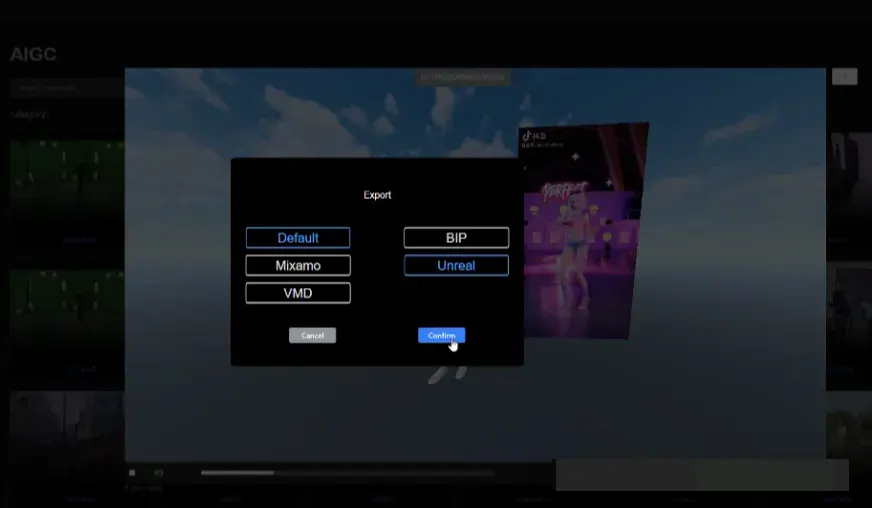
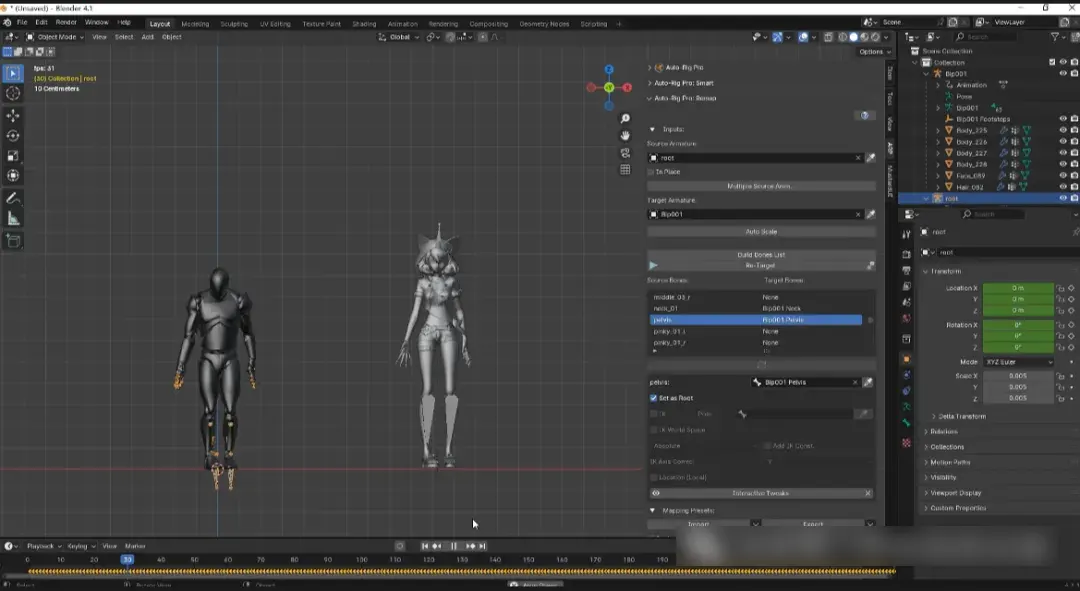
1. Go to the official website of Quickmagic Video Mobile Capture, download the action data, and select the format you need.
2. Open the just downloaded file and the model you want to remap in Blender.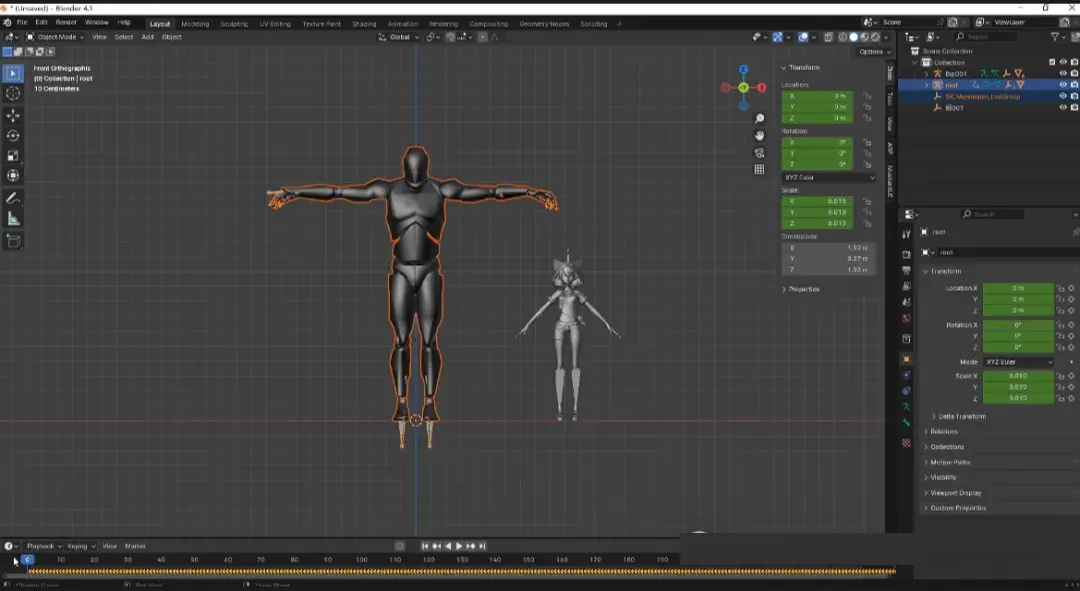
3.Open Auto rig Pro: Remap, Pick up the source skeleton Source Armature, which is the downloaded action skeleton.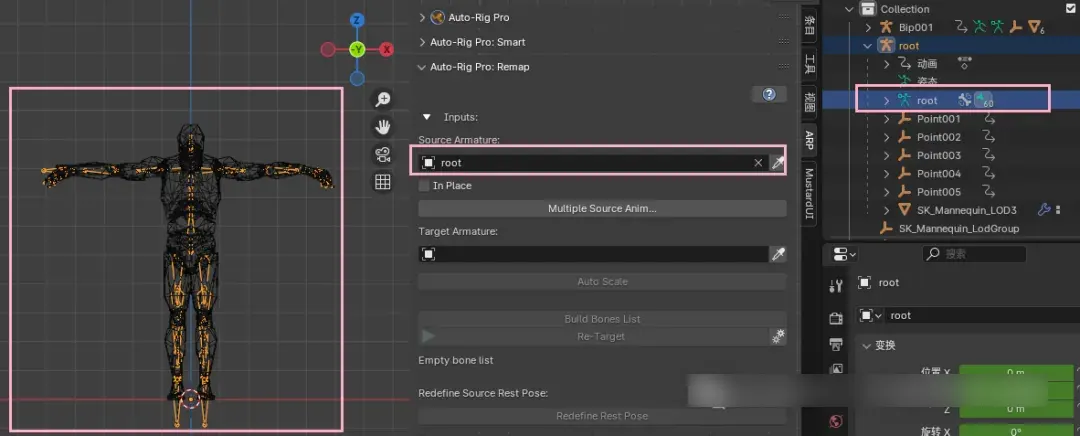
4. Pick the target skeleton Target Armature, the target skeleton we want to map.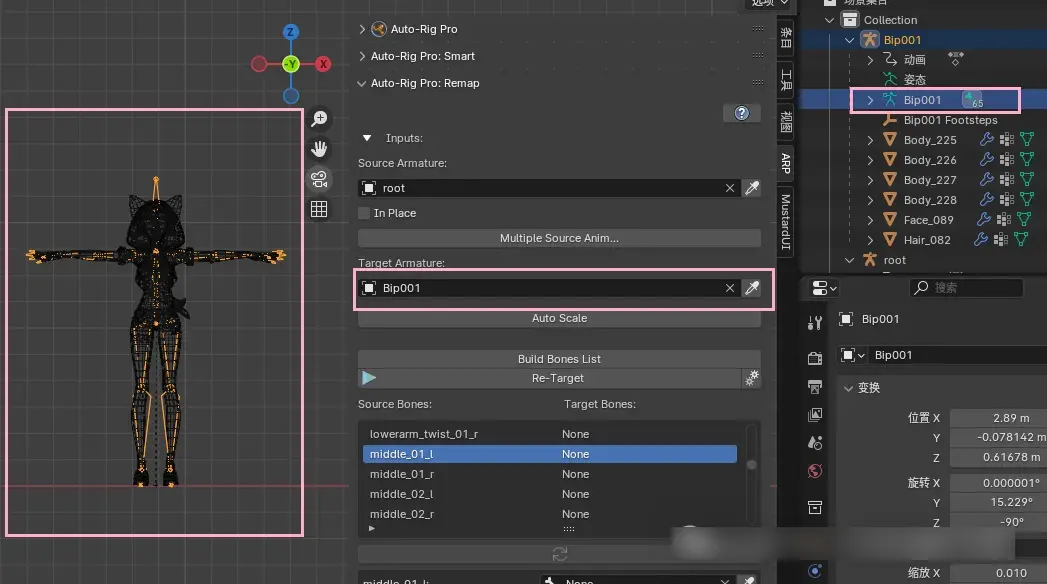
5.Proportional matching Auto Scale.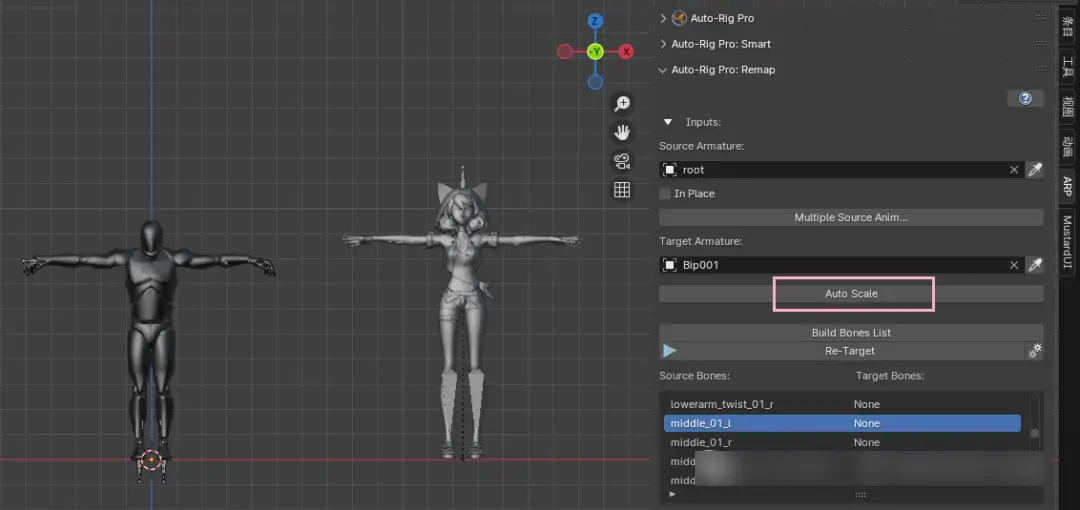
6.Build Bones List - Once automatically matched, check if it is correct. If not, manually add important bones corresponding to the source skeleton.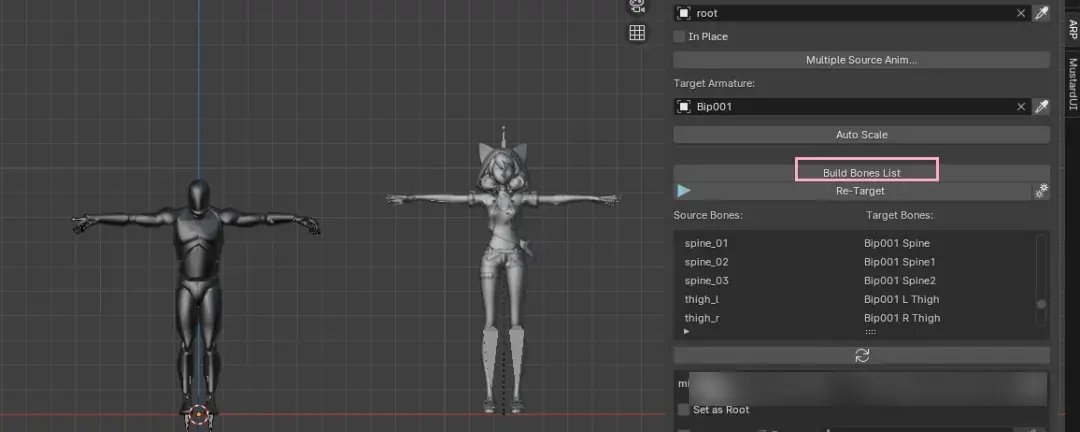
7. Set as Root.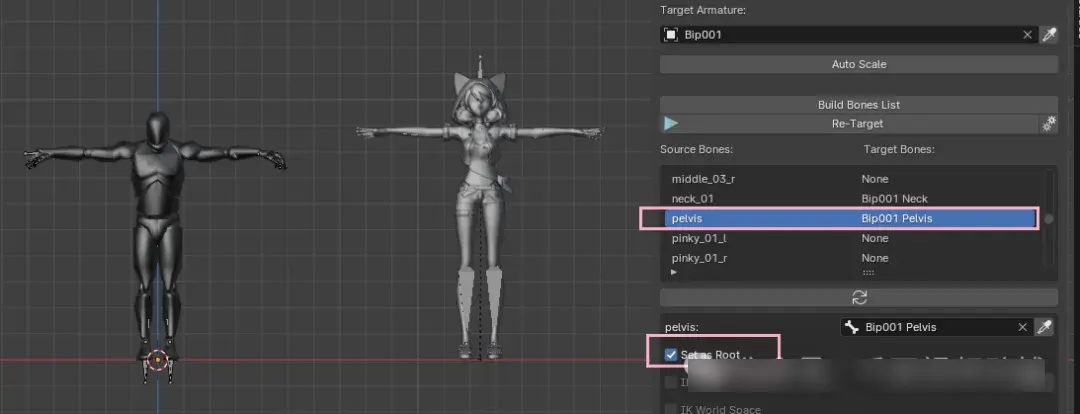
8. Redefine Tweaks: Redefine Tweaks.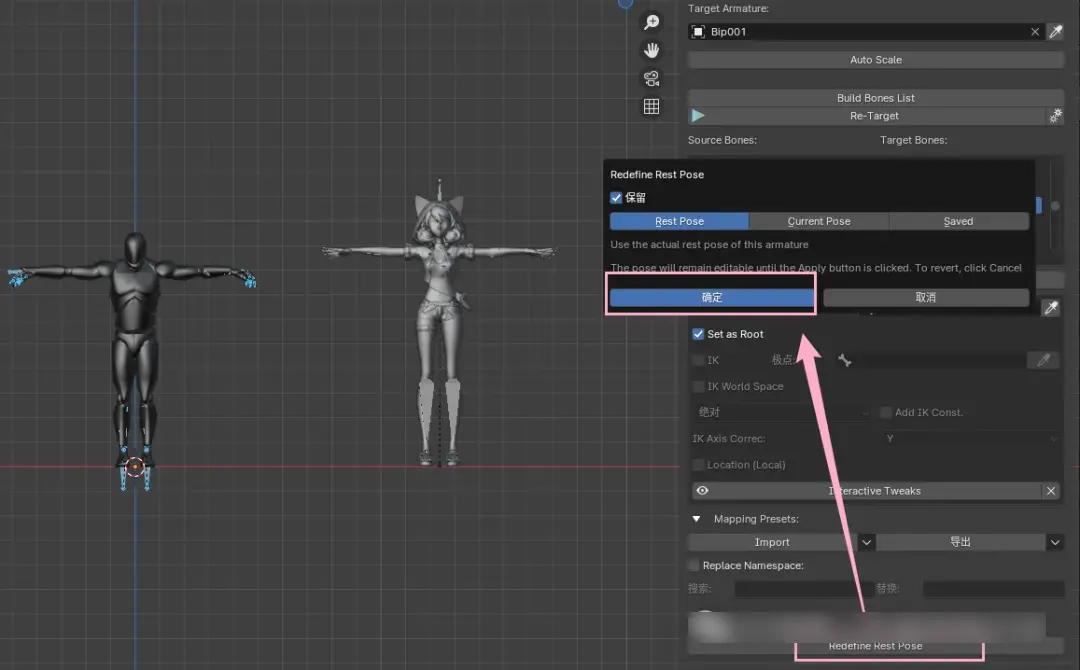
9.Select the areas where the pose of the source skeleton is different from that of the target skeleton, click Copy Selected Bones Rotation, and the source skeleton will change to the same pose as the target skeleton.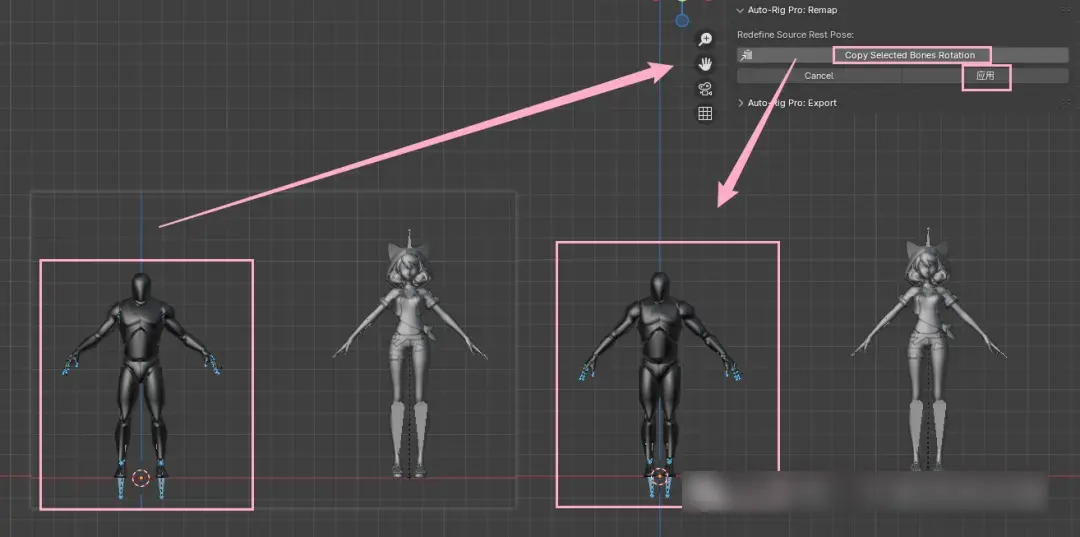
10. Bone remapping Re Target - Determine.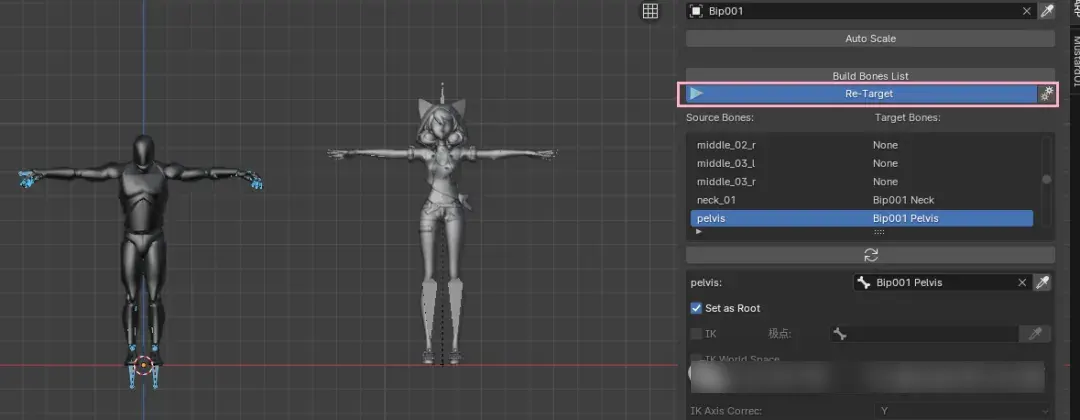
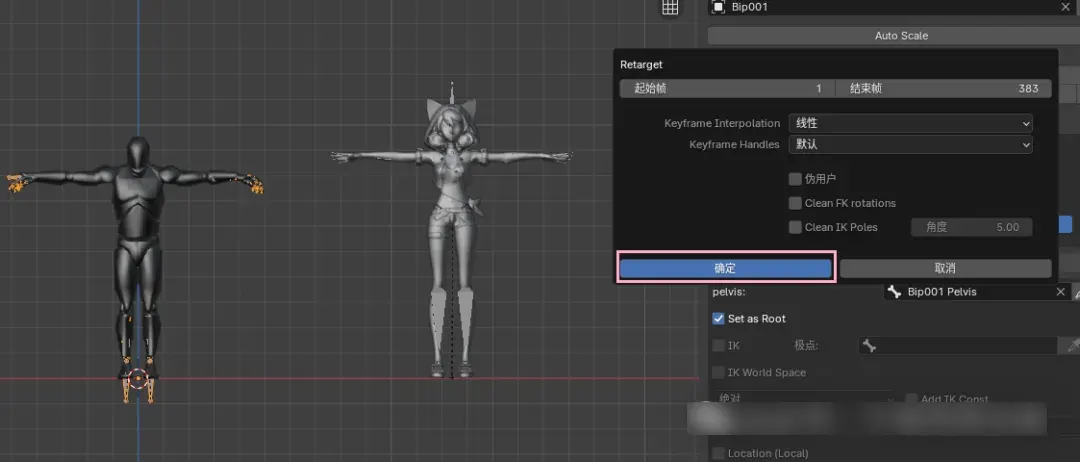
11. Done!!
In the future, Quickmagic will release more tutorials. If there's anything else you'd like to learn, please feel free to contact us.

Quickmagic Team