The Multi-FPS Output Function of QuickMagic is Launched
As motion capture technology is deeply applied in fields such as film and television, gaming, and animation, "frame rate adaptation" has become a key link affecting the implementation of motion capture results.
To meet creative needs in different scenarios, QuickMagic has officially launched the multi-frame rate output function supporting 24/30/60/120fps, enabling your motion capture data to accurately match subsequent production processes without the need for additional post-conversion, significantly improving efficiency. The following is an analysis of the core application scenarios for each frame rate to help you quickly select the right adaptation solution:
- 24fps: Suitable for films and long animations, it creates a "cinematic feel" with natural motion blur and enhances the immersive atmosphere of storytelling.
- 30fps: Universal for TV dramas, online dramas, and short videos. It balances smoothness and file size, and is compatible with playback on multiple terminals.
- 60fps: The first choice for high-dynamic scenarios (such as game combos and film/television chase scenes). It accurately captures action details and improves interactive immersion.
- 120fps: Exclusive for slow-motion and high-precision needs. It supports post-production speed reduction and records extreme details such as muscle micro-tremors and particle effect synchronization.
The following is a practical tutorial for multi-frame rate export formats
1. General Workflow
- Generate motion capture data: Enable the multi-frame rate function (selectable from 24/30/60/120fps) in QuickMagic, then generate and download the FBX file.
- Import into corresponding software: Import into software such as MAYA/UE/C4D and follow the steps below for adaptation.
1.1 Software-Specific Operation Guide
a. MAYA/UE4/5/5.6/C4D/Unity
- Workflow:
- Open the software → Drag and drop directly / Import the downloaded FBX file, and the frame rate will be automatically matched to the settings used during generation.
- Scenarios: Suitable for film and television animation (MAYA/C4D) and game development (UE/Unity), enabling quick reuse of motion capture data.
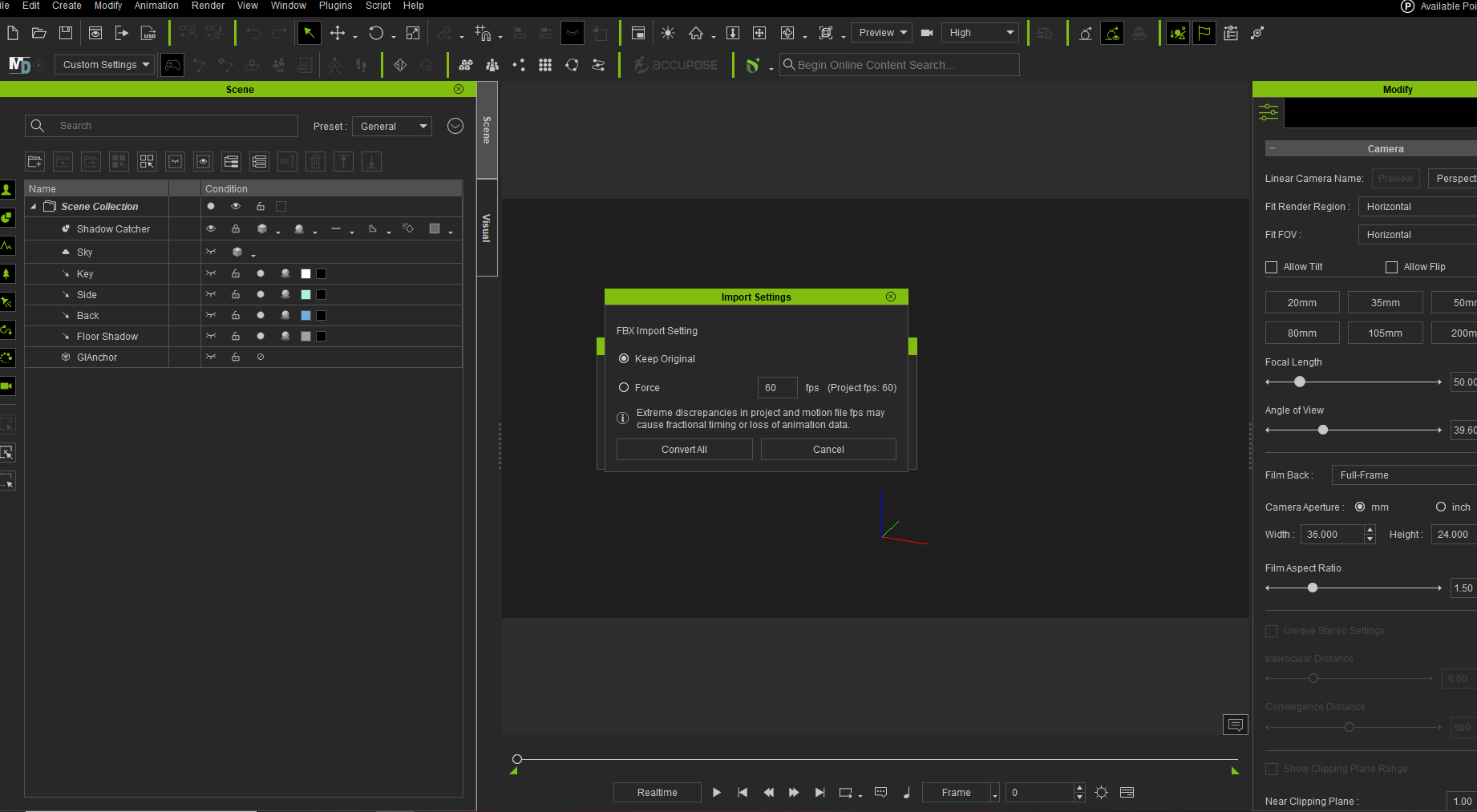
b. iClone
- Workflow: Drag and drop the FBX file → A frame rate selection interface will pop up → Manually select the target frame rate (24/30/60/120fps) → Confirm import.
- Scenarios: Virtual human short videos and animated micro-dramas, allowing flexible frame rate switching to meet platform requirements.
c. 3ds Max
- Workflow: Drag and drop the FBX file → Open the Timeline → Customize and adjust frame rate parameters → Match to 24/30/60/120fps.
- Scenarios: Architectural animation and product demonstrations, enabling precise control over motion capture movements and camera rhythm.

Tip: If frame rate abnormalities occur after import, first check the software’s frame rate settings and ensure they match the motion capture output—this will resolve the issue.