


1×–10× Iterations · Fidelity · Stability · Contact Cleanup

MoCap Physics Cleanup: Fix Animation Artifacts with QuickMagic Physics Optimization 2.0

Learn what each iteration multiplier changes, how to preserve motion energy, when higher stabilization helps, why foot sliding can return after retargeting, and how to finish QuickMagic motion in Cascadeur, Blender, Maya or Unreal Engine.

Published October 21, 2025 · Updated July 15, 2026 · QuickMagic Editorial Team

QuickMagic Physics Optimization 2.0 workflow showing low, medium and high iteration values plus target cleanup
Direct answer: Start with 1× or 2× to preserve the original action. Move toward 3×–5× when the source has visible jitter, harsh transitions or unstable contacts. Use 10× only when strong stabilization is necessary, then compare motion amplitude, jump height, impacts and timing. Physics Optimization can improve the QuickMagic source, but target-specific foot planting, terrain contact, retargeting and mesh deformation still need downstream cleanup.
Important naming distinction: this October 2025 article introduced Physics Optimization 2.0. QuickMagic's separate Animation Base Model V2.0 Beta arrived later. Current releases can integrate the base model with Physics Optimization 2.0, but one control reconstructs complex motion while the other adjusts fidelity, stability and smoothness.

Official parameter behavior

Available values1×, 2×, 3×, 4×, 5× and 10×
Lower valuesMore source detail and movement amplitude
Higher valuesMore smoothness and softer motion
Reported improvementsJumps, leg spread, high kicks and hip twist
10× target casesPenetration, floating and skating instability
Official caveatHigher iteration may weaken motion details
QuickMagic Physics Optimization 2.0 iteration multiplier tradeoff from fidelity to stability
Treat iteration count as a tradeoff control, not a quality score. The best value is the lowest one that removes the artifact without damaging the performance.

Original QuickMagic comparison examples

The source article's four animated GIFs have been converted into compact MP4 files and embedded directly. They can play from the downloaded HTML without relying on the image CDN.

V1.0 vs Physics Optimization 2.0 at 1×

A dynamic movement comparison focused on preserving range and body mechanics at the lowest iteration.

Open original GIF

V1.0 vs 10× stabilization

A standing/walking example emphasizing foot stability and the softer result produced by high iteration.

Open original GIF

Before and after optimization: energetic movement

A source comparison showing how physical cleanup changes a dynamic animation.

Open original GIF

Before and after optimization: walking stability

A walking comparison useful for reviewing floating, skating and pelvis stability.

Open original GIF

Autoplay is intentionally disabled. Use the player controls. The original GIF links remain available as a network fallback.

Downstream cleanup tutorials

QuickMagicAI MoCap Clean-Up in Cascadeur

Shows a practical post-QuickMagic cleanup workflow in Cascadeur.

Open on YouTube

Cascadeur + QuickMagic: Video MoCap Cleanup and Editing

Demonstrates motion cleaning, pose editing and physics-assisted finishing.

Open on YouTube

YouTube requires network access. If an iframe is blocked by the browser, network, region or local previewer, use its direct-link button.

Diagnose the artifact before changing the multiplier

Four stages where motion capture artifacts enter: source video, reconstruction, retargeting and target character
Physics Optimization operates mainly on the reconstructed motion. A clean source cannot fix bad target skinning, and a strong 10× result cannot know where a stair, wall or prop exists in the destination scene.

Use the QuickMagic preview as the boundary test

  • If the preview skeleton is already wrong, fix source tracking, model choice or Physics Optimization.
  • If the preview is clean but the target rig is wrong, fix retargeting.
  • If target bones are correct but the mesh intersects, fix weights, collision or corrective shapes.
  • If the character interacts with terrain or props, use target-scene IK and contact tools.

1Choose the multiplier from the action, not from “maximum quality”

MultiplierStarting useAdvantagesRisks
High kicks, jumps, sports, impacts and expressive actionMaximum fidelity and amplitudeMore visible instability can remain
Dynamic motion needing light cleanupSmall stability gain with limited energy lossMay not remove larger artifacts
3×–4×General cleanup and transition refinementBalanced smoothness and rangeCan soften fast accents
Noticeable jitter or uncomfortable movementStronger smoothing and stabilityReduced amplitude and body weight
10×Strong floating, penetration or skating in the sourceMaximum available stabilizationCan flatten jumps, impacts, strides and style
The original article says 10× can effectively resolve penetration, floating and sliding. Treat that as a source-motion improvement claim, not a guarantee for every target rig. Retargeted foot sliding caused by different leg lengths needs target-side correction.

2Run a controlled A/B test

  1. Trim a representative 5–10 second interval containing the artifact.
  2. Keep base model, capture scope, reference pose, FPS, export preset and root behavior unchanged.
  3. Generate 1×, one middle value and 10×.
  4. Compare root trajectory, foot speed, hip rotation, jump height, limb range and impacts.
  5. Retarget the finalists to the actual character.
  6. Choose the result that needs the least total correction—not the smoothest source preview.

Useful scorecard

CriterionQuestion
FidelityDoes the motion preserve the performer's amplitude, timing and style?
StabilityAre floating, penetration, jitter and sudden pose changes reduced?
ContactsDo planted feet and support limbs have plausible velocity?
EnergyAre takeoff, landing, impacts and weight shifts still readable?
Retarget costWhich version needs fewer target-side IK and curve edits?

3Fix wrong observations before physical smoothing

Physics cleanup should not stabilize an incorrect left/right identity, a foot that was cropped for several seconds or an impossible elbow detected from blur. When available, use 2D Refinement to correct visible keypoints and regenerate. Use a V1/V2 base-model comparison when the action contains climbing, falls, airborne phases or partial occlusion.

Preserve three files: the original video, an untouched QuickMagic export and the selected optimized export. This makes it possible to diagnose whether later changes came from optimization, retargeting or target cleanup.

Foot sliding, ground penetration and terrain contact

Workflow for correcting root stride, planted foot intervals and terrain or prop contacts
Physics Optimization can improve a source trajectory, but final contacts depend on the target skeleton and destination environment.

Correct order

  1. Retarget the source to the final character.
  2. Match root speed, stride and target leg length.
  3. Mark foot-contact and lift-off intervals.
  4. Lock the target foot only during planted frames.
  5. Blend into and out of the lock.
  6. Correct pelvis height, knee compression and terrain alignment.

Unreal Engine's Speed Planting workflow similarly uses source foot-speed curves to determine when target IK goals should be pinned after retargeting.

Artifact-by-artifact cleanup guide

ArtifactTry in QuickMagicFinish downstream
High kick loses heightLower iteration; compare V1/V2 base modelRestore target pose and hip range on an animation layer
Leg spread or split collapses1×–2× and clearer source framingCheck pelvis mapping and target joint limits
Unnatural hip twistModerate optimization and source-keypoint reviewCorrect pelvis/root relationship and local axes
FloatingHigher iteration comparison and ground-reference reviewAlign target floor and vertical root/pelvis offset
Ground penetrationHigher iteration testUse target foot/body contact and scene collision
Sliding stepsCheck source foot speed and optimizationCorrect stride and timed IK after retargeting
JitterModerate iteration and source correctionLocal Graph Editor/Cascadeur cleanup on affected bones
Mesh clippingCorrect impossible source pose onlySkin weights, joint limits, collision and corrective shapes

Finish in Cascadeur, Blender, Maya or Unreal Engine

ToolBest cleanup tasksImportant caution
CascadeurAnimation Unbaking, Fulcrum Motion Cleaning, AutoPosing, AutoPhysics and trajectory reviewAutoPhysics suggests a physical result; the animator still approves contacts and intent
BlenderGraph Editor filters, IK constraints, NLA layers, root and foot-control editingSmooth selected curves/intervals rather than the entire action
MayaHumanIK, Graph Editor, animation layers, IK controls and pose-space correctivesVerify retarget pose and bone axes before Euler filtering
Unreal EngineIK Retargeter, Speed Planting, Stride Warping, FBIK and Control RigTarget proportion and environment contacts remain runtime/asset concerns
Cascadeur's own documentation recommends slowing an animation during review because small sliding, trajectory loops and jitter become easier to see.

Production workflow

  • The original video is clear enough to support the intended motion.
  • The QuickMagic preview is checked before retargeting.
  • The artifact is classified as source, reconstruction, retarget or target-rig related.
  • 1× or 2× is used as the first baseline.
  • Only one variable changes in each comparison.
  • Motion amplitude and impact are compared alongside smoothness.
  • Reference pose, root, chains, scale and stride are validated.
  • Feet and hands are locked only during real contacts.
  • Curve smoothing is limited to affected bones and intervals.
  • The final file is reimported and reviewed at normal and slow speed.

Original article cover

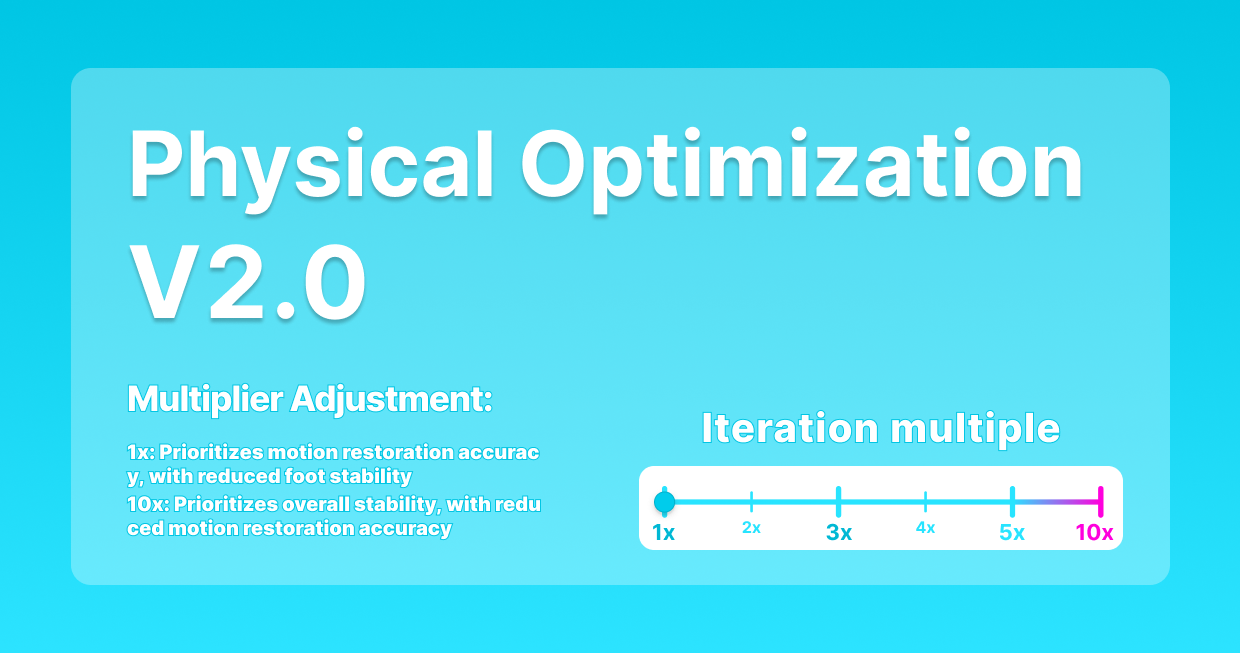
Original QuickMagic Physical Optimization V2.0 iteration multiplier graphic
Original graphic, embedded and compressed. The page uses “Physical Optimization” in the image and “Physics Optimization” in surrounding product copy.

Frequently asked questions

What does Physics Optimization 2.0 do?

It provides 1×–10× iteration multipliers that trade source fidelity and movement amplitude for increasing smoothness and stability.

Which iteration should I choose?

Start at 1× or 2×, test 3×–5× for moderate instability, and use 10× only when strong stabilization is needed. Approve the result only after checking energy and timing.

Is it the same as Animation Base Model V2.0?

No. The base model reconstructs complex motion; Physics Optimization adjusts the reconstructed result. Current QuickMagic versions can integrate both controls.

Can 10× fix all foot sliding?

No. Target proportions and retargeting can introduce sliding after export. Correct target root speed and stride, then use timed foot IK or Speed Planting.

Why does 10× feel weak?

Higher values reduce movement amplitude and soften transitions. This can weaken jumps, impacts, kicks and expressive motion.

Can it fix mesh clipping?

It can help only when clipping starts with an incorrect source pose. Clean source bones with a clipping mesh indicate a target skinning or rig problem.

Should I smooth every animation curve?

No. Smooth only verified noisy bones and intervals after retargeting and contact validation.

Do I still need downstream cleanup?

Often yes. Final characters and environments require retargeting, target contacts, terrain/prop interaction, curve cleanup and mesh-deformation validation.

Related QuickMagic guides

Test three values on the hardest ten seconds

Generate 1×, a middle value and 10× with all other settings fixed. Retarget the best two to the final character and choose the version with the lowest total cleanup cost.

Open QuickMagic AI Motion Capture →

Official and primary references


