





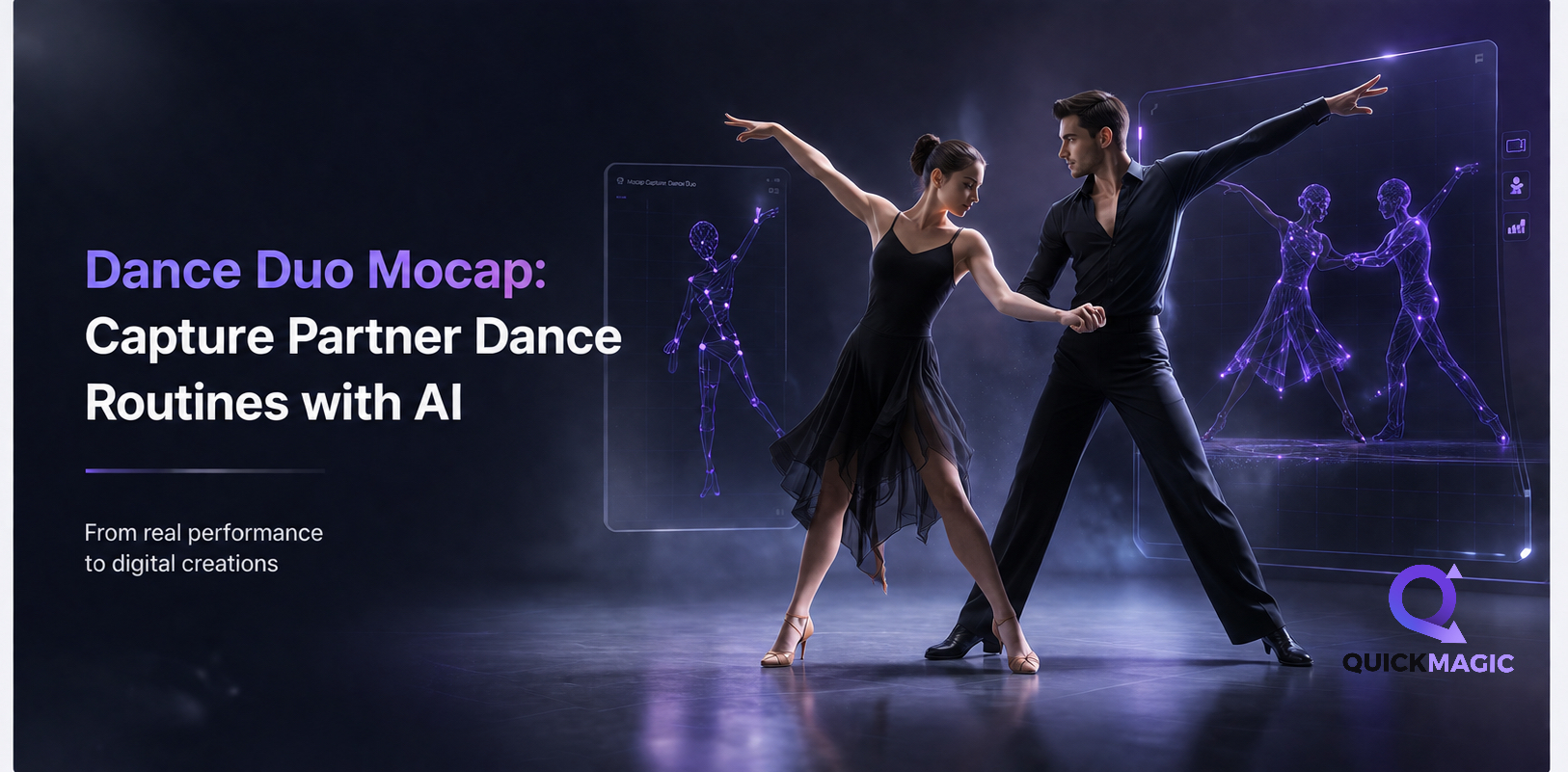
Tanz-Duo Mocap: Partner-Tanzroutinen mit KI erfassen
- Warum Partner-Tanz-Mocap einzigartig herausfordernd ist
- Tanzstile, die von Duo-Mocap profitieren
- Was Sie vor dem Start benötigen
- So erfassen Sie Partner-Tanz-Animationen mit KI
- -- Schritt 1: Nehmen Sie Ihr Partner-Tanz-Referenzvideo auf
- -- Schritt 2: Hochladen und Konfigurieren des Mehrpersonen-Trackings
- -- Schritt 3: Überprüfen und Bereinigen der Duo-Animationsdaten
- -- Schritt 4: Exportieren und Retargeting beider Charaktere
- -- Schritt 5: Verfeinern und Finalisieren der Partner-Animationen
- Professionelle Tipps für die Duo-Tanz-Mocap-Qualität
- Häufige Herausforderungen beim Duo-Tanz-Mocap und Lösungen
- Häufig gestellte Fragen
Warum Partner-Tanz-Mocap einzigartig herausfordernd ist
Ja, man kann Bewegungen von zwei Personen beim Tanzen erfassen, ohne teure Motion-Capture-Studios oder Sensoranzüge. KI-basierte Videotools wie QuickMagic können mehrere Tänzer aus einer einzigen Videoaufnahme verfolgen und ihre Bewegungen in bearbeitbare 3D-Animationsdaten umwandeln. Dieser Leitfaden deckt den gesamten Workflow ab, von der Aufnahme Ihres Referenzmaterials bis zur Verfeinerung der endgültigen Animation.
Partner-Tanz ist eines der schwierigsten Dinge, die man von Hand animieren kann. Zwei Körper, die sich synchron bewegen – Hebungen, Drehungen, enge Umarmungen, Gewichtsverlagerungen – erfordern eine bildgenaue Koordination, an der selbst erfahrene Animateure Wochen arbeiten. Optisches Motion-Capture kann diese Szenarien bewältigen, aber die Kosten und die Komplexität machen es für die meisten Kreativen unerreichbar.
QuickMagic wurde für Kreative entwickelt, die schnelles, zugängliches Motion-Capture ohne herkömmliche Ausrüstung benötigen. Der Mehrpersonen-Workflow ermöglicht es Ihnen, ein Duo mit einem einzigen Video aufzunehmen, beide Darsteller gleichzeitig zu verfolgen und synchronisierte Animationsdaten zu produzieren, die für Ihre 3D-Software bereit sind. Mit dem richtigen Aufbau beim Filmen und gezielter Nachbearbeitung können Sie hochwertige Ergebnisse erzielen, die für die professionelle Spieleentwicklung, virtuelle Produktion und Film-Previs geeignet sind.
- Hochwertiges optisches Studio mit teurer Ausrüstung
- Zwei Darsteller in vollständigen Marker-Anzügen
- Dediziertes Technikerteam für die Reinigung
- Okkultion verursacht stundenlange manuelle Nachbearbeitung
- Lange Einrichtung und Kalibrierung pro Sitzung
- Einzelne Handykamera oder Webcam
- Alltagskleidung – keine Marker oder Anzüge
- KI übernimmt die Reinigung automatisch
- Mehrpersonen-Tracking bewältigt engen Körperkontakt
- Effiziente Verarbeitung vom Upload bis zum Export
Partner-Tanz-Animation: traditionelle optische Pipeline vs. QuickMagic KI-Mehrpersonen-Tracking. Beide Darsteller werden gleichzeitig aus einer einzigen Videoquelle erfasst.
Tanzstile, die von Duo-Mocap profitieren
Jede Partner-Choreografie kann mit Mehrpersonen-Tanz-Tracking erfasst werden, aber einige Stile profitieren besonders stark im Vergleich zum manuellen Keyframing:
Lateinamerikanische Tänze
Salsa, Bachata, Cha-Cha. Die Hüftbewegungen, Drehungen und schnellen Fußarbeit, die lateinische Tänze lebendig machen, sind genau die Dinge, die von Hand ewig dauern. Die KI erfasst jede subtile Gewichtsverlagerung.
Swing und Lindy Hop
Aufwändige Hebefiguren, schnelle Partnerwechsel und Rhythmus-Bewegungen. Der Mehrpersonen-Tracker bewahrt die dynamische Energie, die Swing authentisch macht.
Ballett Pas de Deux
Präzise Hebungen, Arabesken-Balancen, unterstützte Pirouetten. Das Oberkörper-Tracking erfasst die subtilen Hand-Hüft-Berührungspunkte, die das klassische Tanzen zu zweit ausmachen.
Zeitgenössisch und Modern
Kontaktimprovisation, Gewichtsverlagerung, Bodenarbeit. Die körperliche Nähe, die diese Stile mit traditionellem Mocap schwierig macht, wird mit KI-Tracking gut bewältigt.
Hip-Hop Duo
Popping, Locking, Breaking-Battles. Schnelle Richtungswechsel und Isolationen lassen sich bei 30 oder 60 fps sauber erfassen.
Tango
Enge Umarmung, scharfe Kopfbewegungen, komplizierte Beinwickel. Der KI-Tracker kann zwei Körper selbst in engen Haltungen unterscheiden, wenn aus dem richtigen Winkel gefilmt wird.
Was Sie vor dem Start benötigen
| Gegenstand | Anforderung | Warum es wichtig ist |
|---|---|---|
| Tanzvideo | Handy oder Kamera, mindestens 1080p, 30 fps Minimum | Auflösung und Bildrate bestimmen die Tracking-Genauigkeit. Höher ist besser. |
| Zwei Tänzer | Vollständiger Körper beider Darsteller sichtbar | Mehrpersonen-Tracking benötigt beide Personen im Bild mit klaren Körperumrissen. |
| Kontrastreiche Kleidung | Tänzer tragen verschiedene Farben; vermeiden Sie passende Outfits | Hilft der KI, die Identität zu verfolgen, wenn Tänzer sich kreuzen oder nahe kommen. |
| Freiraum | Mindestens 6x6 Meter; klarer Hintergrund | Reduziert Hintergrundunruhe, die Personenerkennungsmodelle verwirren kann. |
| Gute Beleuchtung | Gleichmäßiges, diffuses Licht; starkes Gegenlicht vermeiden | Schlechte Beleuchtung ist die häufigste Ursache für Tracking-Fehler. Siehe unsere Tipps zur Verbesserung der KI-Motion-Capture-Qualität. |
| QuickMagic-Konto | Kostenlose Stufe funktioniert; kostenpflichtige Pläne für längere Videos | Hier anmelden. |
So erfassen Sie Partner-Tanz-Animationen mit KI
Befolgen Sie diese fünf Schritte, um ein Partner-Tanzvideo in synchronisierte 3D-Animationsdaten umzuwandeln. Der Prozess funktioniert mit jedem Tanzstil und exportiert in alle gängigen 3D-Softwarepakete.
Schritt 1: Nehmen Sie Ihr Partner-Tanz-Referenzvideo auf
Das Filmen für Tanz-Duo-Mocap unterscheidet sich von der Aufnahme eines Performance-Videos. Sie filmen für die KI, nicht für ein Publikum. Folgendes ist wichtig:
Kamerawinkel: Frontal, leicht erhöht
Positionieren Sie die Kamera ungefähr auf Brusthöhe, geradeaus auf die Tanzfläche gerichtet. Bei Partner-Tänzen mit Hebungen (Ballett, Swing-Aerials) erhöhen Sie die Kamera auf Kopfhöhe, damit die gehobene Tänzerin nicht aus dem Bild verschwindet. Vermeiden Sie niedrige Winkel – sie erschweren der KI das Bein-Tracking. Ein leichter Aufwärtswinkel von etwa 10 bis 15 Grad funktioniert am besten für die meisten Partner-Stile.
Abstand: Beide Tänzer von Kopf bis Fuß einrahmen
Stehen Sie weit genug zurück, sodass beide Tänzer während der gesamten Routine vollständig sichtbar sind – Kopf bis Fuß. Bei einem sich schnell bewegenden Tanz wie Salsa oder Swing lassen Sie zusätzlichen Platz an den Seiten. Die Faustregel: Wenn auch nur einmal die Füße oder Hände eines Tänzers den Bildausschnitt verlassen, wird das Tracking gestört. Filmen Sie lieber etwas zu weit als zu eng.
Beleuchtung: Hell, gleichmäßig, keine Schatten auf den Tänzern
Natürliches Fensterlicht von vorne oder der Seite ist ideal. Vermeiden Sie Deckenstrahler, die harte Schatten auf den Boden werfen – die KI kann Schatten mit Gliedmaßen verwechseln. Wenn Sie drinnen filmen, verwenden Sie zwei weiche Lichter, die in einem 45-Grad-Winkel zur Tanzfläche angebracht sind. Unsere Tipps zur Verbesserung der KI-Motion-Capture-Qualität behandelt Beleuchtungsaufbauten im Detail.
Hintergrund: Einfach und aufgeräumt
Eine schlichte Wand, ein Studiobackdrop oder ein leerer Raum funktionieren am besten. Komplexe Hintergründe (gemusterte Tapeten, Möbel, andere Personen) verwirren das Personenerkennungsmodell. Wenn Sie im Freien filmen müssen, wählen Sie einen offenen Raum mit Gras oder Pflaster – vermeiden Sie Baumreihen oder Gebäude, die visuelles Rauschen hinter den Tänzern erzeugen.
Stabilisieren: Stativ erforderlich, Fokus und Belichtung sperren
Filmen Sie nicht aus der Hand. Kameraverwacklungen erzeugen Rauschen, das die KI umgehen muss, was die Tracking-Genauigkeit verringert. Verwenden Sie ein Stativ oder legen Sie Ihr Handy auf eine stabile Oberfläche. Bei den meisten Handys können Sie durch langes Drücken auf den Bildschirm Fokus und Belichtung sperren – dies verhindert, dass die automatische Belichtung während des Tanzes umschaltet und die helligkeitsabhängigen Tracking-Modelle verwirrt.
Schritt 2: Hochladen und Konfigurieren des Mehrpersonen-Trackings
Sobald Sie Ihr Referenzvideo haben, gehen Sie zum QuickMagic-Dashboard. Der Mehrpersonen-Tracking-Workflow macht die Partner-Tanz-Animation möglich:
Erstellen Sie ein neues Projekt und laden Sie Ihr Video hoch
Klicken Sie auf dem QuickMagic-Dashboard auf Neues Projekt, wählen Sie Video zu Bewegung und laden Sie Ihr Tanzmaterial hoch. Unterstützte Formate sind MP4, MOV und AVI. Für beste Ergebnisse laden Sie Ihre qualitativ hochwertigste Quelldatei hoch – komprimieren oder kodieren Sie sie nicht vorher um.
Mehrpersonen-Modus auswählen
Schalten Sie im Bedienfeld für die Verarbeitungseinstellungen Mehrpersonen-Tracking auf EIN. QuickMagic erkennt automatisch alle sichtbaren Personen im Video. In der Vorschau sollten zwei erkannte Subjekte erscheinen. Wenn das System mehr als zwei erkennt (z. B. durch Hintergrundpersonen oder Spiegelungen), können Sie die Anzahl der zu verfolgenden Subjekte manuell angeben.
Wichtig: Mehrpersonen-Tracking verbraucht mehr Verarbeitungsguthaben als der Einzelpersonen-Modus. Jede pro Sekunde Video verfolgte Person verbraucht ein Guthaben (plus optionale Gesichts- und Hand-Tracking-Add-ons). Planen Sie Ihre Videolänge entsprechend.
Tracking-Einstellungen konfigurieren
Für die Partner-Tanz-Erfassung sind diese Einstellungen am wichtigsten:
- Tracking-Modus: Ganzkörper (nicht Oberkörper). Partner-Tänze beinhalten Fußarbeit, Hebungen und Beinwickel – Sie benötigen vollständige Körperdaten.
- Hand-Tracking: EIN. Partner-Verbindungspunkte (Händchenhalten, Hüftgriffe, Schulterkontakte) sind entscheidend. Handdaten halten diese Interaktionen physikalisch korrekt.
- Gesichts-Tracking: Optional. Aktivieren Sie es, wenn Sie die Animation für Nahaufnahmen im Film verwenden möchten, bei denen der Gesichtsausdruck wichtig ist.
- Ausgabe-Bildrate: Passen Sie sie an Ihre Videoquelle an. Wenn Sie mit 30 fps gefilmt haben, exportieren Sie mit 30 fps. Wenn Sie mit 60 fps für Zeitlupen-Feinschliff gefilmt haben, exportieren Sie mit 60 fps.
Verarbeiten starten
Klicken Sie auf Verarbeitung starten. Abhängig von Ihrer Videolänge und Ihrem Tarif dauert die Verarbeitung zwischen 2 und 15 Minuten. Sie erhalten eine Benachrichtigung, wenn die Animationsdaten zur Überprüfung bereit sind.
Schritt 3: Überprüfen und Bereinigen der Duo-Animationsdaten
Sobald die Verarbeitung abgeschlossen ist, sehen Sie beide verfolgten Charaktere im QuickMagic-Viewer, über einer 3D-Grundebene eingeblendet. Hier unterscheidet sich die Duo-Erfassung am meisten von der Einzelpersonen-Arbeit – Sie betrachten zwei Skelette, die gemeinsam überprüft werden müssen.
Beide Animationen gleichzeitig abspielen
Blättern Sie mit beiden Charakter-Skeletten sichtbar durch die Zeitleiste. Achten Sie besonders auf Momente, in denen die Tänzer am nächsten sind – Handverbindungen, Hebe-Punkte und Umarmungspositionen. Wenn der Arm eines Tänzers an einem Kontaktpunkt in den anderen schneidet, müssen Sie das im nächsten Schritt beheben.
Auf Identitätswechsel prüfen
Bei schnellen Drehungen oder wenn Tänzer sich kreuzen, kann die KI kurzzeitig verlieren, welcher Körper welcher ist. Das Identitäts-Tracking-Modell von QuickMagic ist robust, aber überprüfen Sie diese spezifischen Momente: schnelle Unterarmdrehungen im Salsa, vorbeiziehende Passagen im Swing und rotierende Hebungen im Ballett. Wenn Sie einen Identitätswechsel bemerken (Tänzer A wird kurzzeitig zu Tänzer B), können Sie das normalerweise beheben, indem Sie die Verarbeitung mit einer anderen Einstellung für die Anzahl der Subjekte wiederholen.
Integrierte Bereinigungswerkzeuge von QuickMagic ausführen
Verwenden Sie das Bedienfeld Bewegungsbereinigung, um häufige Duo-Tracking-Artefakte zu beheben:
- Fußgleiten: Aktivieren Sie die Fußsperre, um den häufigen „Moonwalk“-Effekt auf Bodenkontakt-Frames zu verhindern. Dies ist besonders wichtig für Partner-Tänze mit präziser Fußarbeit wie Tango oder Gesellschaftstanz.
- Ruckeln glätten: Wenden Sie eine milde Glättung an (Stufe 2-3 von 10), um Mikroruckeln zu reduzieren, ohne die Schärfe schneller Tanzbewegungen zu verlieren. Zu starkes Glätten tötet die Energie der Performance.
- Bodenkontakt: Passen Sie die Bodenebene an Ihre tatsächliche Bodenfläche an. Beide Tänzer sollten konsistenten, glaubwürdigen Bodenkontakt haben.
Für eine tiefergehende Anleitung zu Bereinigungs-Workflows siehe unseren Leitfaden zur MoCap-Physik-Bereinigung.
Beide Animationen exportieren
Jedes verfolgte Subjekt wird als unabhängige Animationsdatei exportiert. Wählen Sie Ihr Format basierend auf Ihrer Zielsoftware:
| Zielsoftware | Empfohlenes Format | Hinweise |
|---|---|---|
| Blender | FBX | Beste Kompatibilität mit Blenders Import-Pipeline. BVH funktioniert auch, wenn Sie es bevorzugen. |
| Unreal Engine 5 | FBX | Direkter Import in UE5-Skelett. Verwenden Sie den QuickMagic-zu-UE5-Workflow für Schritt-für-Schritt-Anweisungen. |
| Unity | FBX | Funktioniert mit Unitys Humanoid-Rig und Mecanim-System. |
| Maya | FBX oder BVH |


