


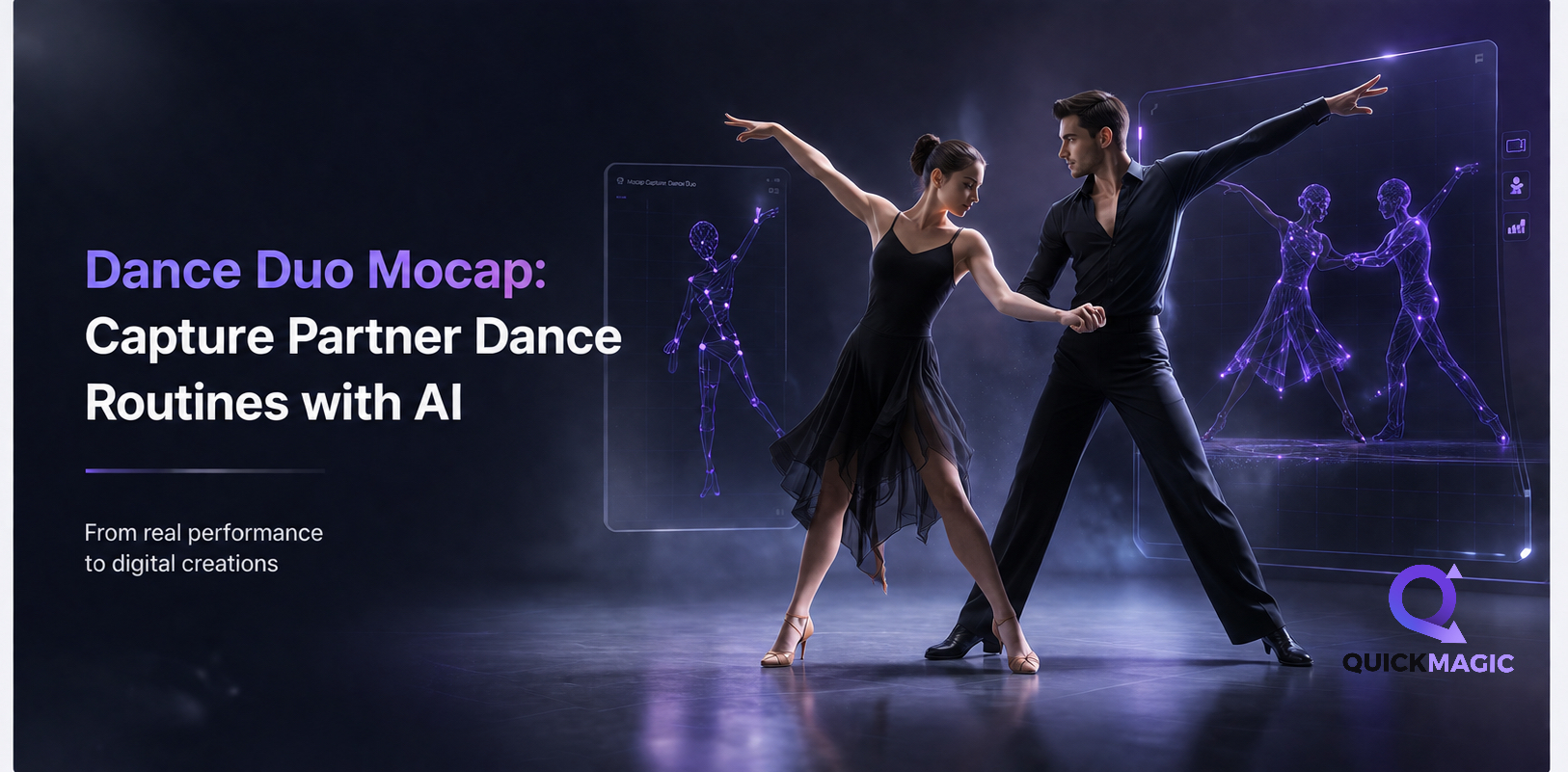
Dance Duo Mocap: Capture Partner Dance Routines with AI
- Why Partner Dance Mocap Is Uniquely Challenging
- Dance Styles That Benefit from Duo Mocap
- What You Need Before You Start
- How to Capture Partner Dance Animation with AI
- -- Step 1: Film Your Partner Dance Reference Video
- -- Step 2: Upload and Configure Multi-Subject Tracking
- -- Step 3: Review and Clean Up Duo Animation Data
- -- Step 4: Export and Retarget Both Characters
- -- Step 5: Polish and Finalize Partner Animations
- Pro Tips for Duo Dance Mocap Quality
- Common Duo Dance Mocap Challenges and Solutions
- Frequently Asked Questions
Why Partner Dance Mocap Is Uniquely Challenging
Yes, you can capture two-person dance movements without expensive motion capture studios or sensor suits. AI video-based tools like QuickMagic can track multiple dancers from a single video recording and convert their movements into editable 3D animation data. This guide covers the complete workflow, from recording your reference footage to refining the final animation.
Partner dance is one of the hardest things to animate by hand. Two bodies moving in sync -- lifts, spins, close-contact holds, weight transfers -- demand frame-perfect coordination that even experienced animators spend weeks getting right. Traditional optical capture can handle these scenarios, but the cost and complexity kept it out of reach for most creators.
QuickMagic is designed for creators who need fast, accessible motion capture without traditional equipment. Its multi-subject workflow lets you record a duo from a single video, track both performers simultaneously, and produce synchronized animation data ready for your 3D software. With the right filming setup and some targeted cleanup, you can achieve high-quality results suitable for professional game development, virtual production, and cinematic previs.
- High-end optical studio with expensive equipment
- Two performers in full marker suits
- Dedicated technician team for cleanup
- Occlusion causes hours of manual retouching
- Lengthy setup and calibration per session
- Single phone camera or webcam
- Street clothes -- no markers or suits
- AI handles cleanup automatically
- Multi-subject tracking handles close contact
- Efficient processing from upload to export
Partner dance animation: traditional optical pipeline vs QuickMagic AI multi-subject tracking. Both performers are tracked simultaneously from a single video source.
Dance Styles That Benefit from Duo Mocap
Any partner routine can be captured with multi-person dance tracking, but some styles see particularly dramatic improvements over manual keyframing:
Latin Ballroom
Salsa, bachata, cha-cha. The hip motion, spins, and fast footwork that make Latin dances feel alive are the exact things that take forever to animate by hand. AI tracking captures every subtle weight shift.
Swing and Lindy Hop
High-energy aerials, fast partner switches, and bounce rhythms. The multi-subject tracker preserves the dynamic energy that makes swing feel authentic.
Ballet Pas de Deux
Precise lifts, arabesque balances, supported pirouettes. The upper-body tracking captures the subtle hand-to-waist contact points that define classical partnering.
Contemporary and Modern
Contact improvisation, weight-sharing, floor work. The physical closeness that makes these styles hard to capture with traditional mocap is handled well with AI tracking.
Hip-Hop Duo
Popping, locking, breaking battles. Quick direction changes and isolation moves translate cleanly at 30 or 60 fps capture.
Tango
Close embrace, sharp head snaps, intricate leg wraps. The AI tracker can distinguish two bodies even in tight holds when filmed from the right angle.
What You Need Before You Start
| Item | Requirement | Why It Matters |
|---|---|---|
| Dance video | Phone or camera, at least 1080p, 30 fps minimum | Resolution and frame rate determine tracking accuracy. Higher is better. |
| Two dancers | Full body visible for both performers | Multi-subject tracking needs both people in frame with clear body outlines. |
| Contrasting clothing | Dancers wear different colors; avoid matching outfits | Helps the AI maintain identity tracking when dancers cross paths or come close. |
| Open space | 6x6 meters minimum; clear background | Reduces background clutter that can confuse person-detection models. |
| Good lighting | Even, diffused light; avoid strong backlight | Poor lighting is the #1 cause of tracking failures. See our AI motion capture recording tips. |
| QuickMagic account | Free tier works; paid plans for longer videos | Sign up here. |
How to Capture Partner Dance Animation with AI
Follow these five steps to turn a partner dance video into synchronized 3D animation data. The process works with any dance style and exports to all major 3D software packages.
Step 1: Film Your Partner Dance Reference Video
Filming for dance duo mocap is different from shooting a performance video. You are filming for the AI, not for an audience. Here is what matters:
Camera Angle: Straight-On, Slightly Elevated
Position the camera at roughly chest height, pointed straight at the performance space. For partner dances with lifts (ballet, swing aerials), raise the camera to head height so the lifted dancer does not leave the frame. Avoid low angles -- they make leg tracking harder for the AI. A slight downward angle of about 10 to 15 degrees works best for most partner styles.
Distance: Frame Both Dancers from Head to Toe
Stand far enough back that both dancers are fully visible -- head to toe -- throughout the entire routine. For a fast-traveling dance like salsa or swing, leave extra space on the sides. The rule of thumb: if either dancer's feet or hands leave the frame even once, the tracking will glitch. Better to film slightly too wide than slightly too tight.
Lighting: Bright, Even, No Shadows on Dancers
Natural window light from the front or side is ideal. Avoid overhead spotlights that cast harsh shadows on the floor -- the AI can mistake shadows for limbs. If filming indoors, use two soft lights placed at 45-degree angles to the performance space. Our AI motion capture recording tips covers lighting setups in detail.
Background: Simple and Uncluttered
A plain wall, studio backdrop, or empty room works best. Complex backgrounds (busy wallpaper, furniture, other people) confuse the person-detection model. If you must film outdoors, choose an open space with grass or pavement -- avoid tree lines or buildings that create visual noise behind the dancers.
Stabilize: Tripod Required, Lock Focus and Exposure
Do not film handheld. Camera shake adds noise that the AI has to work around, reducing tracking accuracy. Use a tripod or rest your phone on a stable surface. On most phones, long-press the screen to lock focus and exposure -- this prevents the auto-exposure from shifting mid-dance and confusing the brightness-dependent tracking models.
Step 2: Upload and Configure Multi-Subject Tracking
Once you have your reference video, head to the QuickMagic dashboard. The multi-subject tracking workflow is what makes partner dance animation capture possible:
Create a New Project and Upload Your Video
Click New Project on the QuickMagic dashboard, select Video to Motion, and upload your dance footage. Supported formats include MP4, MOV, and AVI. For best results, upload your highest-quality source file -- do not compress or re-encode it first.
Select Multi-Subject Mode
In the processing settings panel, toggle Multi-Subject Tracking to ON. QuickMagic will automatically detect all visible people in the video. You should see two detected subjects appear in the preview. If the system detects more than two (e.g., from background people or reflections), you can manually specify the number of subjects to track.
Important: Multi-subject tracking uses more processing credits than single-subject mode. Each person tracked per second of video consumes one credit (plus optional face and hand tracking add-ons). Plan your video length accordingly.
Configure Tracking Settings
For partner dance capture, these settings matter most:
- Tracking Mode: Full-Body (not Upper-Body). Partner dances involve footwork, lifts, and leg wraps -- you need complete body data.
- Hand Tracking: ON. Partner connection points (hand holds, waist grips, shoulder contacts) are critical. Hand data keeps those interactions physically accurate.
- Face Tracking: Optional. Enable it if you plan to use the animation for close-up cinematic shots where facial expression matters.
- Output Frame Rate: Match your video source. If you filmed at 30 fps, export at 30 fps. If you filmed at 60 fps for slow-motion polish, export at 60 fps.
Submit and Process
Click Start Processing. Depending on your video length and plan tier, processing takes anywhere from 2 to 15 minutes. You will receive a notification when the animation data is ready for review.
Step 3: Review and Clean Up Duo Animation Data
Once processing completes, you will see both tracked characters in the QuickMagic viewer, overlaid on a 3D ground plane. This is where duo capture differs most from single-person work -- you are looking at two skeletons that need to be reviewed together.
Play Through Both Animations Simultaneously
Scrub through the timeline with both character skeletons visible. Pay special attention to moments where the dancers are closest -- hand connections, lift points, and embrace positions. If one dancer's arm clips through the other at a contact point, you will need to fix that in the next step.
Check for Identity Swaps
In fast spins or when dancers cross paths, the AI may briefly lose track of which body is which. QuickMagic's identity-tracking model is robust, but check these specific moments: rapid underarm turns in salsa, traveling pass-by movements in swing, and rotational lifts in ballet. If you spot an identity swap (dancer A briefly becomes dancer B), you can usually fix it by re-running the processing with a different subject-count setting.
Run QuickMagic's Built-In Cleanup Tools
Use the Motion Cleanup panel to address common duo-tracking artifacts:
- Foot Sliding: Enable foot-locking to prevent the common "moonwalk" effect on floor contact frames. This is especially important for partner dances with precise footwork like tango or ballroom.
- Jitter Smoothing: Apply mild smoothing (setting 2-3 out of 10) to reduce micro-jitter without losing the sharpness of quick dance movements. Over-smoothing will kill the energy of the performance.
- Ground Contact: Adjust the ground plane to match your actual floor surface. Both dancers should make consistent, believable floor contact.
For a deeper dive into cleanup workflows, see our MoCap physics cleanup guide.
Export Both Animations
Each tracked subject exports as an independent animation file. Choose your format based on your target software:
| Target Software | Recommended Format | Notes |
|---|---|---|
| Blender | FBX | Best compatibility with Blender's import pipeline. BVH also works if you prefer. |
| Unreal Engine 5 | FBX | Direct import to UE5 skeleton. Use the QuickMagic-to-UE5 workflow for step-by-step instructions. |
| Unity | FBX | Works with Unity's Humanoid rig and Mecanim system. |
| Maya | FBX or BVH | FBX preserves the skeleton hierarchy. BVH is lighter for motion-editing workflows. |
| 3ds Max | BIP (biped) | Directly maps to 3ds Max Biped rigs. See our 3ds Max cleanup guide. |
Step 4: Export and Retarget Both Characters
With both animation files downloaded, the next step is to bring them into your 3D software and apply them to your character rigs. This is a standard retargeting workflow, but with one important difference: you must maintain synchronization between the two animations.
Import Both FBX Files into the Same Scene
In Blender, UE5, or Maya, import dancer A's animation and dancer B's animation into the same project file. They should share the same world origin so their positions relative to each other are preserved. QuickMagic exports both animations with a shared coordinate space, so they should line up automatically.
Retarget to Your Character Rigs
Map each animation to its target character rig using your software's retargeting system:
- Blender: Use the Action Editor and bone-mapping to apply animation data. Our Blender workflow guide shows the full process.
- Unreal Engine 5: Use IK Retargeter to map the QuickMagic skeleton to your UE5 Mannequin or MetaHuman rig. See the MetaHuman retargeting guide.
- Maya: Use HumanIK or the QuickMagic ADV Plugin for direct retargeting within Maya.
Verify Timing Synchronization
Play both character animations together and verify that they stay in sync. The hand-connection point at 0:15 should still match at 0:15 on both characters. If the animations drift apart, check that both FBX files were exported at the same frame rate and neither was resampled during import.
Step 5: Polish and Finalize Partner Animations
Raw AI-tracked data almost always needs some polish before it looks production-ready. For partner dance animations, focus on these areas:
Fix Contact Points
The most common duo mocap artifact is contact-point drift: hands that should be touching floating slightly apart, or a lift support hand that sinks into the lifted dancer's ribcage. In your 3D software, add IK constraints at key contact frames (handholds, lift points, embrace positions) to lock the physical connection. Most partner dances have only 3-5 key contact points per routine, so this is faster to fix than it sounds.
Smooth Foot Sliding
Even with QuickMagic's built-in foot-locking, fast footwork (cha-cha shuffles, tango steps) may show residual sliding. In Blender, add a Limit Location constraint to the foot bones at ground-contact frames. In Maya, use the graph editor to flatten foot-bone translation curves during contact periods. See our motion capture problems guide for detailed workflows.
Refine Hand and Finger Animation
If you enabled hand tracking, you will have finger-level data for both dancers. This is great for expressive dance styles where hand styling matters (Latin, contemporary, hip-hop). If the fingers feel too noisy, apply a gentle smooth filter to the finger joints while keeping the wrist and arm data clean. For styles with specific hand positions (flamenco, ballet), you may want to manually pose key hand frames and let the AI handle the body.
Pro Tips for Duo Dance Mocap Quality
Common Duo Dance Mocap Challenges and Solutions
| Challenge | Why It Happens | Solution |
|---|---|---|
| Close embrace hand drift | AI loses track of whose hand is whose when bodies are pressed together | Film from a 45-degree side angle instead of straight-on. Add IK constraints at embrace keyframes. |
| Lift tracking failure | One dancer leaves the ground plane; AI expects floor contact | Raise the camera to head height. Ensure the lifted dancer is fully visible. Process lift sections as separate segments. |
| Fast spin identity swap | Rapid rotation confuses person-identity model | Have dancers wear strongly contrasting colors. Add a brief separation moment (solo turn) between spins to re-establish identity. |
| Separation from ground | Dancer slides upward or floats above the floor plane | Adjust the ground plane in QuickMagic cleanup tools. Apply Z-axis constraints in your 3D software. |
| Arm interpenetration | Arms cross through partner's body during wraps or embraces | Manual correction in your 3D editor. Add collision volumes around key body areas if your software supports it. |
| Uneven tracking quality between dancers | One dancer is farther from camera, smaller in frame, or in softer light | Position dancers equidistant from camera. Equalize lighting on both performers. Consider shooting wider so both occupy similar screen space. |
Frequently Asked Questions
Can QuickMagic really track two dancers from a single video?
Yes. QuickMagic's multi-subject tracking mode detects and tracks multiple people simultaneously from one video source. The system runs person detection, identity tracking, and pose estimation for each detected subject, producing independent animation data for each dancer. No multi-camera setup, no sensor suits, no optical markers are needed.
What happens when dancers touch or embrace?
This is the most common question about dance duo capture. When two bodies come into close contact (embrace, handhold, lift), the AI may briefly lose clarity on limb ownership. However, QuickMagic's tracking model is designed to handle moderate occlusion. The key is filming angle: a 45-degree side angle preserves enough visual separation between bodies that the AI can maintain identity even during embraces. Post-processing cleanup (IK constraints at contact frames) handles the remaining ambiguity.
How many dancers can I capture at once?
QuickMagic supports multi-subject tracking for group scenes beyond duos. The practical limit depends on video resolution, spacing between dancers, and your plan tier. For best results with 3+ dancers, ensure all performers are clearly visible with adequate separation. Crowded formations where dancers overlap extensively will challenge any AI tracking system.
Do the dancers need to wear special clothing?
No markers, suits, or specialized gear are required. The two dancers should wear different colors from each other and from the background. This simple contrast rule dramatically improves identity-tracking accuracy. Tight-fitting clothing (yoga wear, leotards) tracks better than loose or flowing garments that obscure body shape.
What export formats work best for duo animations?
FBX is the recommended format for most workflows because it preserves skeleton hierarchy, frame rate, and relative positioning. Each dancer exports as a separate FBX file with a shared coordinate origin, so both files load into your 3D scene already spatially aligned. BVH, BIP, and C4D formats are also available.
Can I use this for a commercial dance game or film project?
Absolutely. QuickMagic supports production workflows for game animation, virtual character creation, and cinematic previs. Game studios, indie developers, and film previs teams use the platform to generate high-quality animation data. The free tier is suitable for testing and short clips; paid plans support longer videos with faster processing. All exported animation data is yours to use commercially without additional licensing.
Does QuickMagic work with TikTok or Instagram dance videos?
Yes, as long as the video meets the quality requirements (1080p+, good lighting, full body visible). However, social media videos are often heavily compressed, which degrades tracking quality. For best results, use the original uncompressed source footage rather than a downloaded/re-uploaded social media version.
How is duo dance tracking different from single-person tracking?
The core difference is that multi-person dance tracking must maintain two independent identity tracks while the subjects interact. This is computationally harder because the AI has to solve two simultaneous pose-estimation problems while also distinguishing which limbs belong to which person. The result, however, is genuinely transformational: you get a complete, synchronized record of a partner interaction that would be nearly impossible to animate convincingly by hand.
Related Tutorials
- Full-Body vs Upper-Body Tracking: Which One Do You Actually Need? -- Understanding tracking modes for dance capture.
- How to Improve AI Motion Capture Quality: 15 Tips -- Optimize lighting, camera setup, and subject visibility.
- How to Fix Common Motion Capture Problems -- Clean up foot sliding, jitter, and mesh clipping after capture.
- MoCap Physics Cleanup: Fix Animation Artifacts -- Advanced cleanup for interaction-heavy animations.
- QuickMagic to Unreal Engine 5: Complete Workflow -- Retarget duo animations onto UE5 characters.
- Video to Blender Animation: Complete Workflow -- Import and retarget duo mocap data in Blender.
- AI Video Motion Capture for Football Gameplay -- Another multi-person athletic motion capture workflow.
Ready to Capture Your Dance Duo?
Upload your partner dance video and turn it into 3D animation in minutes. No suits, no studio, no expensive hardware.
Try QuickMagic FreeQuickMagic AI Motion Capture -- The fastest way to turn dance videos into 3D animation.




